
The Artist Portal allows you to offer a place for your artists to manage their own catalog.
Allowing them to upload their catalog, manage their metadata, create albums and manage their artist profiles on the system.
Please note: those with access to the Artist Portal aren’t always artists, they could also be managers, A&R teams, sub-labels etc. during this article we will refer to artists but know it refers to all who have access to the Artist Portal.
Artist Portal - For The Admins - How To Video:
Creating an Artist
Firstly your artist will need to have an artist page within the Catalog section of your admin. Navigate to the Catalog section, select the artist Artist dropdown, and create your artist. Check out this article here for creating, editing and managing your artist pages.
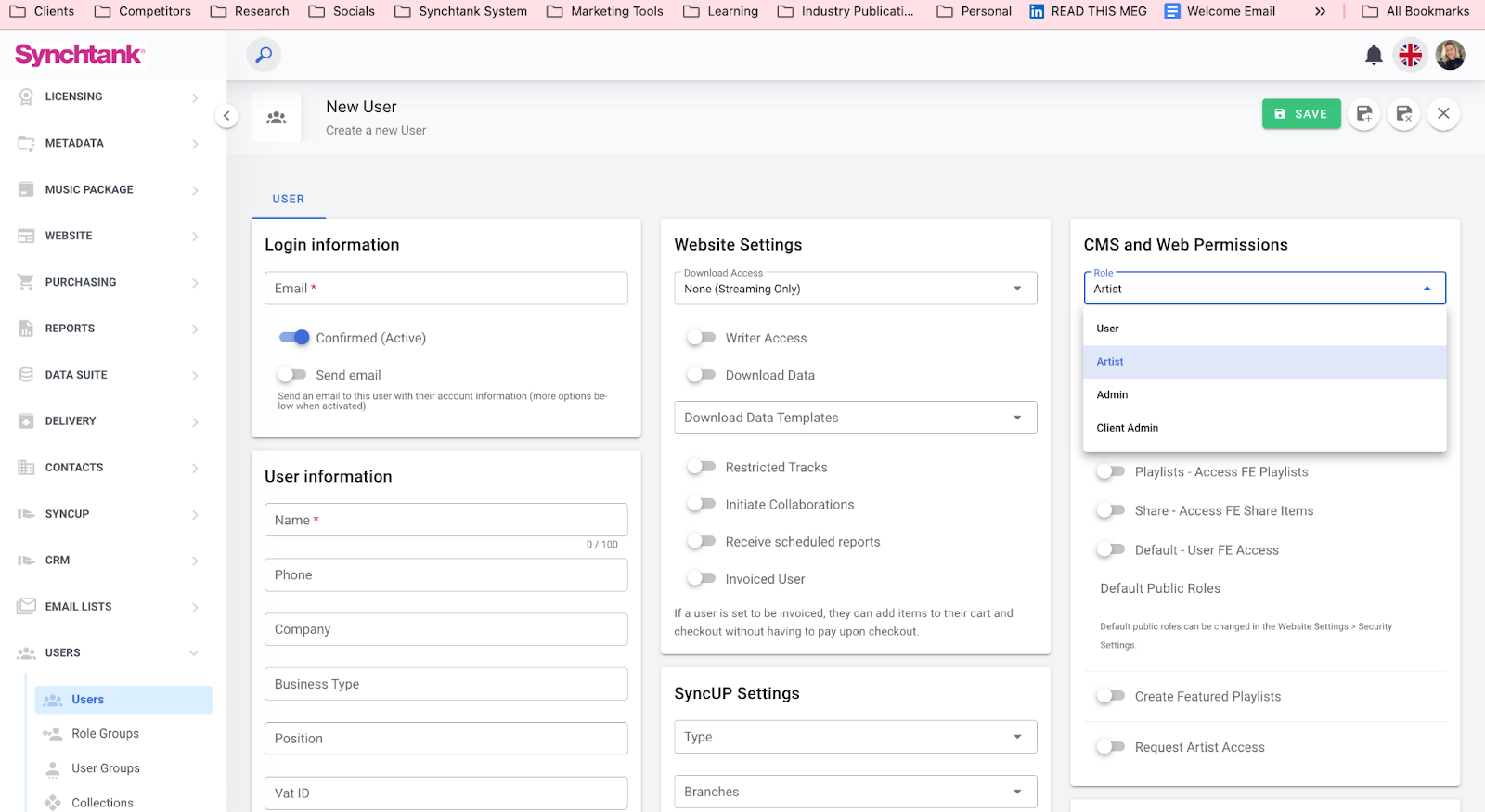
Next you need to give the artist access to their page, by assigning them as a user. So, navigate to the Users section of your admin and select Users from the dropdown.
Create your user, ensuring they are assigned to the “Artist” role along with the artist accounts they have access to manage, under the CMS and Web Permissions section. For more on user permission check out this article.
Artist Portal Admin
Within the back-end/ admin you will see an Artist Portal section on the left hand navigation, this is where you review and manage the tracks and artists submitted to the system.
The below is a guide for Submitted Tracks but the same process is used for Submitted Arists and Submitted Albums section too.
Here you will see all the tracks submitted by your artists to the system, who has uploaded them, and the current review status. On this page you can search for tracks to make your processes quicker and more efficient.
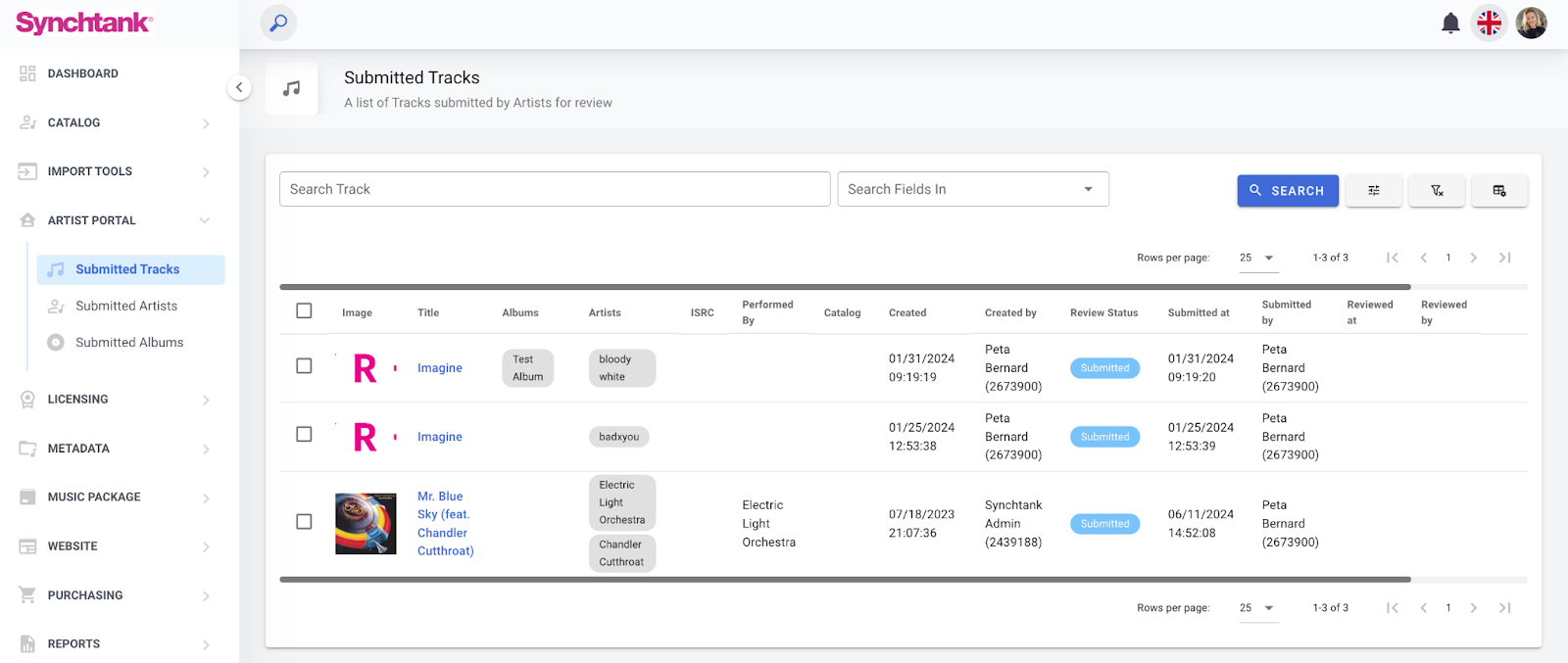
The most important action here is performing your review, on the right hand side in the very last column, there is a review icon.
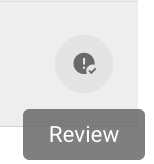
Selecting this will take you to the track details, allow you to check you are happy with the information provided by the artist and either approve or deny. You will also see any changes the artist made if you have denied it and are reviewing again.

As you can see from the blue message in the above screenshot, the track will automatically be published once approved.