
Within the Website Settings section, there is a horizontal nav bar where you can manage all your admin settings for the front and back-end of your site.

- Tracks
- Albums
- Music Packages
- Composition Shares
- Metadata
- Users
- Emails
- Cookies
- Social Media
- E-commerce
- SEO
- Advanced Search Layout
- Admin Theme
- Embed Settings
- Search
- Security
- Main Navigation
- Site Notification
Tracks
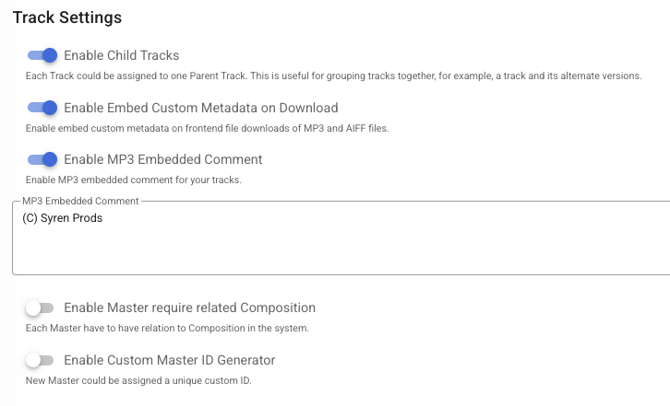
Within your Tracks Settings, you will see two toggle options:
- Enable Child Tracks - which allows you to assign a track to one Parent Track i.e. a track and it's alternate versions.
- Enable Embed Custom Metadata on Download - when toggled on this will allow you to embed your metadata on the frontend file downloads of MP3 and AIFF files.
-
Enable MP3 Embedded Comment - When toggled on, this allows you to embed a custom comment into MP3 files. You can enter the comment text in the MP3 Embedded Comment field that appears below the toggle — for example, a copyright notice like "(C) Your Company Name".
-
Enable Master require related Composition - When toggled on, every Master in the system must have a related Composition linked to it.
-
Enable Custom Master ID Generator - When toggled on, new Masters are automatically assigned a unique custom ID.
Albums
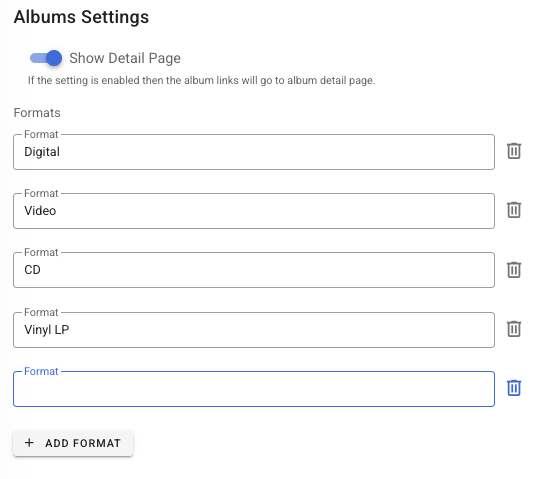
- Show Detail Page - When enabled, each album gets its own dedicated page with a unique URL. This also enables the View on Frontend button on the album page in Admin, allowing you to preview how the album appears on the front-end. When disabled, albums do not have their own page, and the View on Frontend button is not available.
-
Format - Within the Albums Settings, you are able to see the formats you have in your system and also add new ones.
Music Packages
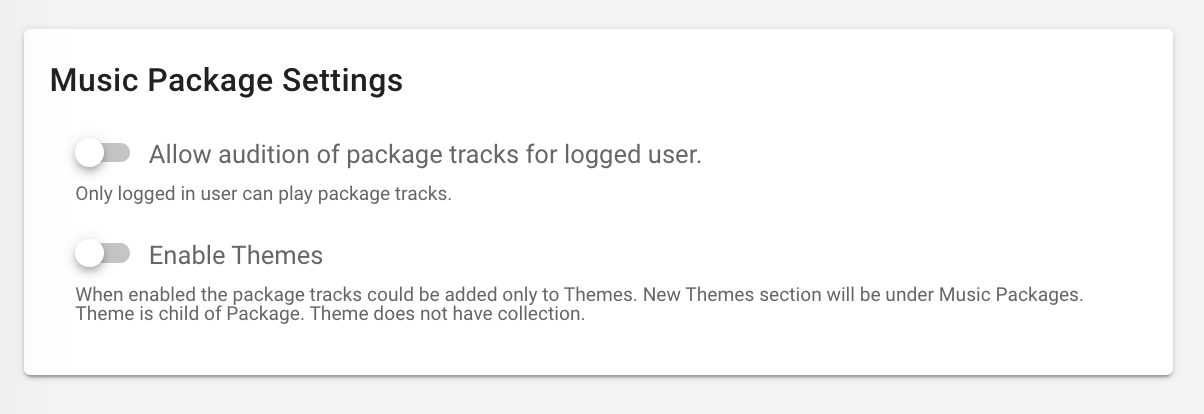
Within the Music Packages Settings, you can configure the following options:
-
Allow audition of package tracks for logged user - When enabled, only logged-in users can play package tracks.
-
Enable Themes - When enabled, package tracks can be added to Themes. A new Themes section will appear under Music Packages. Note that a Theme is a child of a Package and does not have a collection.
Composition Shares
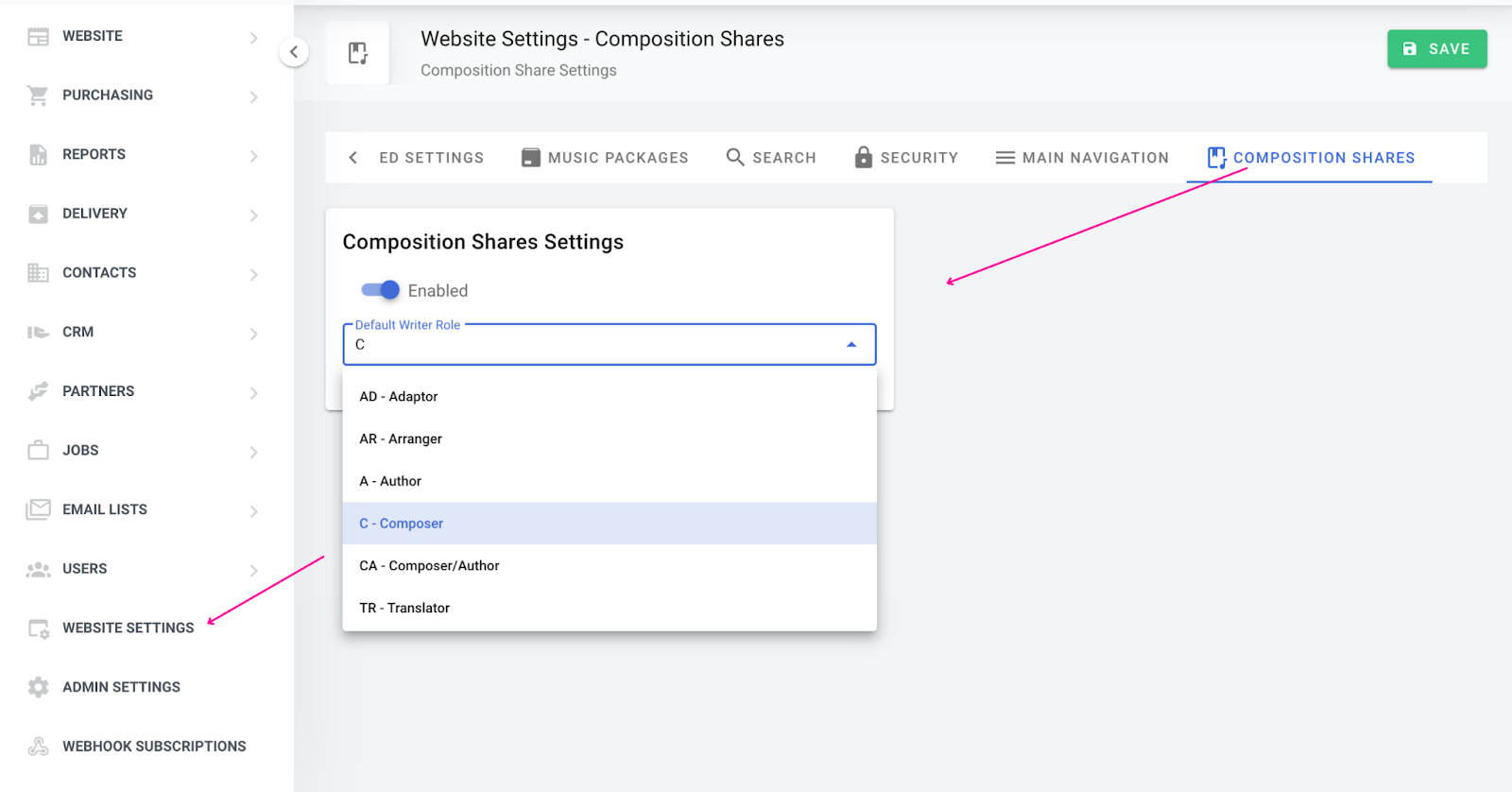
In CWR, the Writer Roles (C, A, CA, TR, etc.), also known as Designations, are required for each Writer Share.
This gives you the ability to set the Default Writer Role that your users will see when entering Composition Shares in the system.
To amend this default, navigate to 'Website Settings' and tab across to 'Composition Shares' - you can also change the writer role when inputting a new share within the form.
Metadata
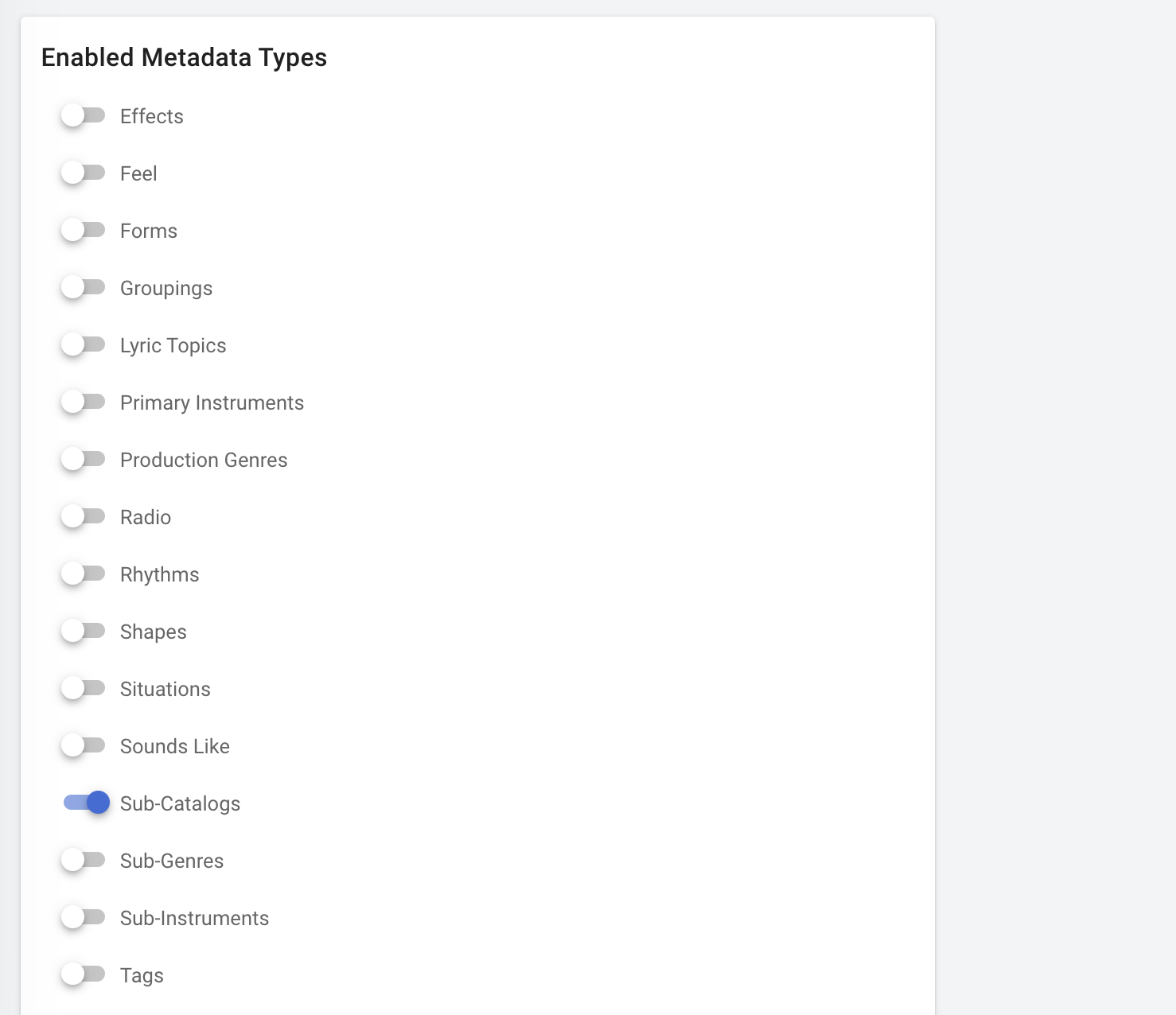
For the Metadata settings, you are able to enable additional metadata fields to the masters section in your admin - please note this doesn't automatically apply to the front-end.
Users
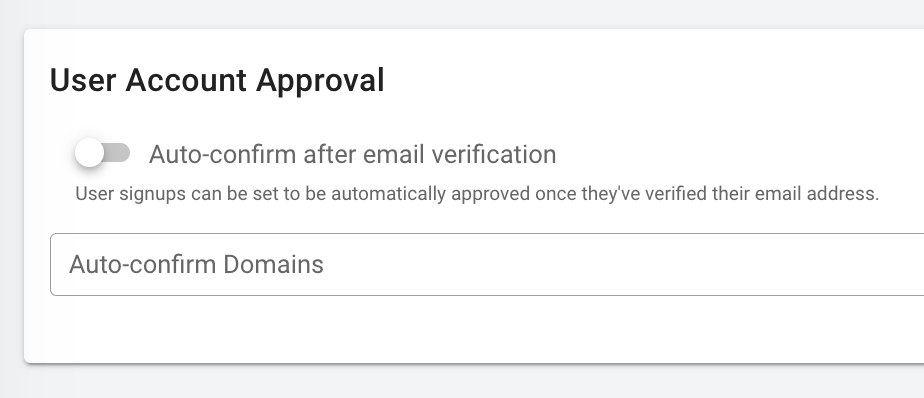
In this section you have the ability to confirm a user's account after they have verified their email address when they sign up on the front-end. All you have to do is toggle the "Auto-confirm after email verification" on or off.
Emails
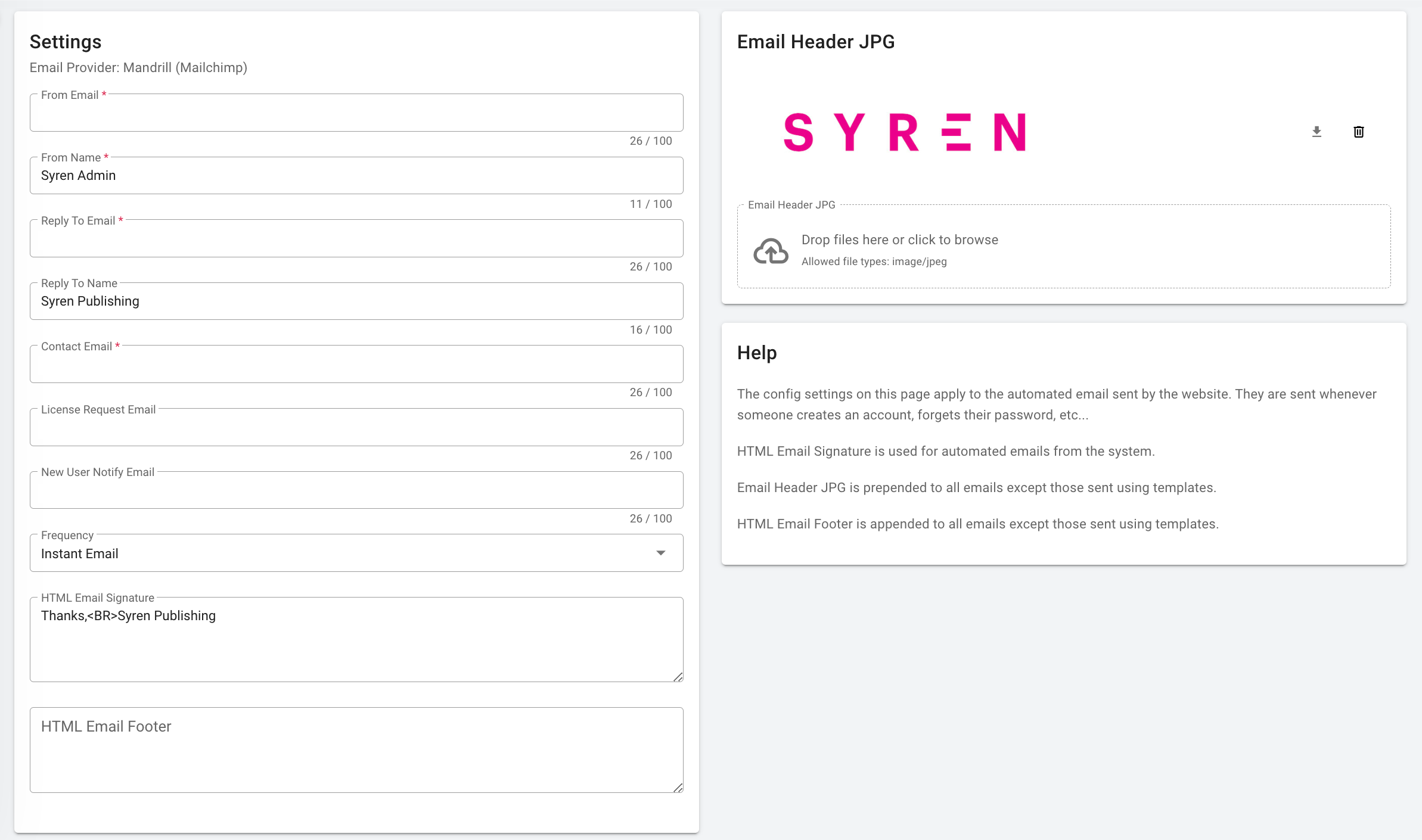
Within your Emails settings you are able to set up who's email you want your automated emails to come from, the name, reply email and the frequency of your notifications. As well as the logo that appears in the email header, your email signature and email footer if required. The automated emails are sent whenever someone creates an account, forgets their password etc.
At the bottom of the Emails settings you can also preview your automated emails to see what they look like.

Cookies
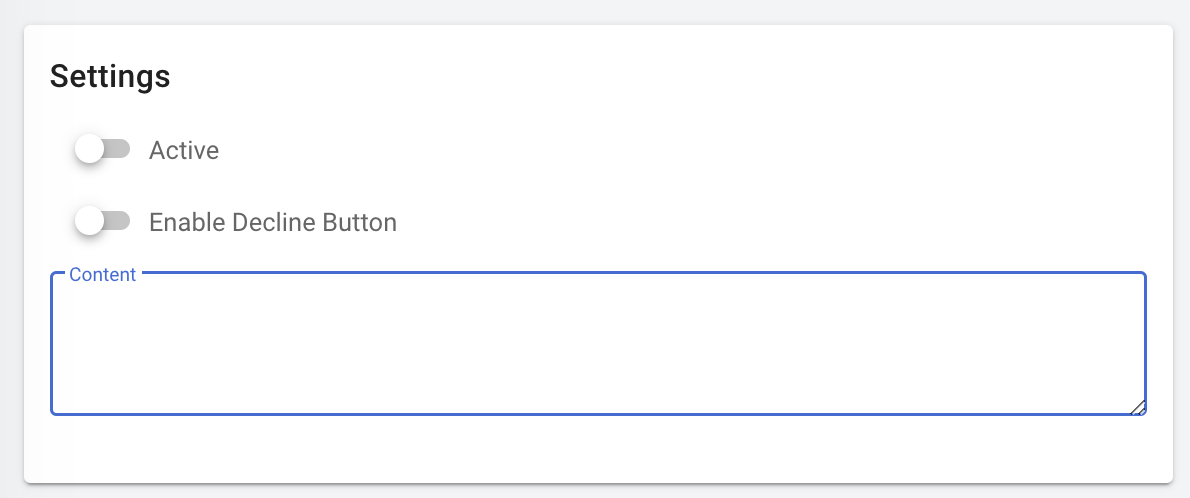
Here you are able to turn on your cookie pop-up on the front-end of your site including your cookie policy within he content box. You also have the ability to toggle on a decline button if you require too.
Social Media
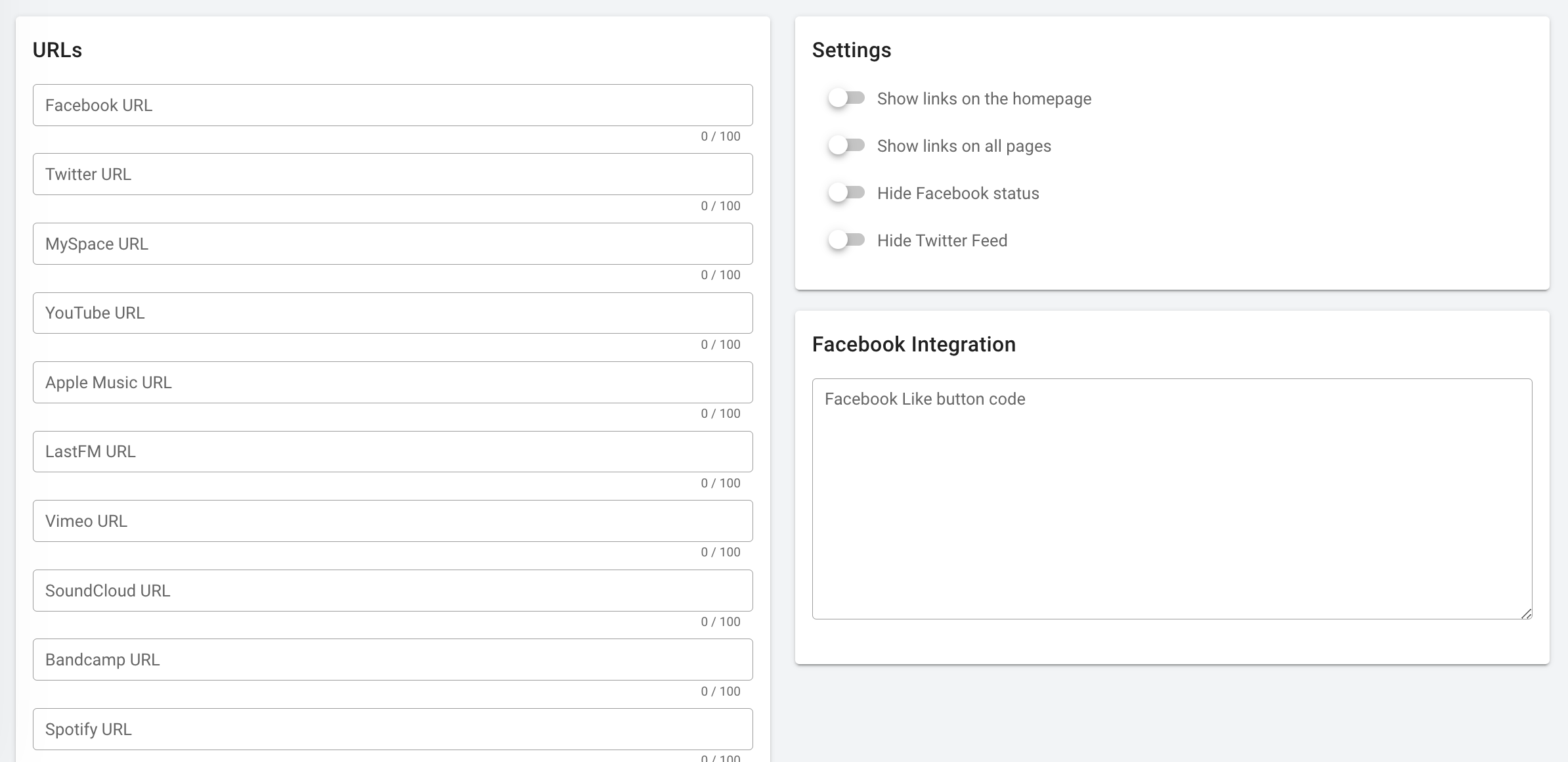
Within your Social Media settings, you can add links to all your social media profiles and configure how and where they appear on your site.
-
URLs - You can add links for the following platforms: Facebook, Twitter, MySpace, YouTube, Apple Music, LastFM, Vimeo, SoundCloud, Bandcamp, Spotify, Google+, Instagram, LinkedIn, Tumblr, and IMDb.
-
Settings
-
Show links on the homepage — displays your social media links on the homepage
-
Show links on all pages — displays your social media links across all pages of your site
-
Hide Facebook status — hides your Facebook status from the site
-
Hide Twitter Feed — hides your Twitter feed from the site
-
-
Facebook Integration - Add your Facebook Like button code here to integrate it into your site.
E-Commerce
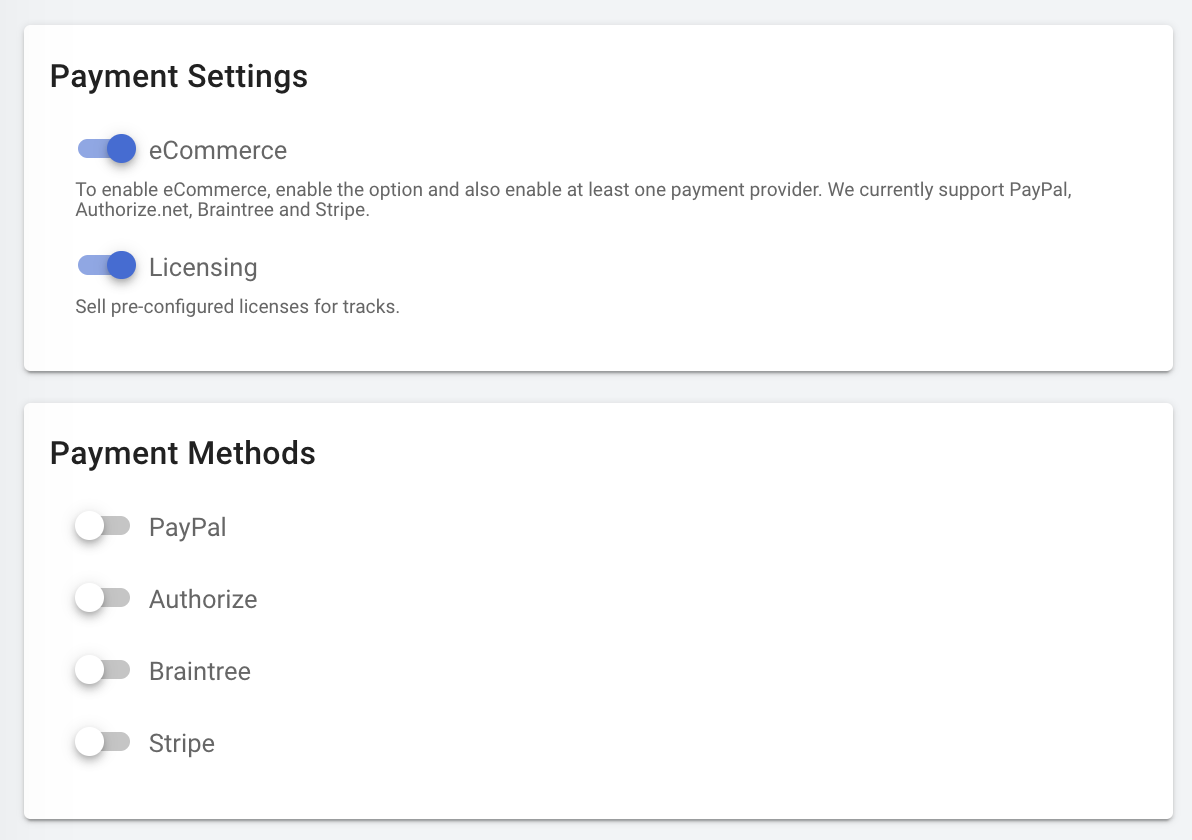
Your E-Commerce section is where you turn on the ability for front-end users to purchase tracks from your site. To enable e-commerce, you need to select the option and also include details to at least one payment provider. We currently support PayPal, Authorize, Braintree, and Stripe.
SEO
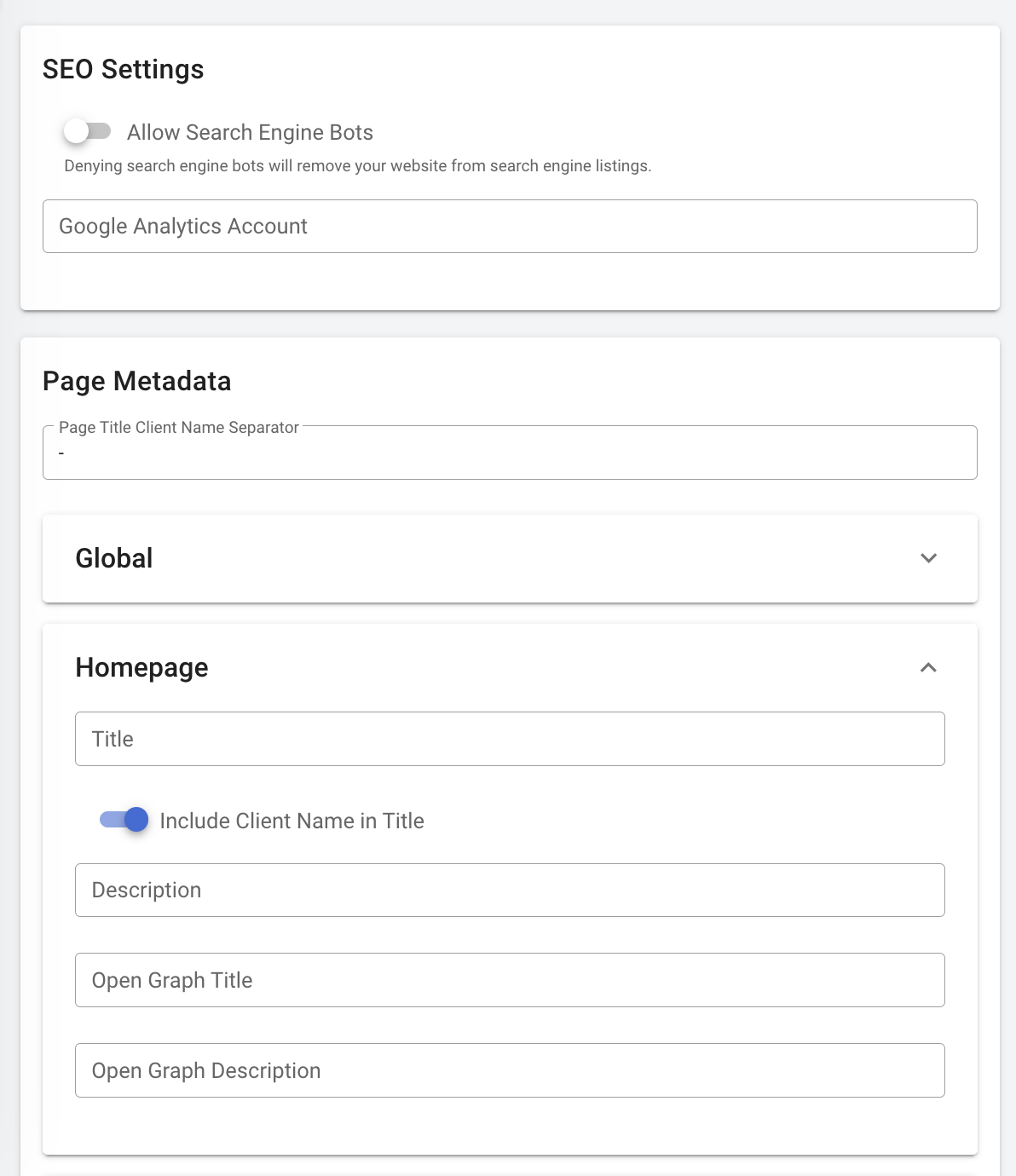
Within your SEO section you are able to connect to your Google Analytics account, and also update your page titles, description etc.
Advanced Search Layout
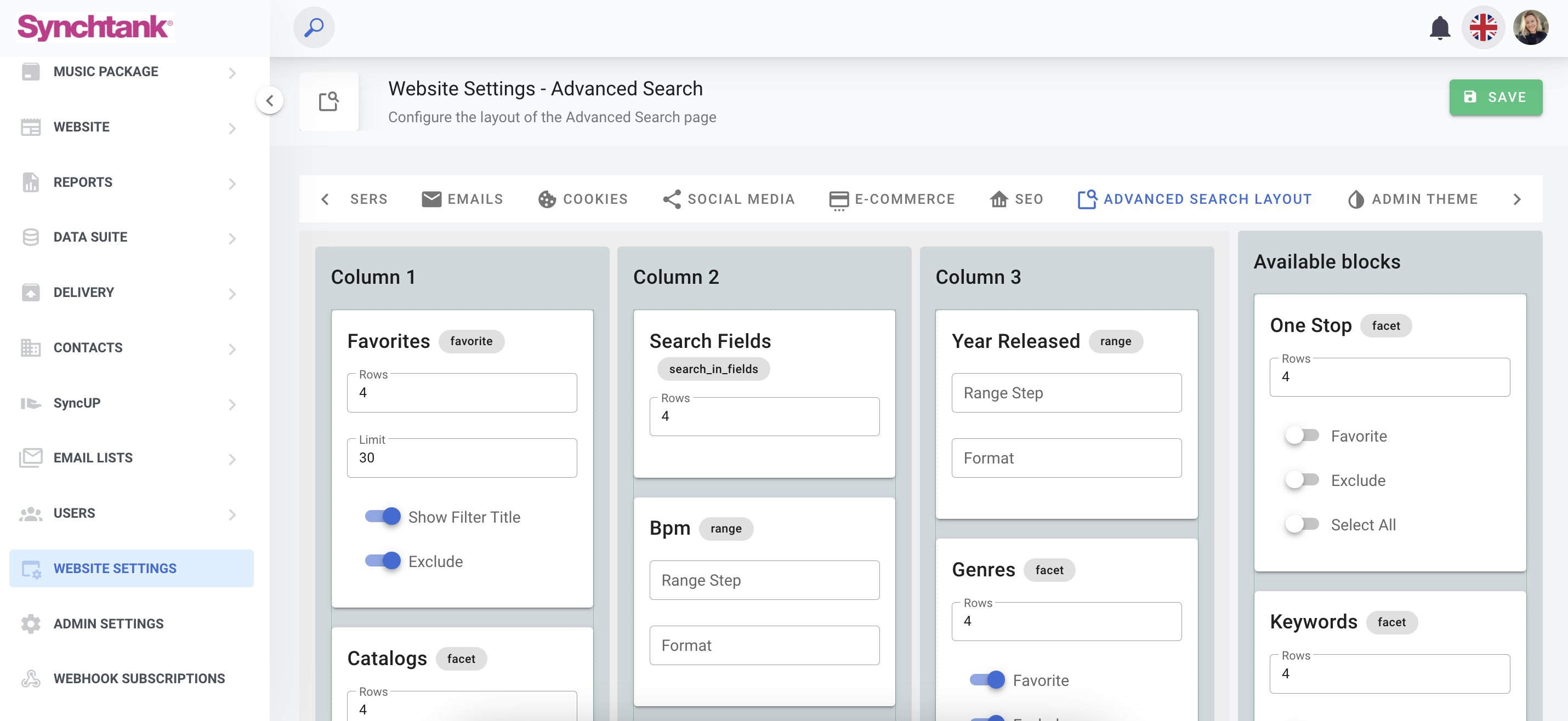
Within the Synchtank Admin you have the ability to customize your users searching abilities through advanced search which can be found under the “Website Settings” within your admin and the tab under Advanced Search Layout and Search.
Setting up your Advanced Search page
Before diving into using your advanced search, we recommend you check your settings and customize your profile to ensure you get the best search results possible.
So, head to the Synchtank Admin, then to the Advanced Search Customisation page, which can be found within the Website Management/ Website Settings section.
Please note that not all Advanced Search can be customized; if this is something you’re interested in, then please reach out to your Account Manager.
Customizing advanced search
Advanced Search can easily be customized using the Synchtank Admin.
There are a number of different ways, such as:
- Choosing filters - there are a number of available blocks you can include in your advanced search area; all you need to do is drag and drop - just remember to press the green save button on the top right before leaving the page.
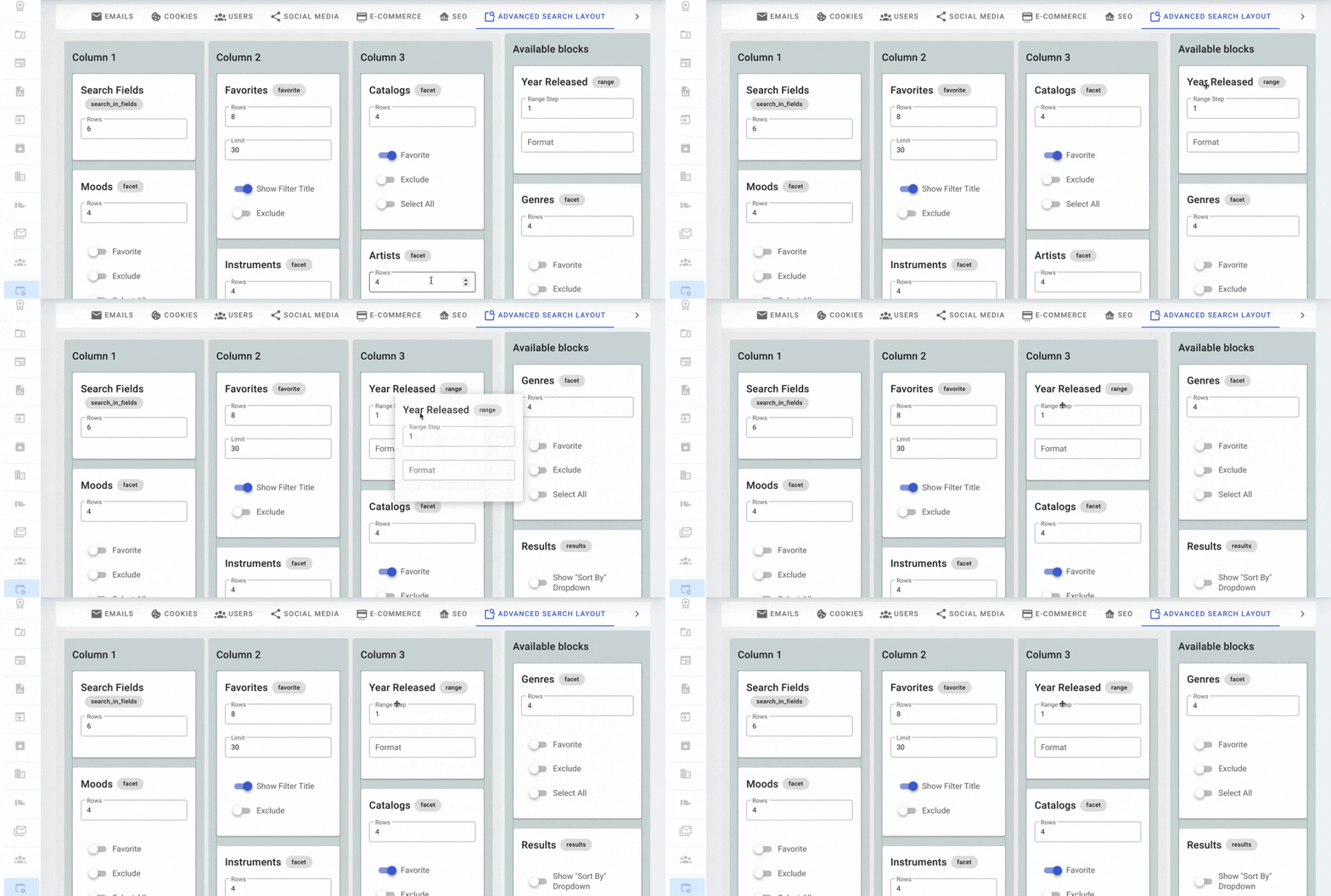
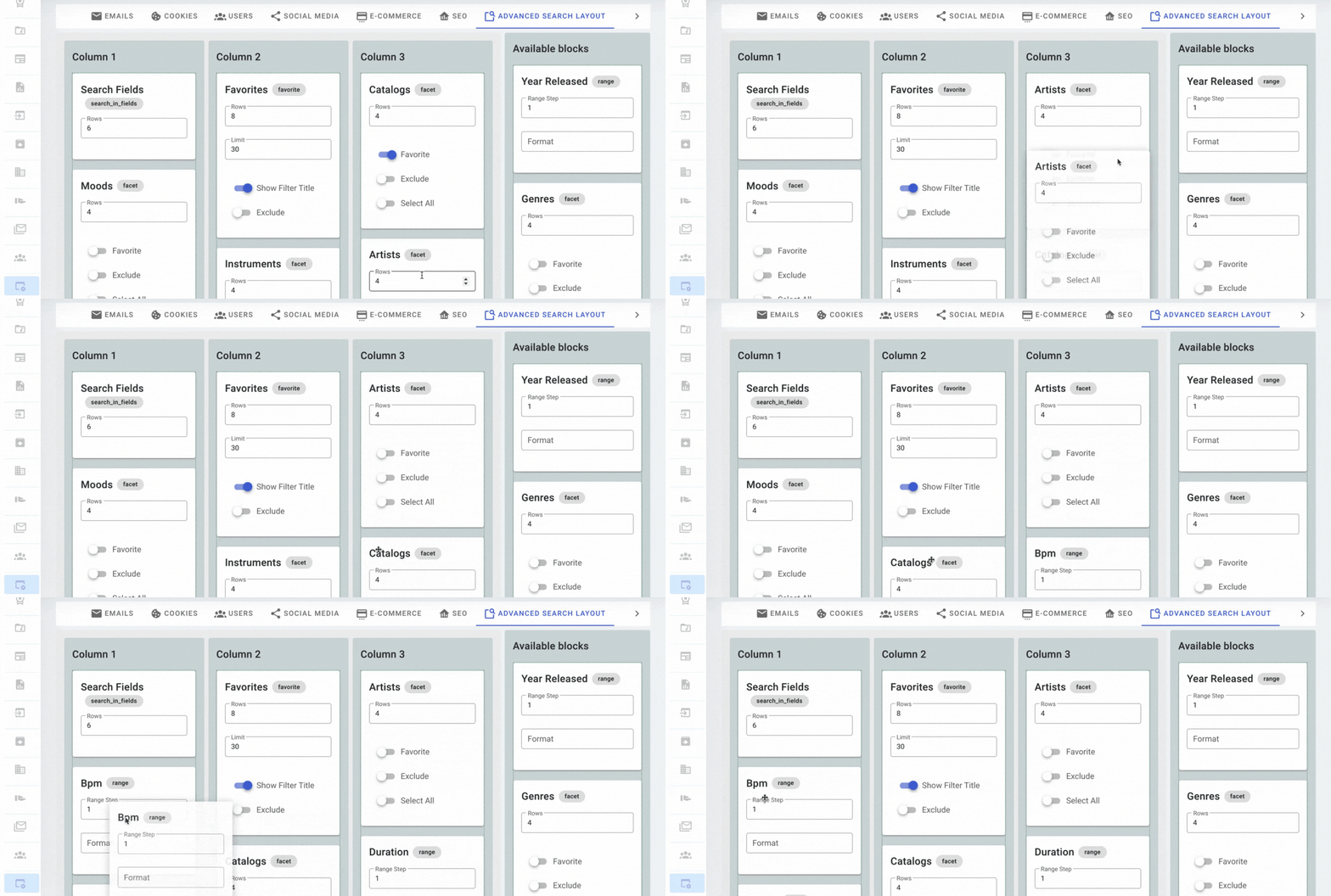
- Re-arranging the layout - Drag and drop the boxes to rearrange the view of your Advanced Search page - just remember to press the green save button on the top right before leaving the page.
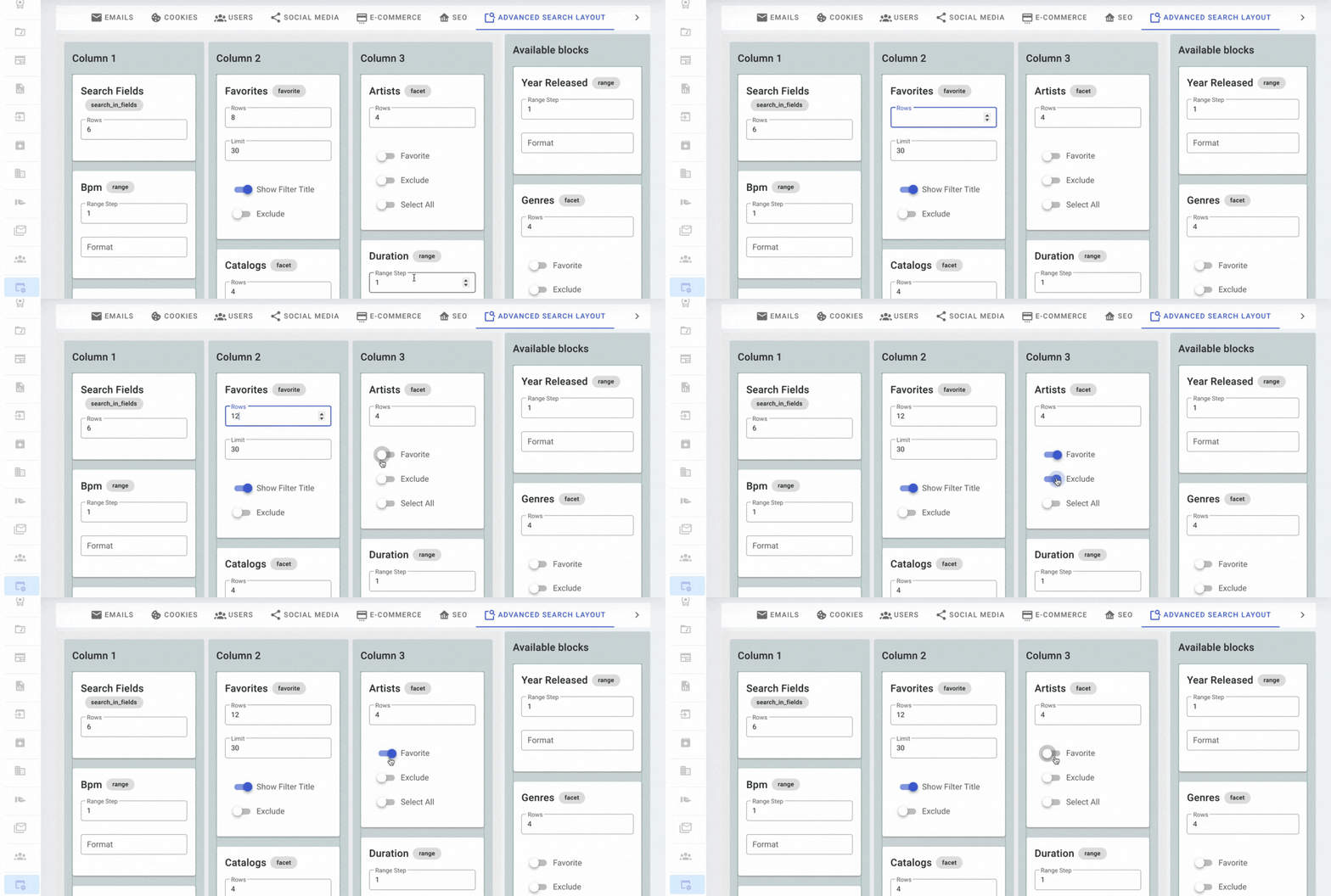
- Customize the blocks - You can also customize the search boxes to enable favorite and excluding (negative search) - this may not be automatically turned on so check your settings if you would like to use this feature. Once again, just remember to press the green save button on the top right before leaving the page.
Admin Theme
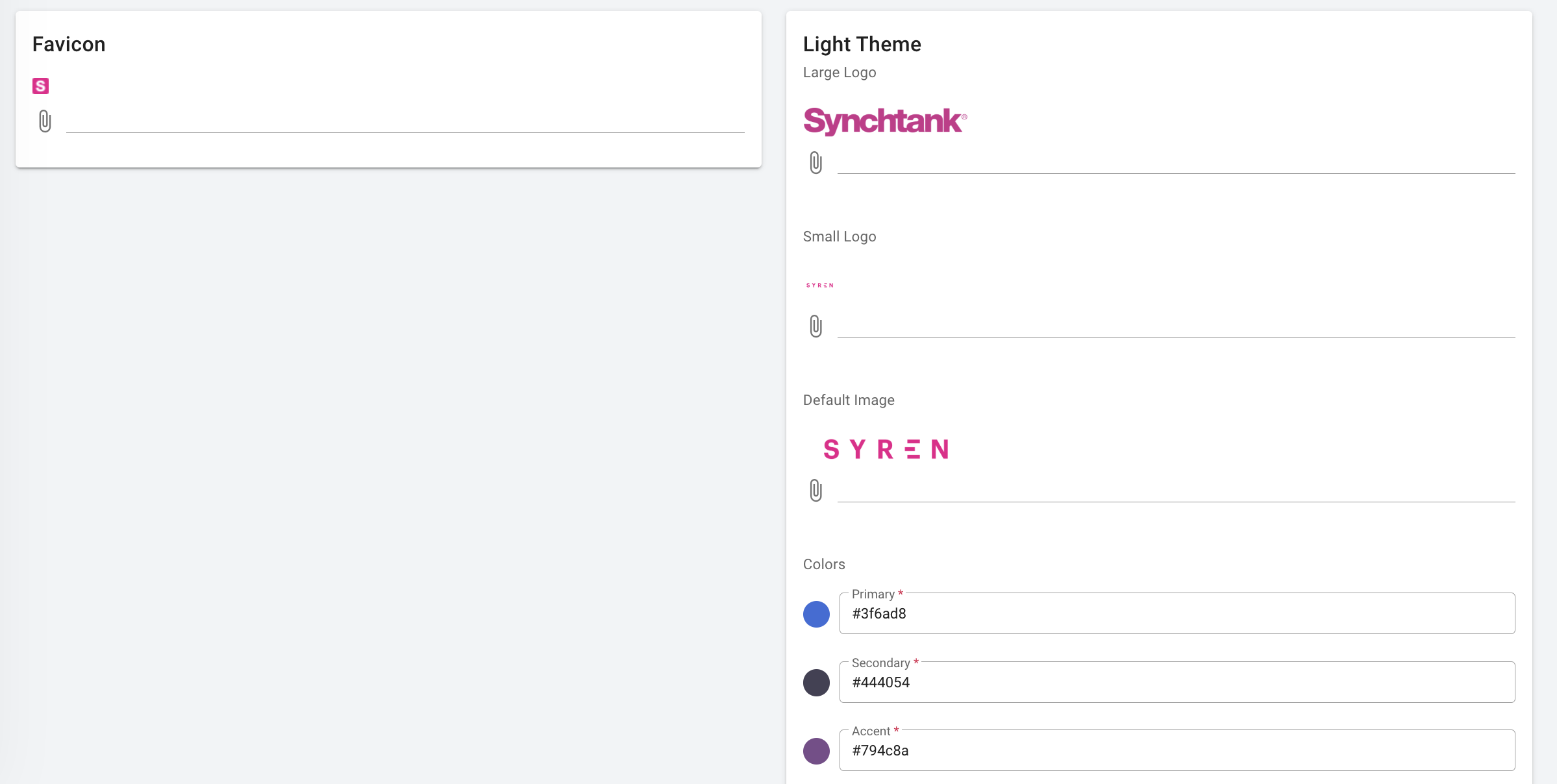
The Admin Theme section allows you to update your logos, favicon, and colour scheme.
Embedded Settings
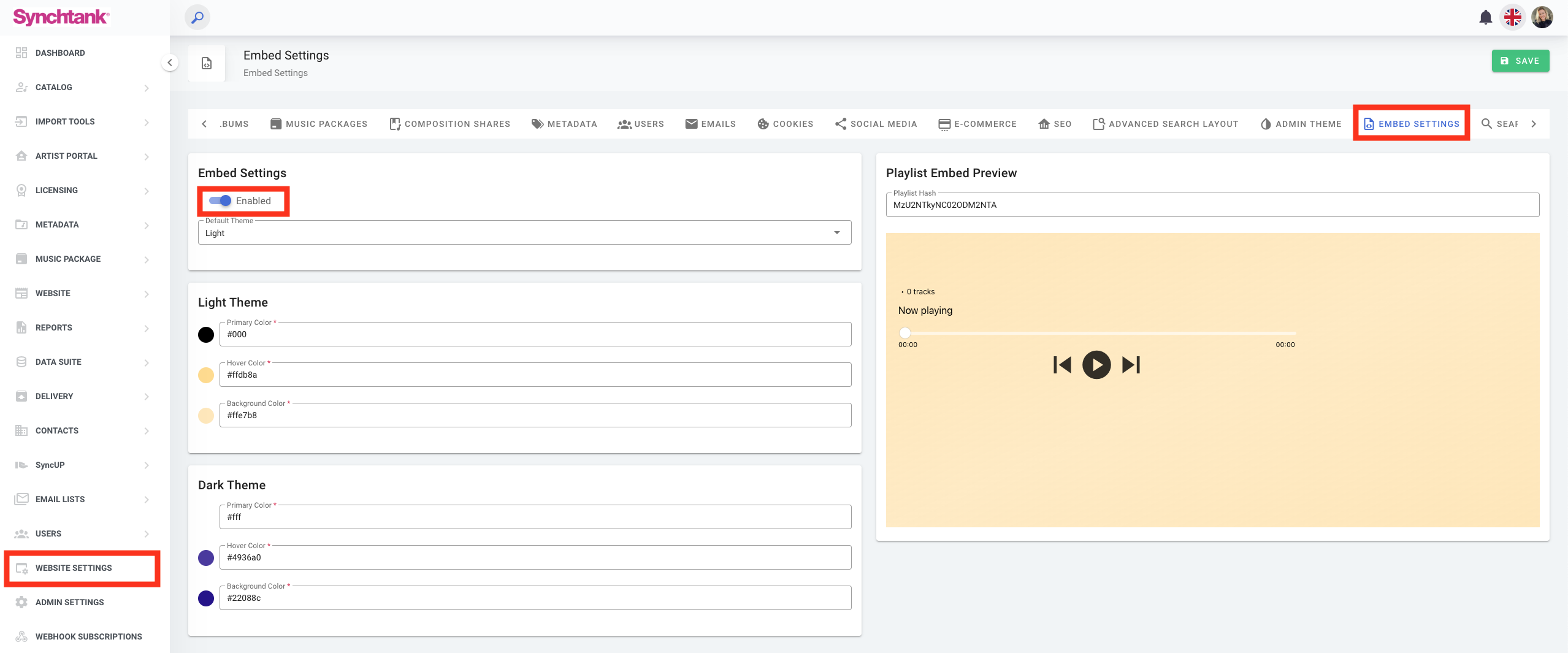
Embedded settings can be enabled by Client Admins of the system. To enable Embedded Playlists, visit “Website Settings”, then “Embed Settings” and set the toggle to enabled.
Client Admins can also set which theme should be used and customize the colours of the Embed.
Search
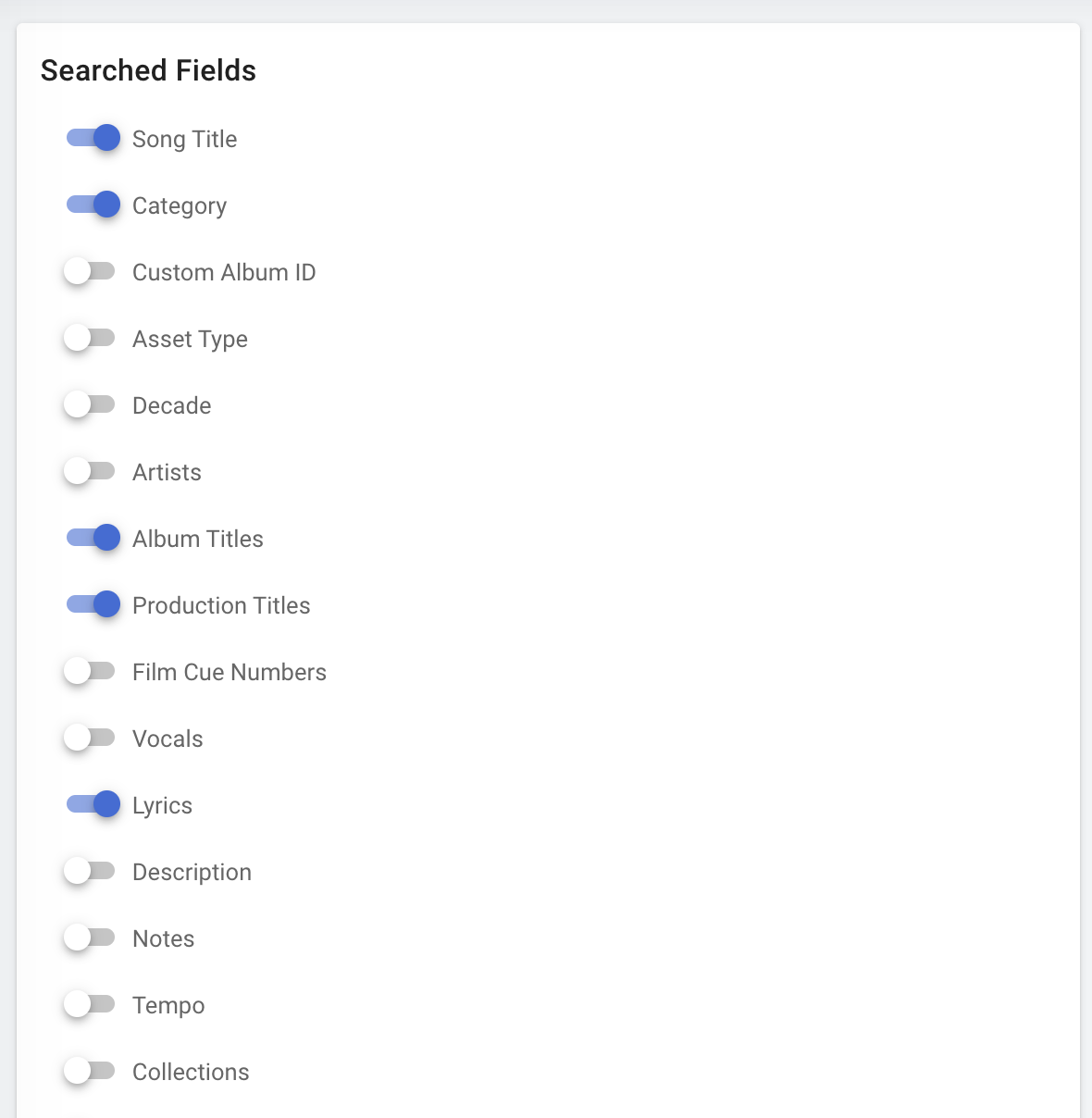
Within your Search settings you can toggle on all the options you wish your users to be able to search, such as song title, asset type, artist, vocals etc.
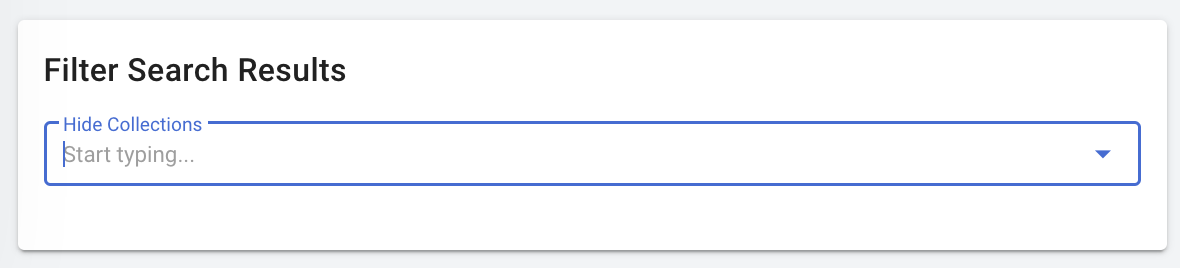
At the bottom of your page you are able to hide collections too such as a library or specific collection.
Security
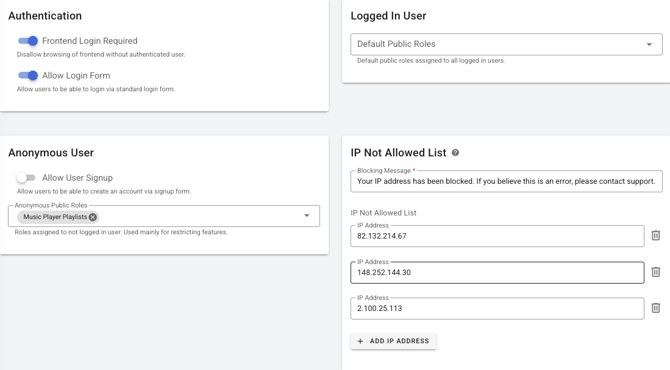
Within your Security Settings you are able to configure authentication, user signup, and access control for your site.
-
Authentication
-
Frontend Login Required — when enabled, users cannot browse the front-end without being authenticated. Disallows browsing of the frontend without an authenticated user.
-
Allow Login Form — allows users to log in via the standard login form.
-
-
Anonymous User
-
Allow User Signup — allows users to create an account via the signup form on the front-end.
-
Anonymous Public Roles — roles assigned to users who are not logged in. Used mainly for restricting features for anonymous visitors.
-
-
Logged In User
-
Default Public Roles — defines the default public roles assigned to all logged in users.
-
-
IP Not Allowed List — Add IP addresses that should be blocked from accessing the site. You can customise the Blocking Message shown to blocked users and add or remove IP addresses using the + Add IP Address button.
Main Navigation
Within your Main Navigation settings, this is where you can organise the order of your nav, change the title, open in a new tab, and add a dropdown and a new item.
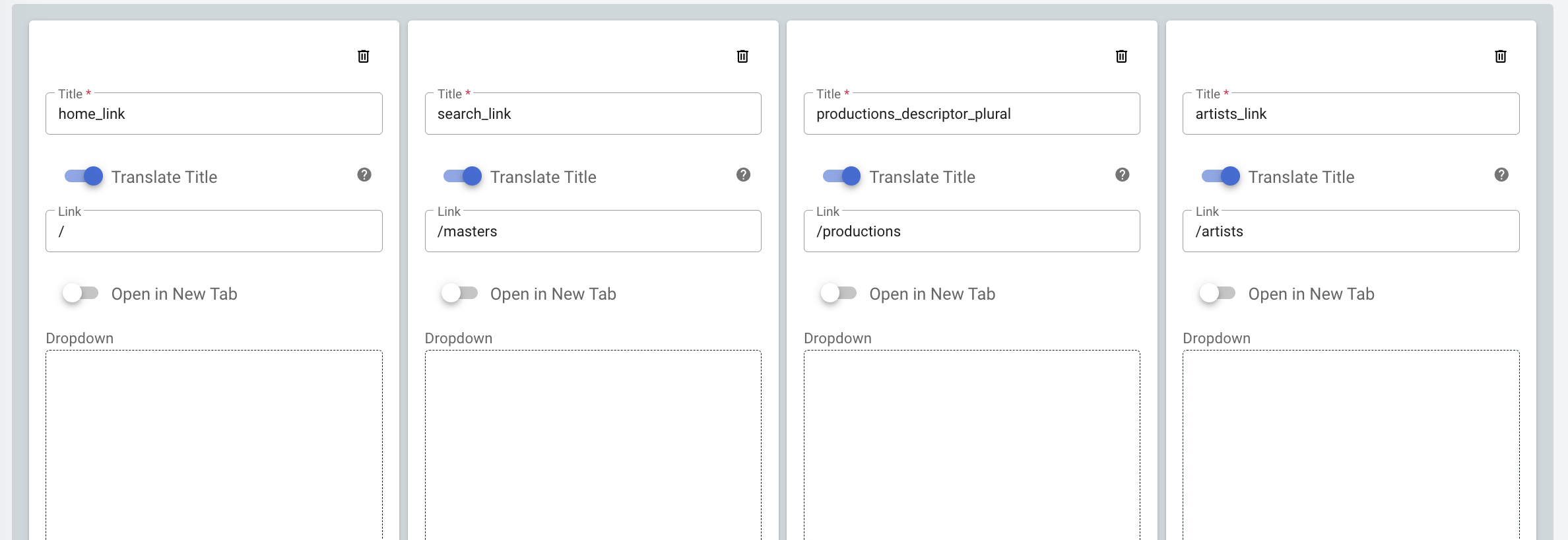
To change the order, simply drag the boxes and to add a new item, scroll to the bottom and select the "add menu item".
Site Notification
The Site Notification field allows you to display a dismissible banner message at the top of the front-end of your site. This is useful for communicating important announcements to all users — such as scheduled maintenance or updates.
Enter your message in the text field and save. The banner will appear across all pages of the front-end, and users can dismiss it by clicking the X button. Supports basic HTML formatting, such as links: <a href="url">click here</a>

Changes may take a few minutes to reflect on the front-end.