Search
Sharing a track, album or playlist
Within the front-end of your Synchtank system you are able to generate a pitch/submission when sending out briefs to music supervisors, radio pluggers alike.
From the front-end of your Synchtank system you are able to share a track, album or playlist for sync consideration and you can send to any user whether they have a log-in or not.
Note: You just need to ensure you have the correct permissions to allow non-logged in users to view and download the track, album or playlist (speak to your admin if you are unable to do this but wish to).
Sharing Permissions
If you are an Admin user and wish to update users sharing permissions, please review this article.
How to share a track, album or playlist
1.1 To share a single track on the front end, select the share icon on the right hand side (as seen highlighted in pink below):

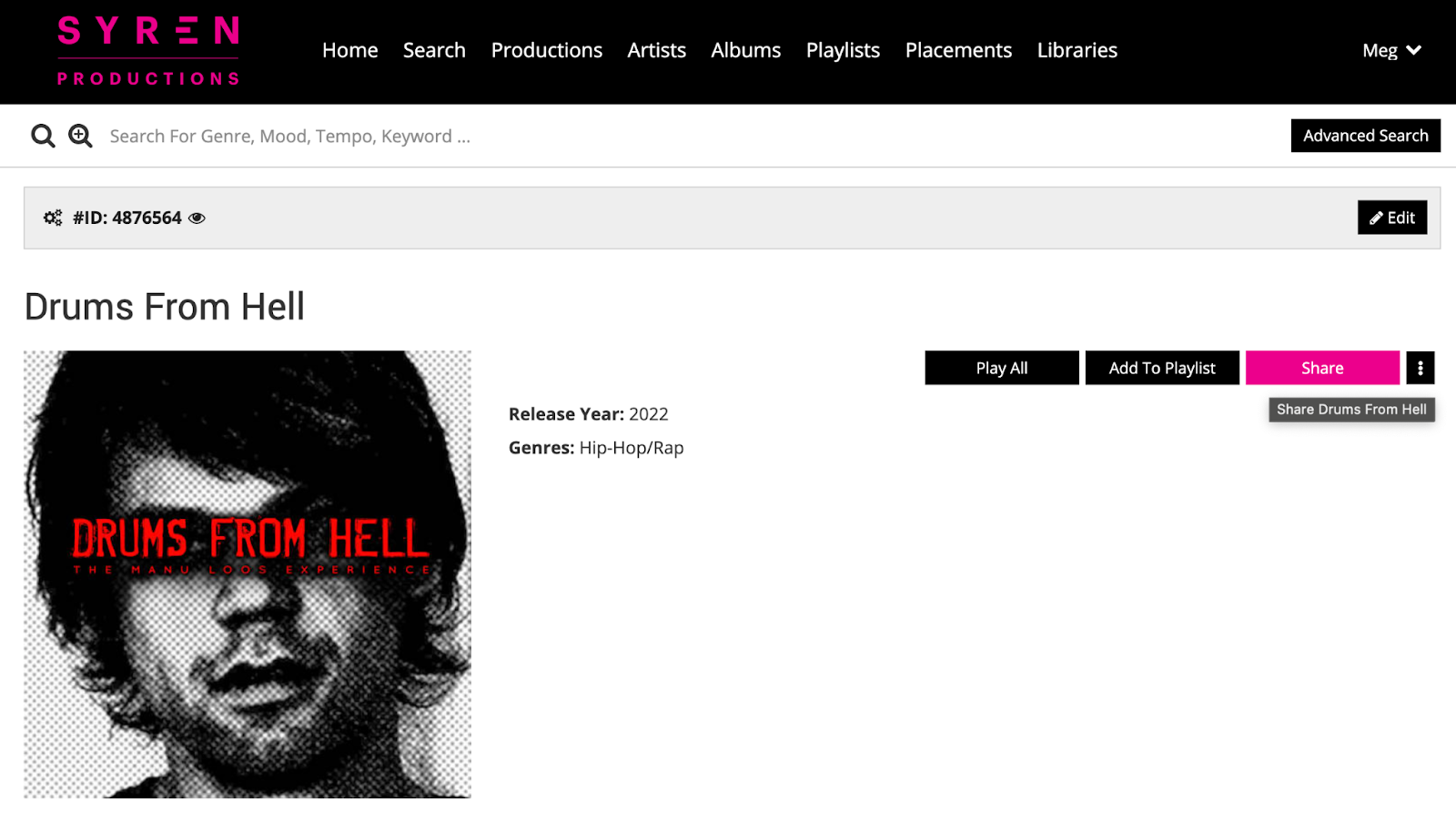
1.2. To share an album, find the album you would like to share and select the ‘share’ button:
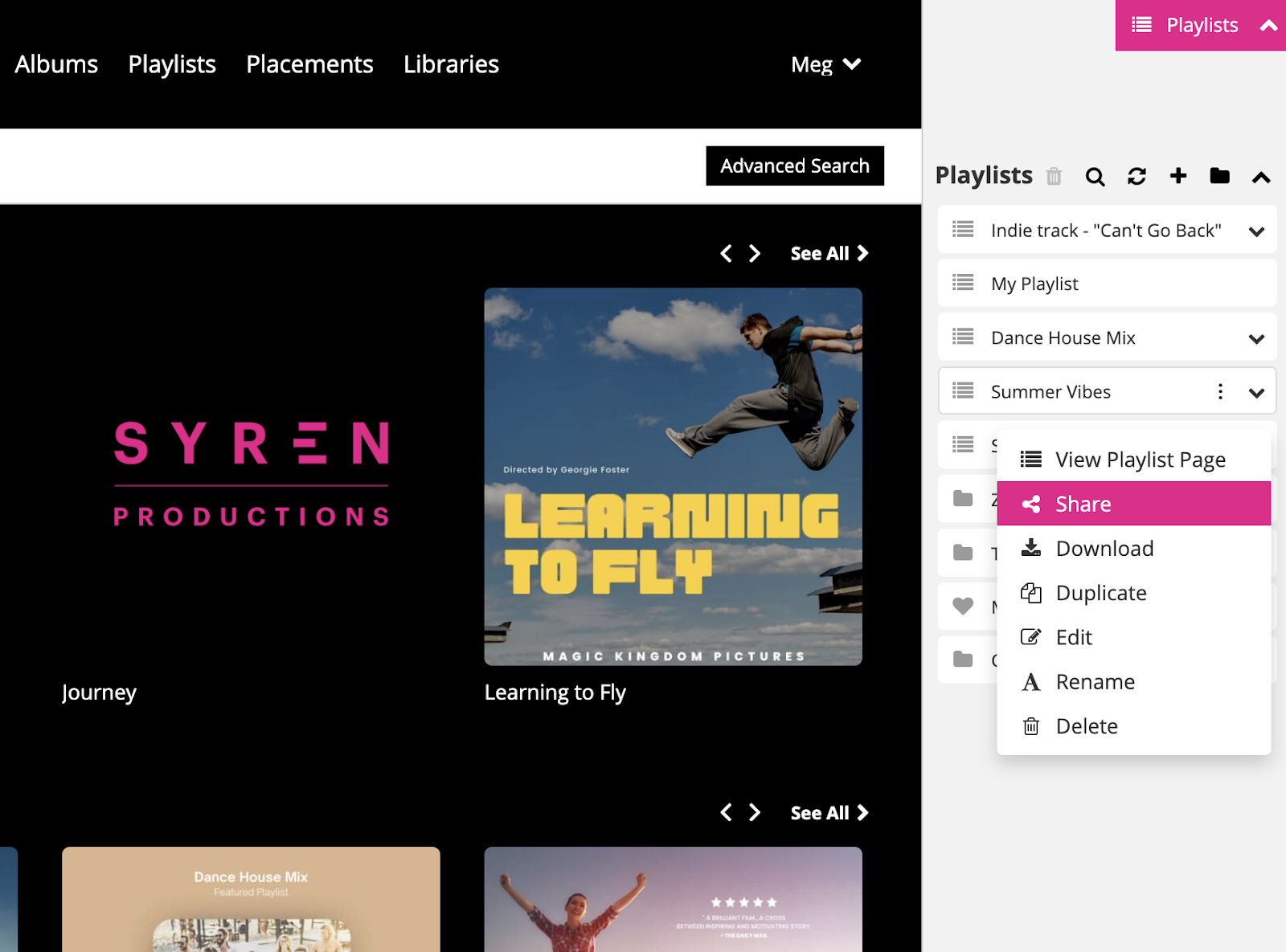
1.3. To share a playlist either select the playlist from the side panel, click the 3 dots and then the share option. You can also use the same steps as an album if finding a playlist from the navigation at the top of the system.
2. A pop up will appear showing the share options and will prompt the below details to fill out. Make sure you fill in all the details ensuring the recipient email address is correct, and add a message if you wish.
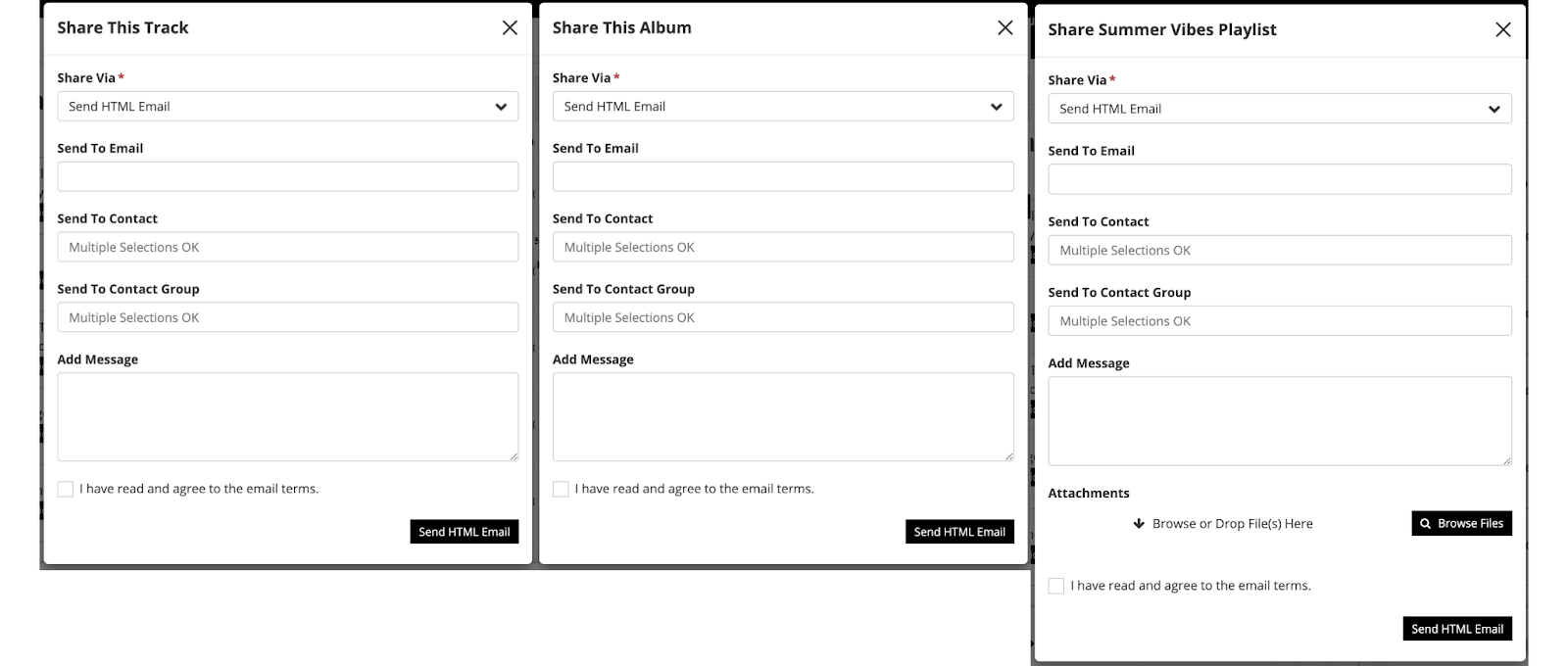
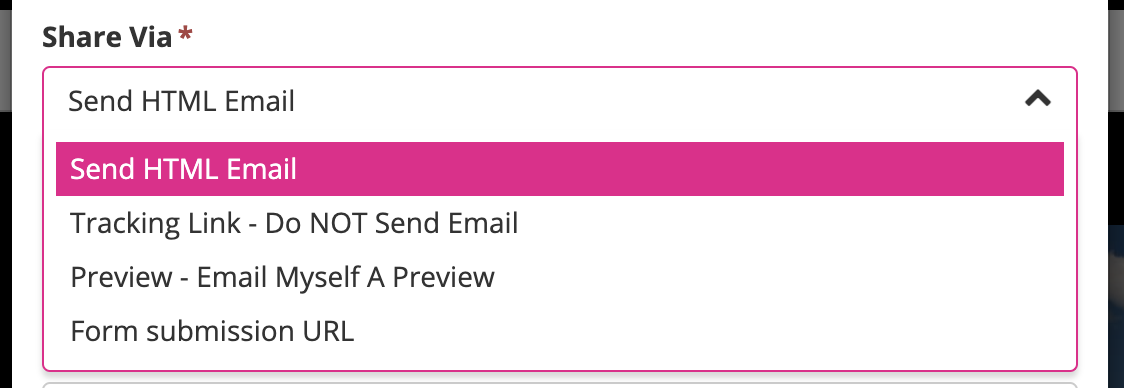
There are a few ways to share a track/album:
- Send HTML email - Here you can send your desired contact(s) an email with the link to the track, album or playlist
- Tracking link - Do NOT send email - Here you can generate a link to send out to anyone or share wherever you like, this section may ask you to add in an email address, this is completely optional but if you do it will then track the interactions with your share if that specific user clicks the link.
- Preview - Email myself a preview - Here you can send yourself an email previewing what will be sent when you are ready to share.
-
Form submission URL - You can use the Form Submission URL option to deliver playlists directly into external platforms that support inbound upload or submission links. This allows you to send your playlist to another system (Third-Party) without downloading or manually transferring files.
How it works:
- Generate your submission/upload link: In the external platform, create or open the location where you want to receive the playlist (such as an inbox, dropbox, or submission form). Copy the platform’s Submission URL or Upload Link.
- Add the link in Synchtank: Open the playlist you want to share, click Share, and select Form Submission URL. Paste the link you copied from the external platform.
- Send the playlist: Click Send. Synchtank will deliver the playlist directly to the destination associated with that submission link.
- Once processed, the playlist will appear in the external system according to that platform’s workflow.
3. Press send!
Review your shares
Once you share a track, album or playlist you can review those shares to see who has interacted with the playlist, opened the email sent from the system and how many times.
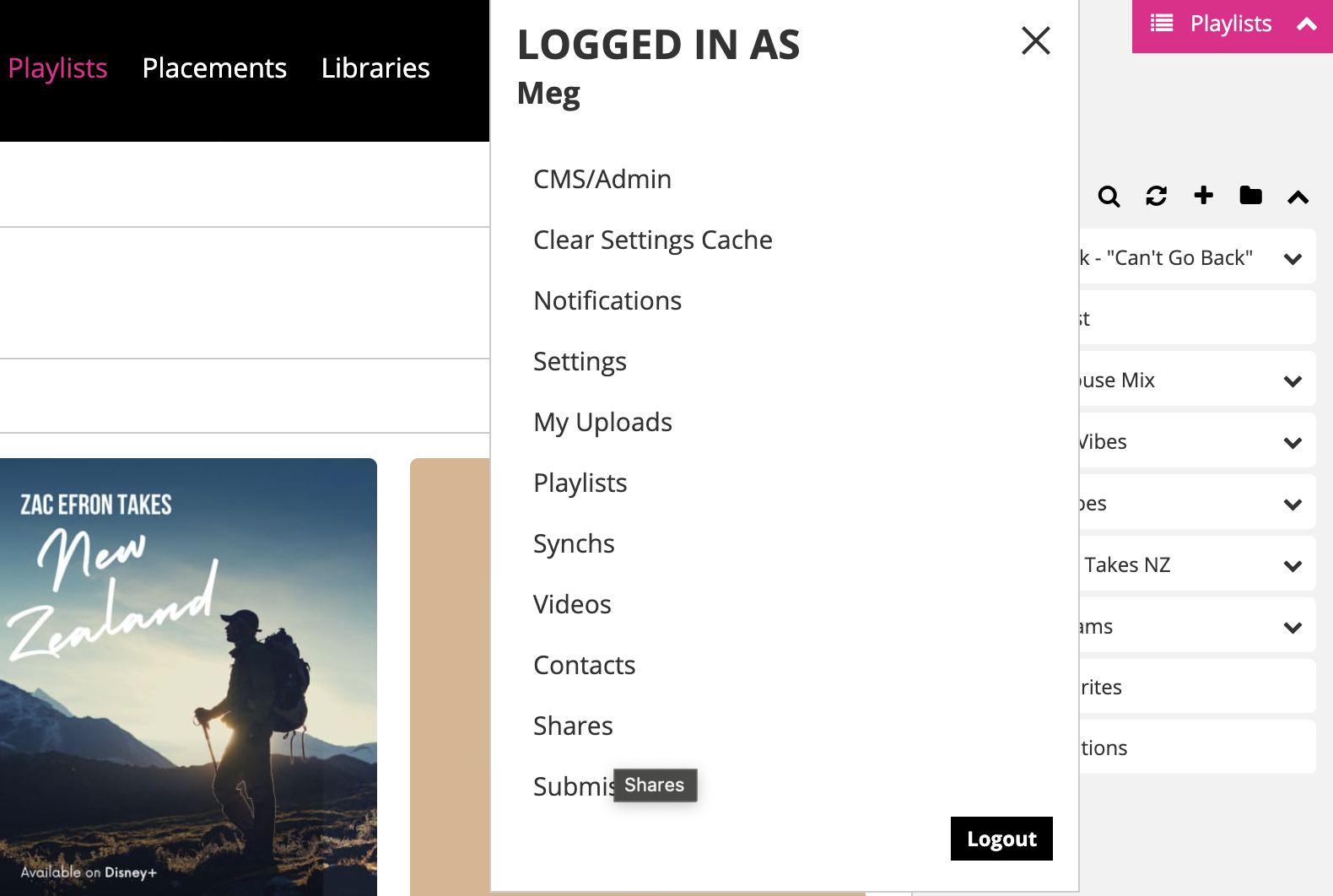
1. Navigate to the top right to view more of the navigation and select the ‘Shares’ option at the bottom.
2. You will then see the Shares pages which stores every track, album or playlist you have sent someone.
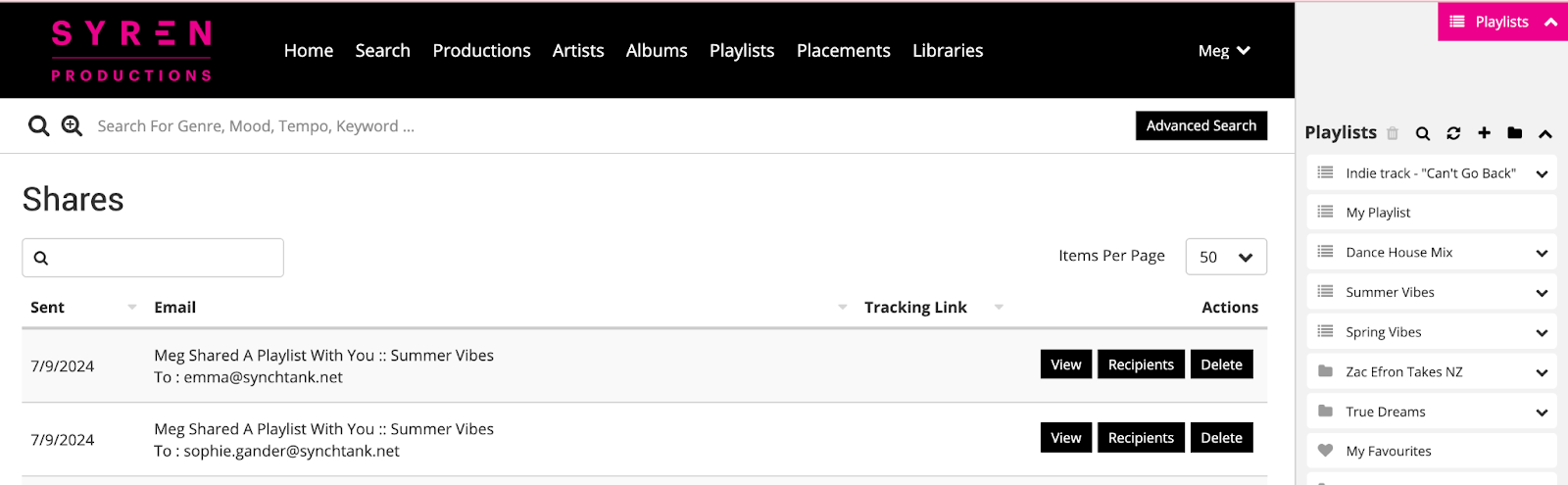
3. Here you can view the analytics of your shares, who you sent them to and also delete them if you wish for the share to be removed. Once you click into ‘View’ you can see the details of what you shared, if they successfully delivered, opened, clicked, and downloaded, plus more!
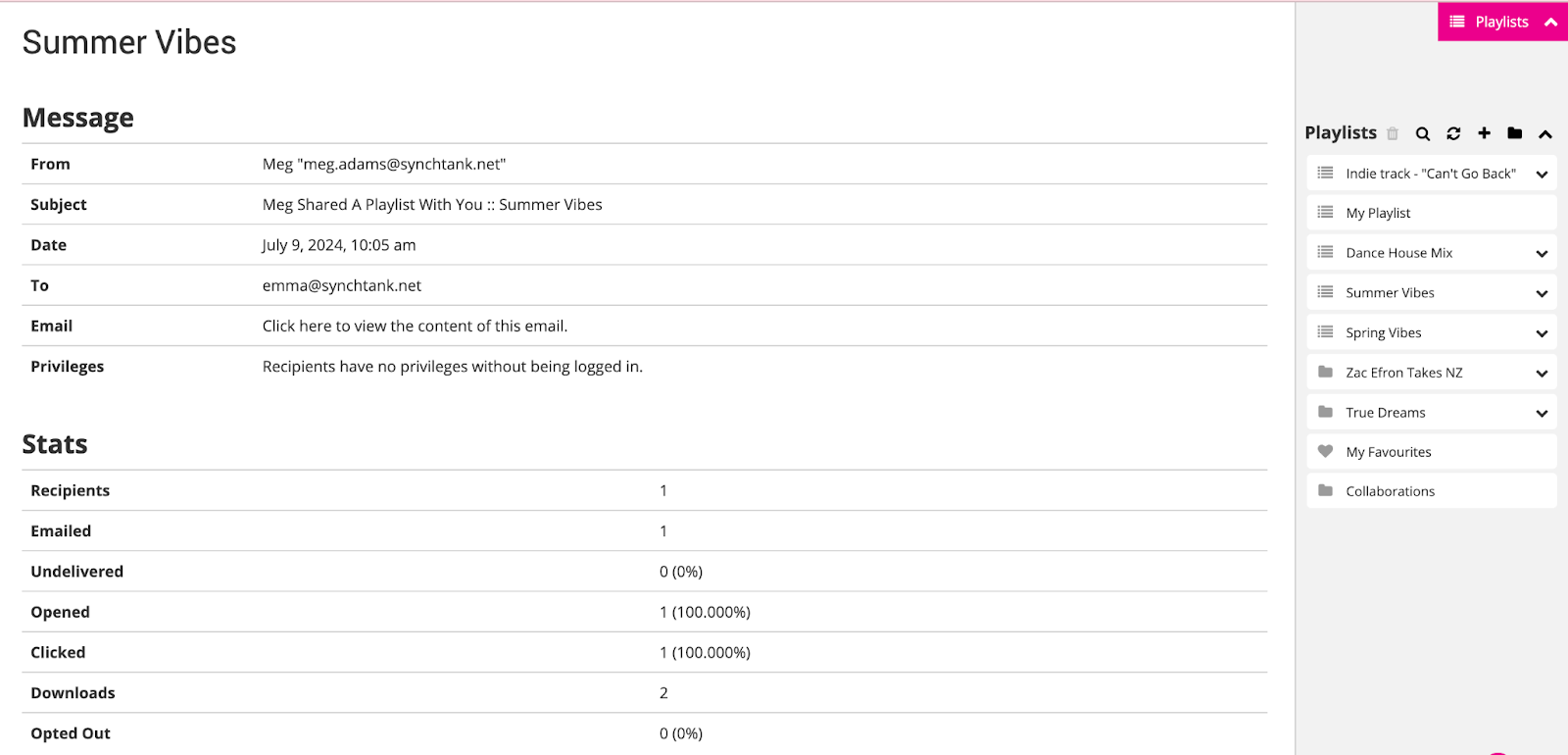
Shares report
If you are a Synchtank Admin user you are also run a Shares report to export as a spreadsheet of what has been shared via your system. See our Reports article to learn more.
Pitching
Within the front-end of your Synchtank system you are able to generate a pitch/submission when sending out briefs to music supervisors, radio pluggers alike.
- Ensure you are logged into the system, navigate to the top right and select the ‘Submissions’ section.
Note: you must have the correct permissions to proceed; these are established on a user by user basis via your administrator.
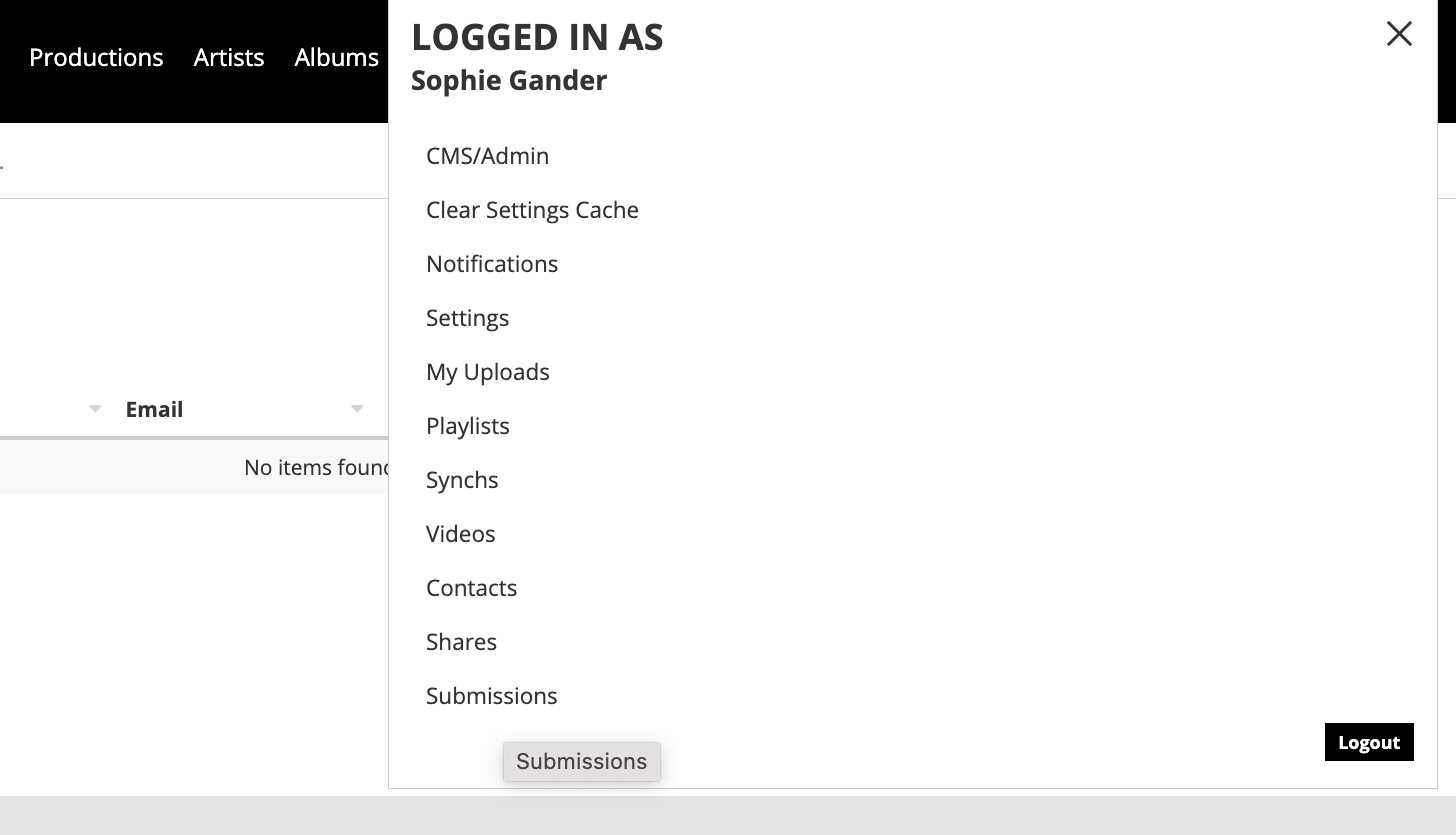
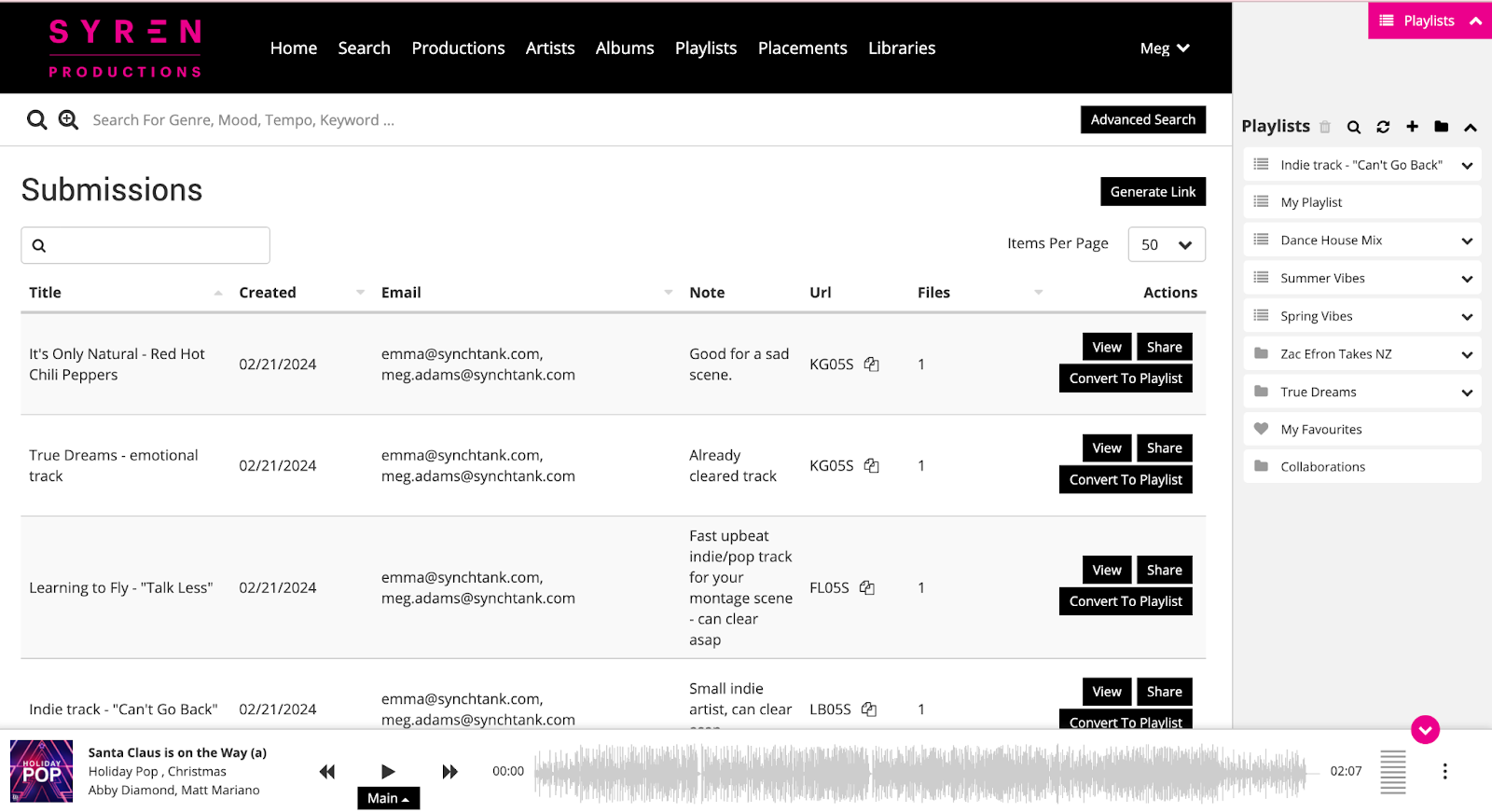
- The Submissions Overview page will load.
- Click on the generate link button in the top right hand side corner
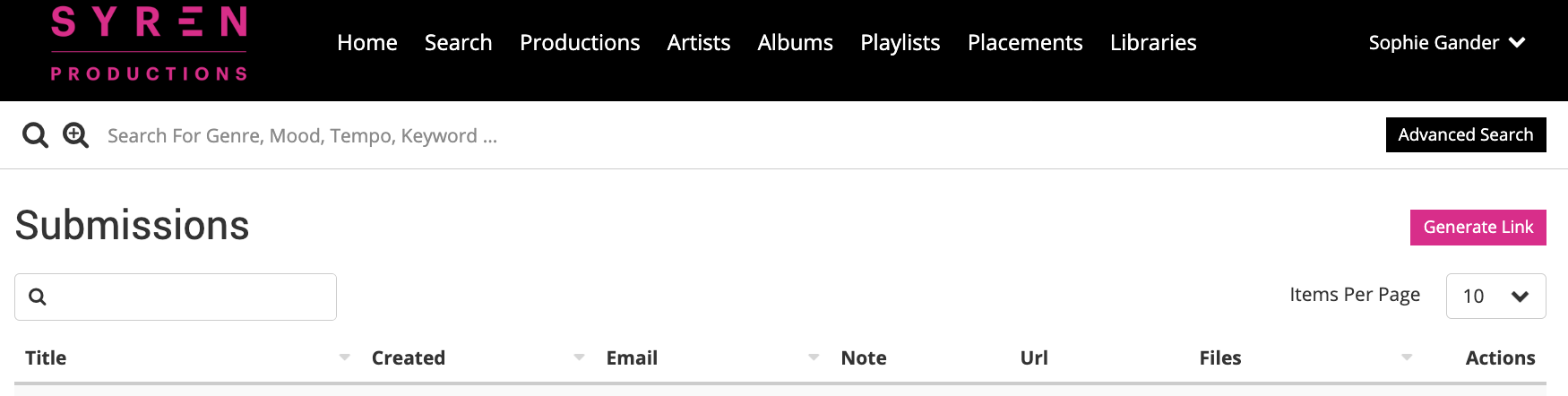
- Fill out the data fields provided. Ensuring all the details for the pitch are listed
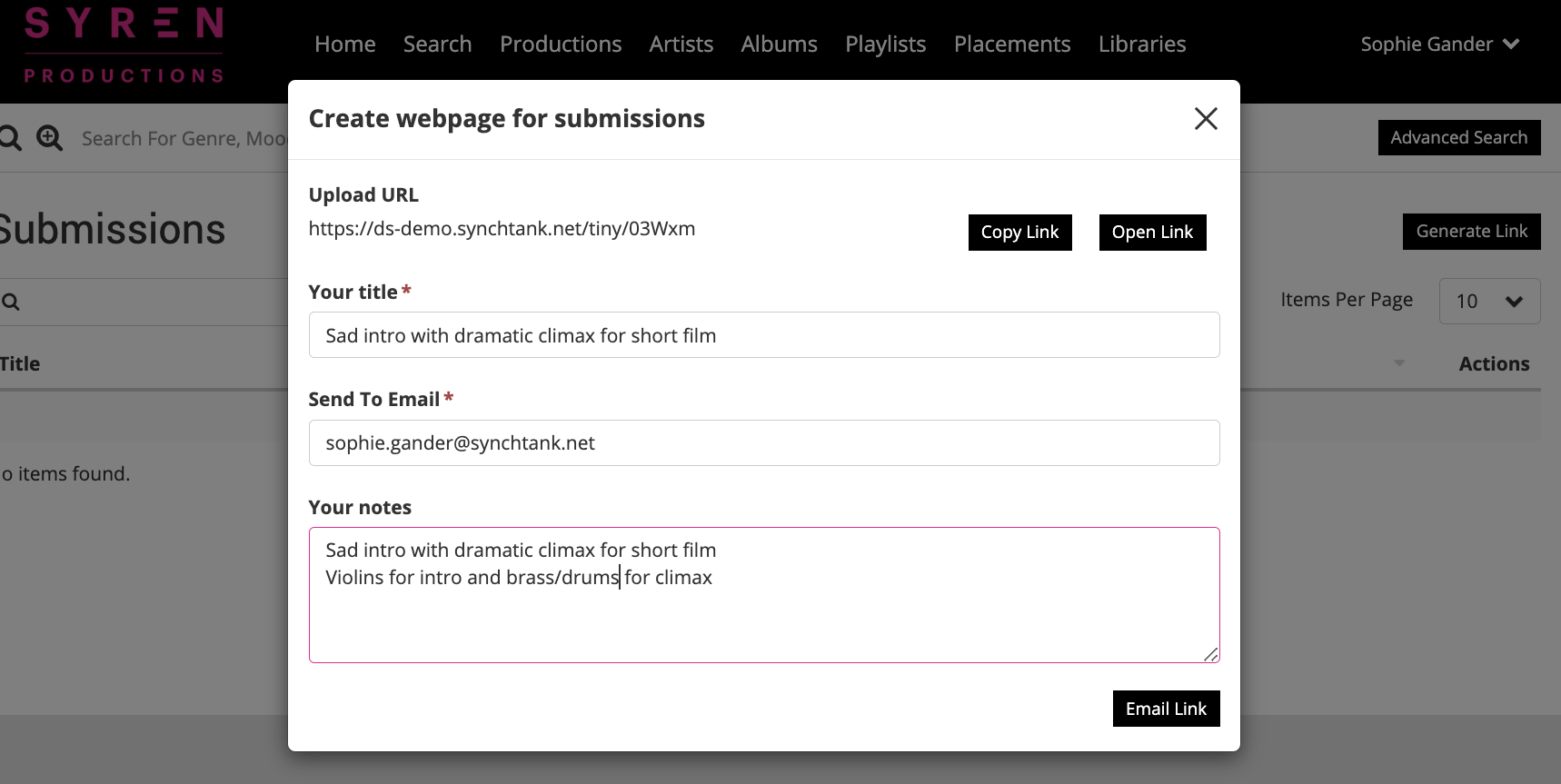
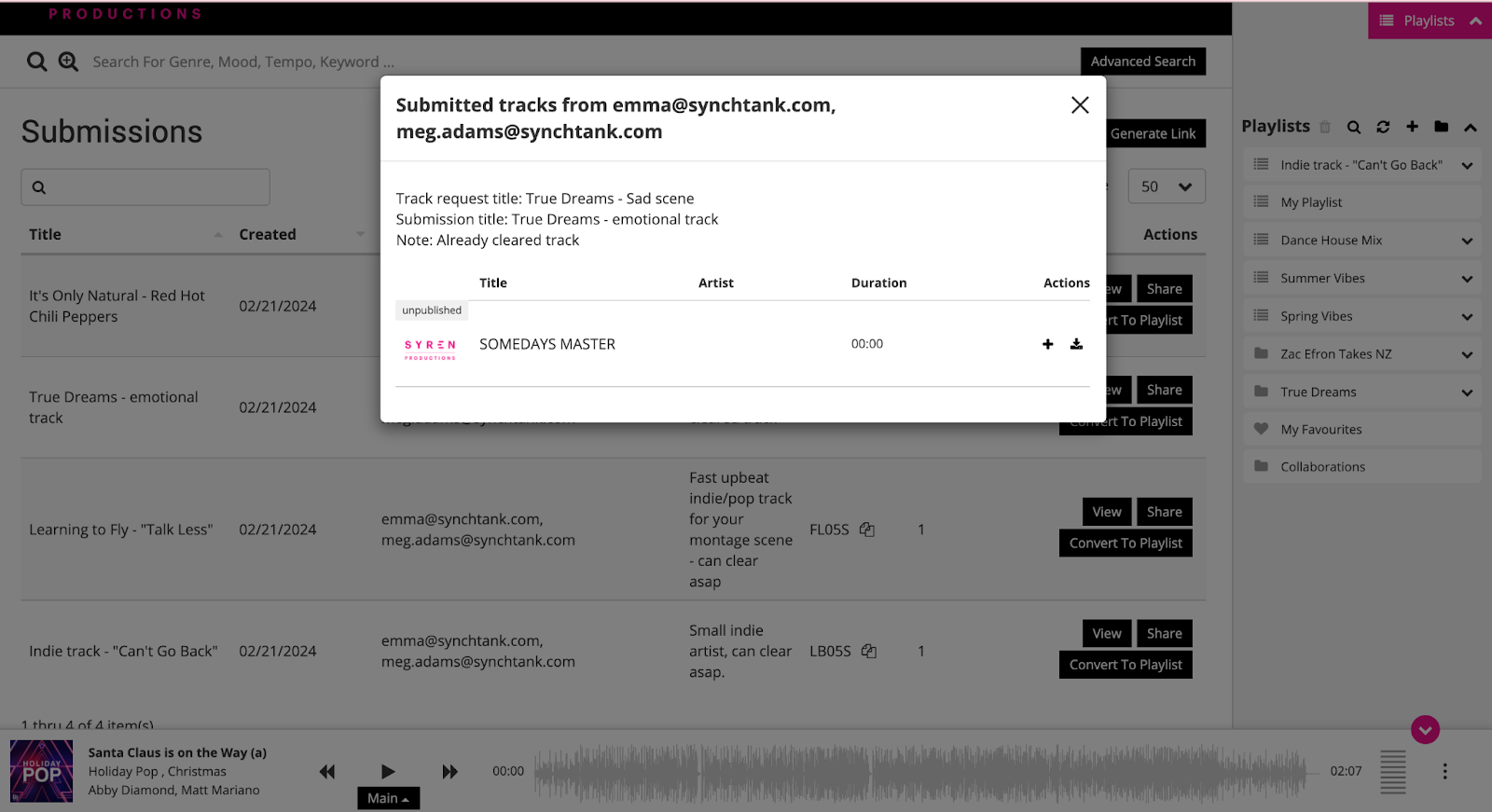
- Users will then receive and email with a link to the submission form and then they are able to complete the submission form on their end, including any attachments by clicking the Browse button to upload a file.
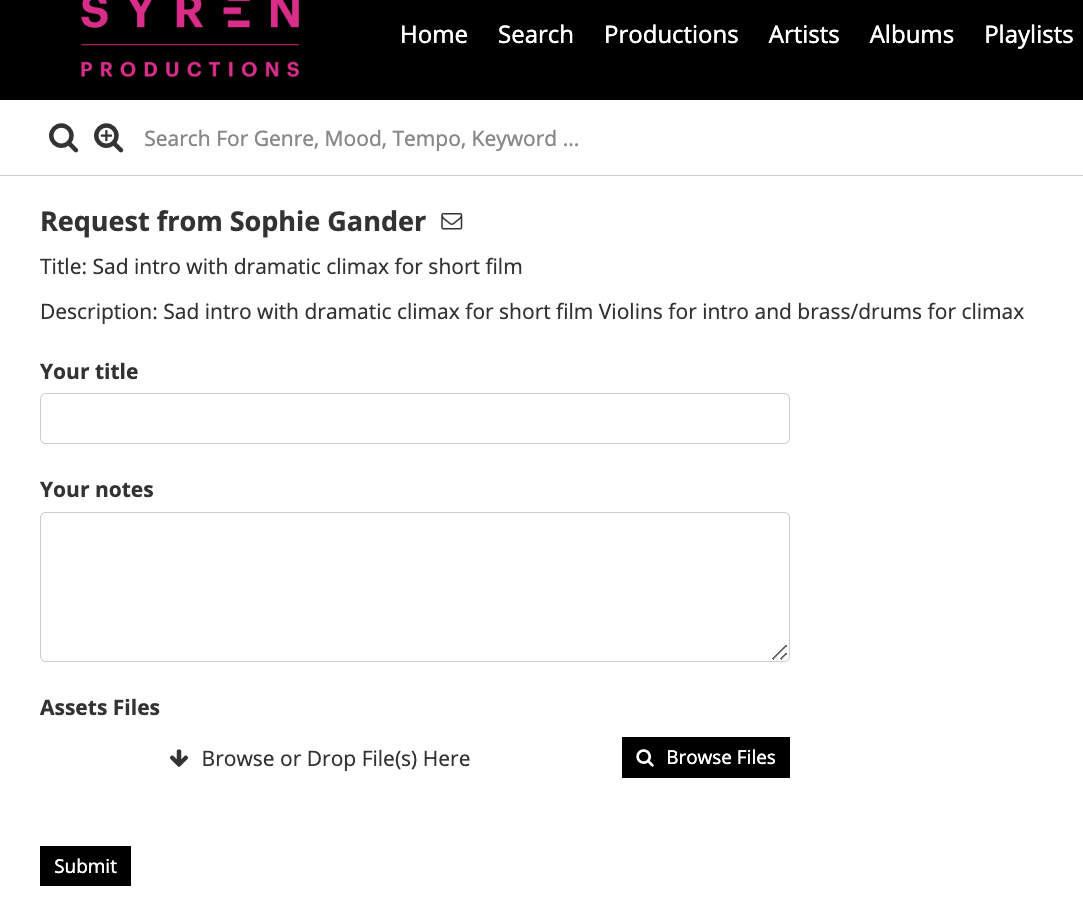
- When finished users will press submit and all submissions will be listed in the submission page in the top nav bar.
- The Submissions page will then load displaying the pitch you have just created as well as other previously created pitches.