Introduction
This guide explains the available methods for publishing and unpublishing masters within Synchtank.
Depending on the number of masters being updated, users can choose between:
Each method is described below, along with common use cases and important considerations.
Section 1 – Publish / Unpublish Using Spreadsheet Import
This guide explains how to publish or unpublish Masters in Synchtank using the Masters Report + Spreadsheet Upload workflow.
This method is especially useful when:
- Updating multiple masters at once
- Publishing/unpublishing
- Fixing frontend visibility/searchability issues
- Managing large catalogs in bulk
Important Publish Fields
The main fields involved are:
|
Field |
Purpose |
|
published_date (Published Date) |
Main publish flag |
|
published_start_date (Published Start Date) |
Optional scheduled publish start |
|
published_end_date (Published End Date) |
Optional scheduled unpublish date |
Publish Logic
IF published_date exists → Master is published
ELSE IF published_start_date or published_end_date exists → Master is published only within that date range
ELSE → Master is unpublished
Important Notes
- The release_date (Original Published Date) field does not control whether a master is visible on the frontend.
- A master may have an Original Published Date populated and still be unpublished.
- The published_date (Published Date)overrides all other publish date fields
- If published_date is populated, the master will remain published regardless of start/end dates
- Date fields must use the exact format: YYYY-MM-DD HH:MM:SS
- Example: 2026-05-21 12:00:00
How to Publish Masters
Step 1 — Generate the Masters Report
- Go to: Reports → Reports
- Generate the report: Masters
Recommended:
- Filter by Album, Artist, or Upload Date when possible
- Avoid exporting extremely large datasets unnecessarily
Step 2 — Download the Report
Wait for the report to finish generating.
Once completed:
- Open the Reports Dashboard
- Download the XLSX file
Step 3 — Update the Publish Fields
- Open the spreadsheet and update: published_date
- Use a valid datetime value: 2026-05-21 12:00:00
Recommended setup:
|
Field |
Value |
|
published_date |
Current datetime |
|
published_start_date |
Empty |
|
published_end_date |
Empty |
Step 4 — Upload the Spreadsheet
Go to: Import Tools → Spreadsheet Upload
Then:
- Select Type: Masters
- Add a title
- Upload the XLSX file
- Start the import
Step 5 — Wait for Processing
The import is not immediate.
After uploading:
- Wait for the system to process the file
- Refresh the import job page if needed
- Review the job results for any validation/import errors
How to Unpublish Masters (Recommended Method)
Clear all publish date fields:
- published_date
- published_start_date
- Published_end_date
Or, just delete/remove the Published Date (published_date)
Leave them completely empty.
Then:
- Re-upload the spreadsheet
- Wait for processing
Result: Master becomes unpublished
Alternative Unpublish Method
You can also:
- Set published_end_date to a past date
BUT: published_date must be empty
Otherwise, the master will remain published.
Important Frontend Visibility Notes
Publishing an Album alone does NOT automatically publish the Masters inside it.
For masters to appear correctly on the frontend:
- Album must be published
- Masters must also be published
Otherwise:
- Albums may appear empty
- Masters may not appear in search results
- Artist pages may behave inconsistently
Section 2 – Publish / Unpublish Using Bulk Edit
Overview
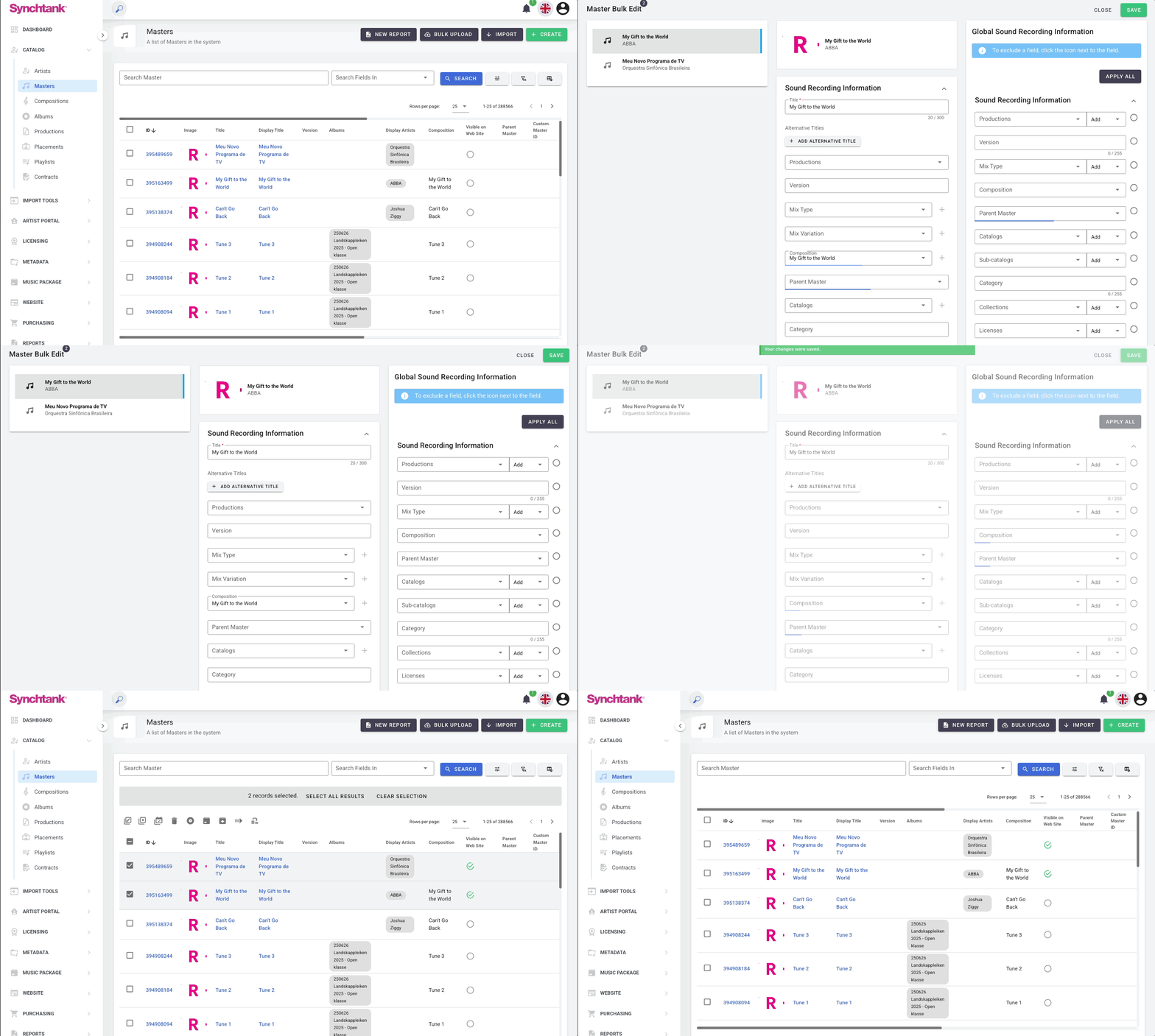
In addition to spreadsheet imports, masters can be published or unpublished directly from the Admin site using the Bulk Edit functionality.
Publishing Masters
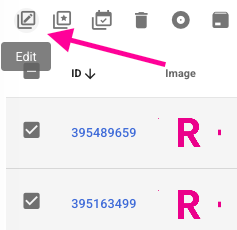
- Navigate to: Catalog → Masters
- Select one or more masters.
- Click: Edit, to open the Bulk Edit window.
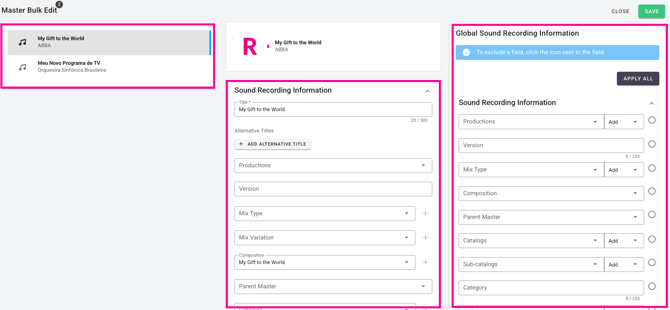
- The Bulk Edit screen contains three sections:
|
Section |
Purpose |
|
Master List |
Displays the selected masters |
|
Individual Edit Panel |
Edit metadata for a single selected masters |
|
Bulk Edit Panel |
Apply changes to all selected masters |
- In the Bulk Edit panel, locate: Web Site Visibility (Almost at the end of the 3rd column)
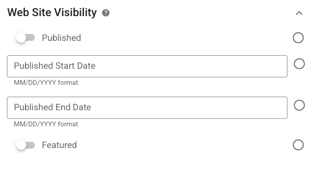
- Enable the Published toggle.

- (Optional) Set: Published Start Date - Published End Date
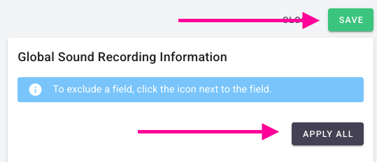
- Save/Apply the changes (Apply All).
Example (video)
Unpublishing Masters
- Navigate to: Catalog → Masters
- Select one or more masters.
- Click: Edit
- In the Bulk Edit panel, locate: Web Site Visibility
- Disable the Published (turn off) toggle.
- Save/Apply the changes.
Notes
- Changes made in the Individual Edit Panel only affect the selected master.
- Changes made in the Bulk Edit Panel are applied to all selected masters.
- Publishing through Bulk Edit uses the same publishing logic as the individual master edit page.
- Published Start Date and Published End Date can be used to control when masters become visible or expire automatically.
Section 3 – Publish / Unpublish Using the Publish Action
Overview
Masters can be published or unpublished directly from the Admin site using the Publish action/button available in the Masters section.
This method allows users to update the publication status of one or more masters without using a spreadsheet import.
Publish Action
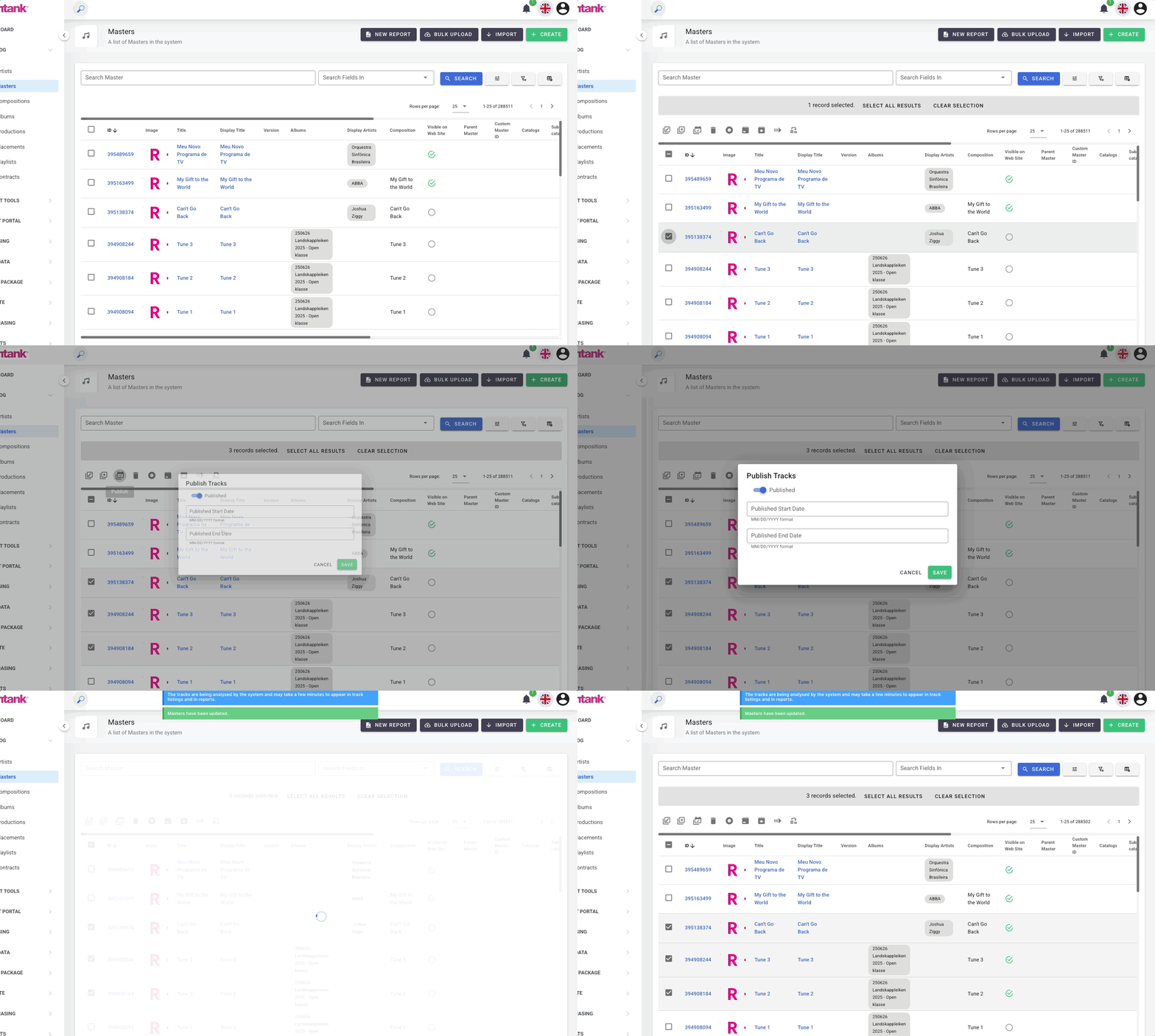
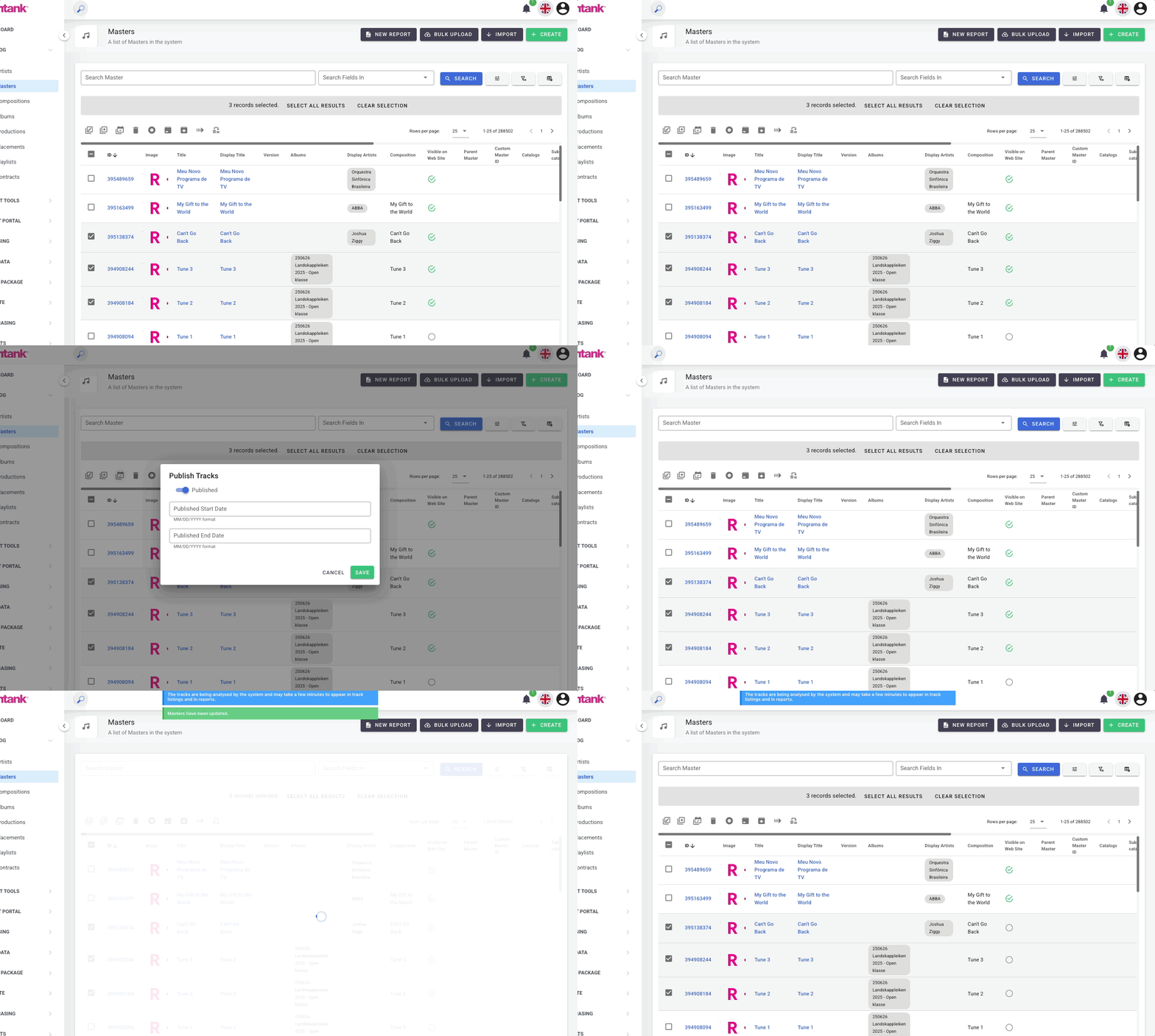
After selecting one or more masters, the following action becomes available: Publish
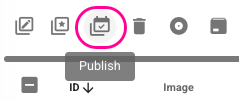
Opening this option displays:
- Publish toggle (On/Off)
- Published Start Date
- Published End Date
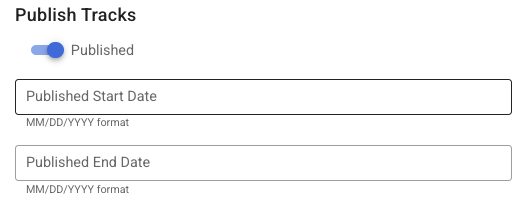
The Publish action can be used to:
- Publish masters (Toggle On)
- Unpublish masters (Toggle Off)
- Schedule publication dates
- Set expiration dates
Publishing Example (Video)
Unpublishing Example (Video)
Section 4 – Advanced Filters
Finding Masters Before Publishing or Unpublishing
When working with large catalogs, the Advanced Filters can help identify which masters are currently published or unpublished before applying any changes.
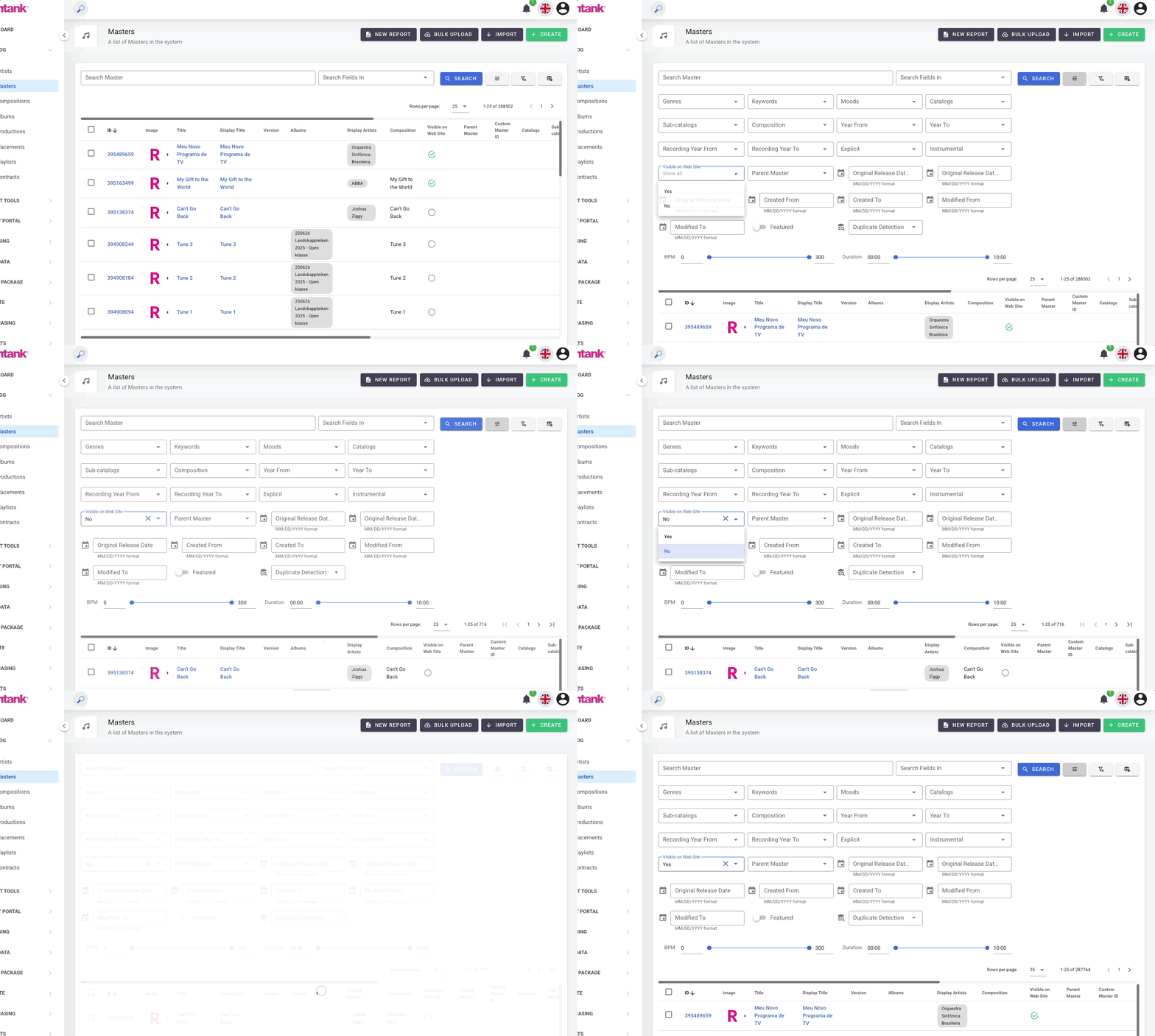
Filter Masters by Website Visibility
- Navigate to: Catalog → Masters
- Open: Advanced Filters
- Locate the filter: Visible on Website
- Select the desired option: Yes/No
- Yes: Displays masters that are currently published and visible on the frontend.
- No: Displays masters that are currently unpublished and not visible on the frontend.
- Select the desired masters from the results.
- Use Bulk Edit or the Publish action to update the selected masters.