
Search
When editing songs and interested parties or attaching clients, there are several ways in IRIS to make mass updates, saving time and effort.
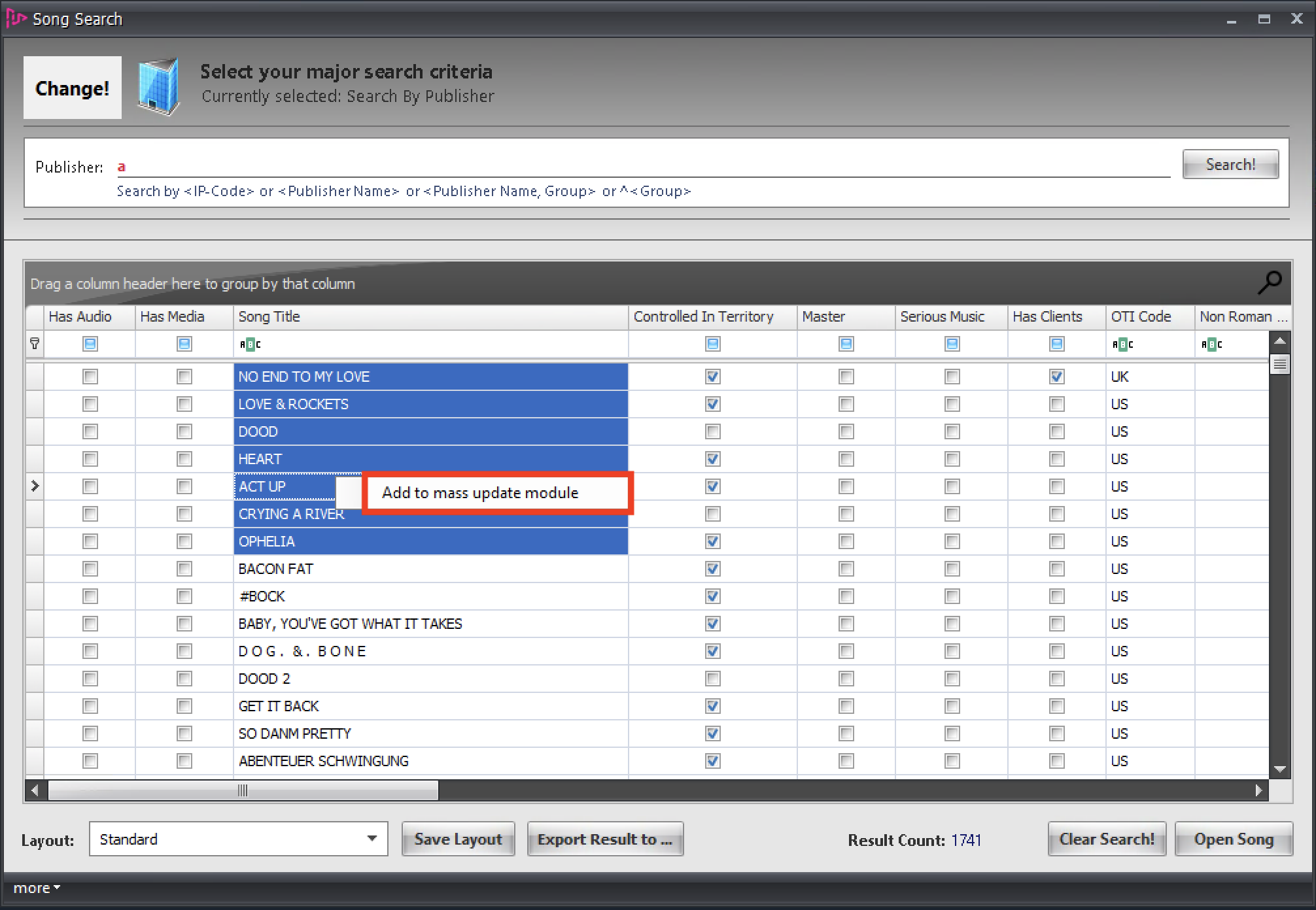
- In the song search, search for the song or songs you would like to mass update. This update will apply to each song in exactly the same way. In the example below, I’ve searched by Publisher. Select the songs you would like to mass update, right click and click add to mass update module.
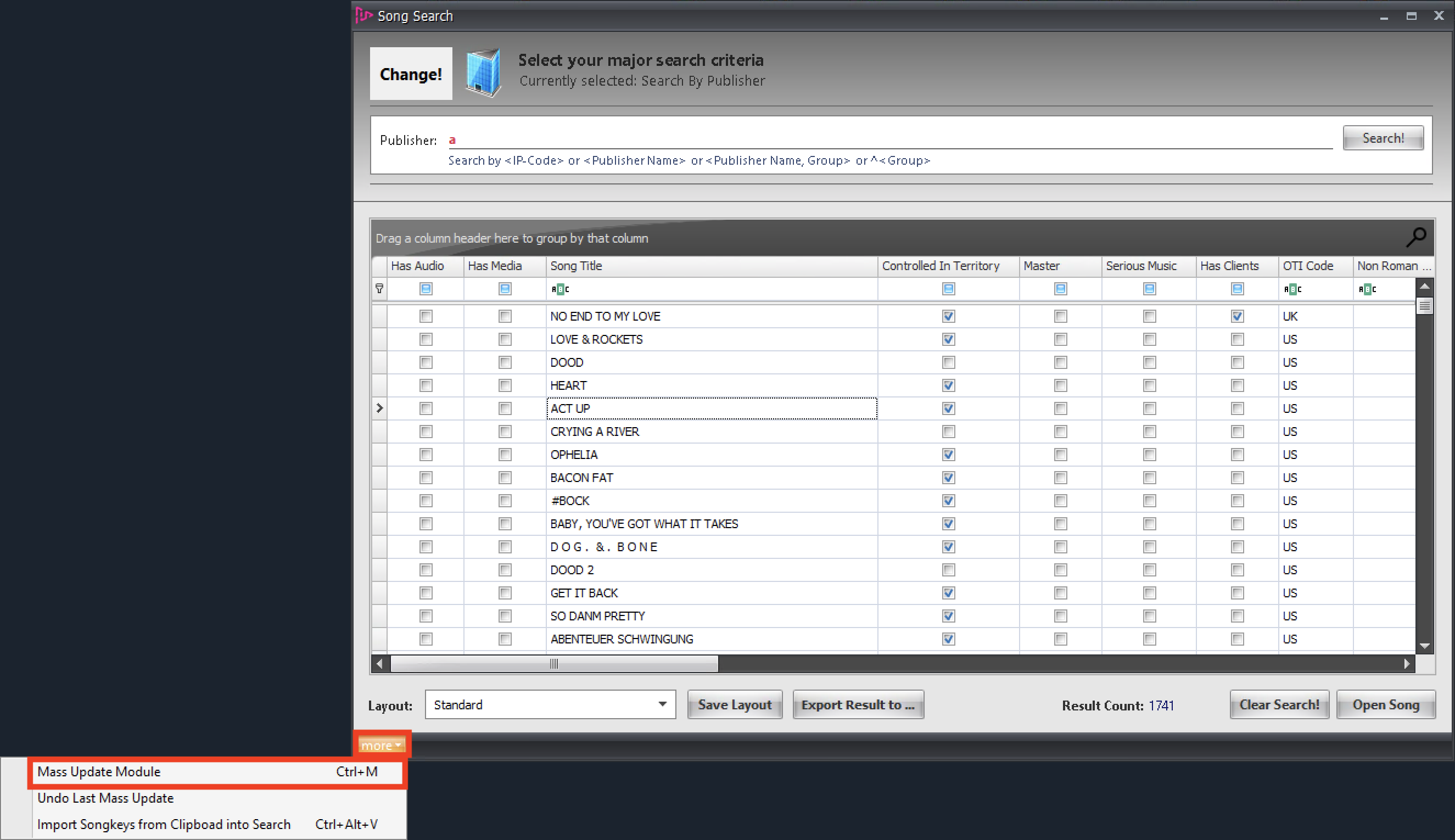
- Once you’ve added all the songs you would like to, click “more”, at the bottom of the screen, and then Mass Update Module (or alternatively (Ctrl+M)).
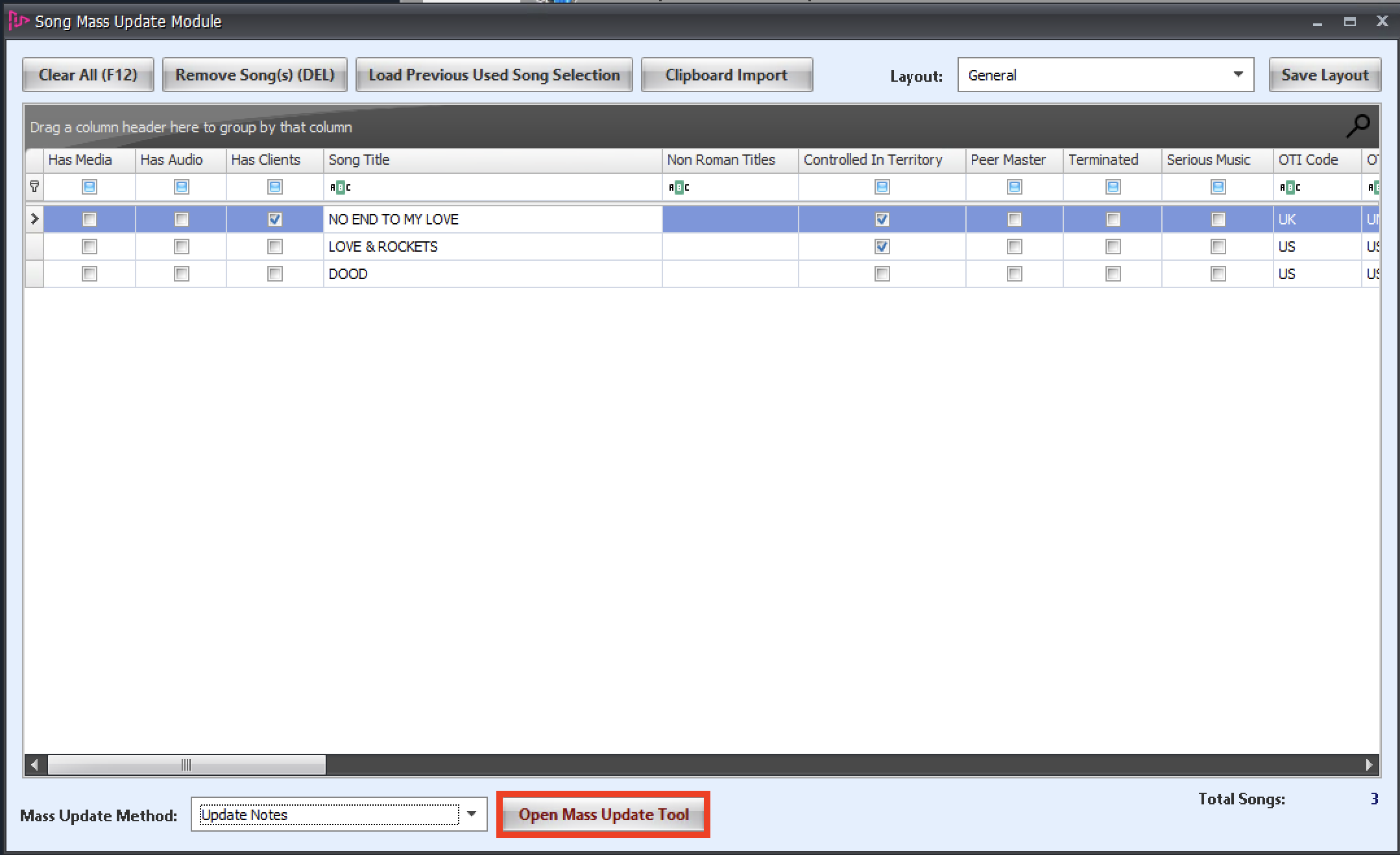
- Once inside the Mass Update Module, review the list of songs and make sure they are correct for the update you’re doing. Next, click the drop down menu at the bottom to choose the action you would like to perform.
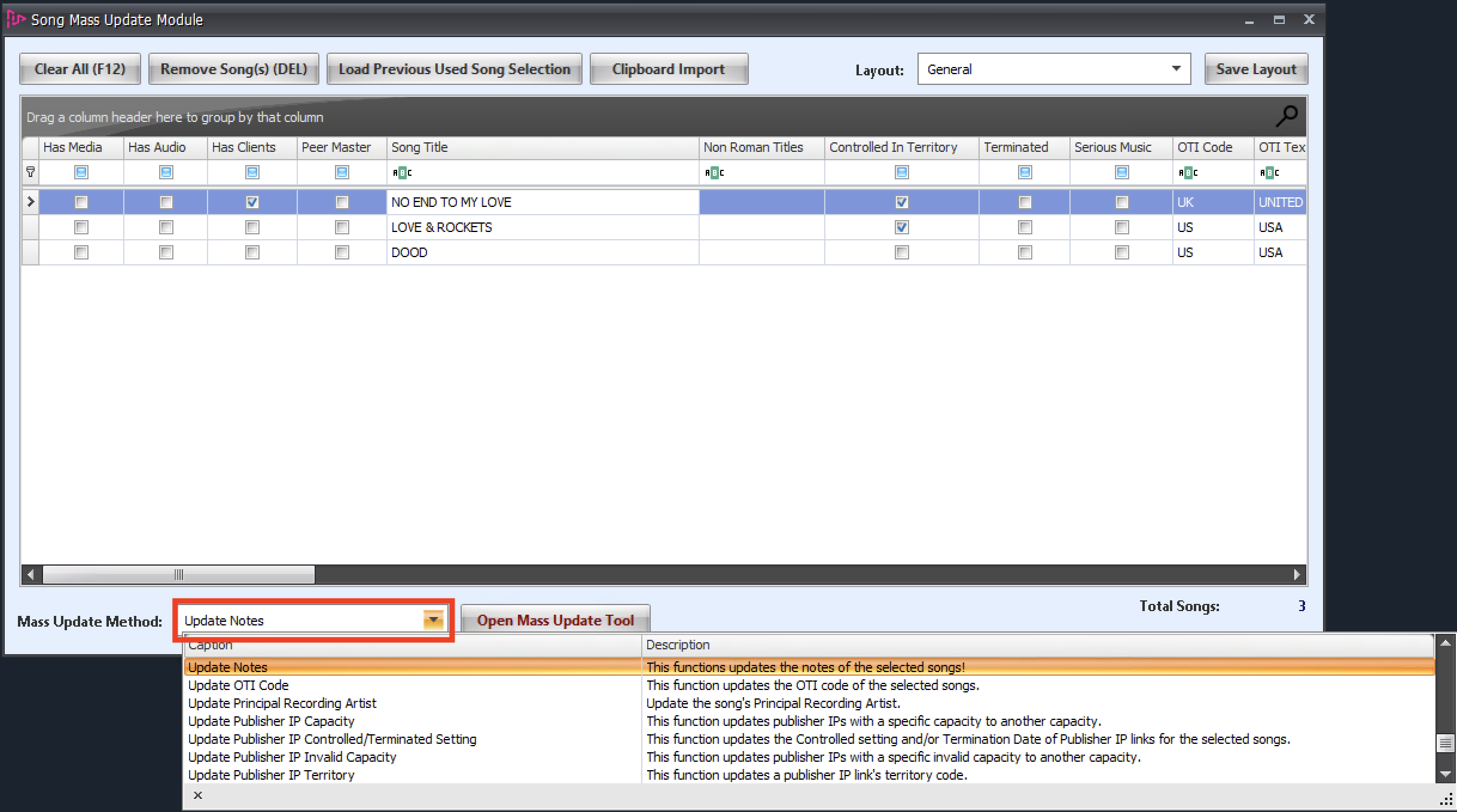 From the list below, you can see there are many choices. In this example, I will add a Note on the song (Update Notes).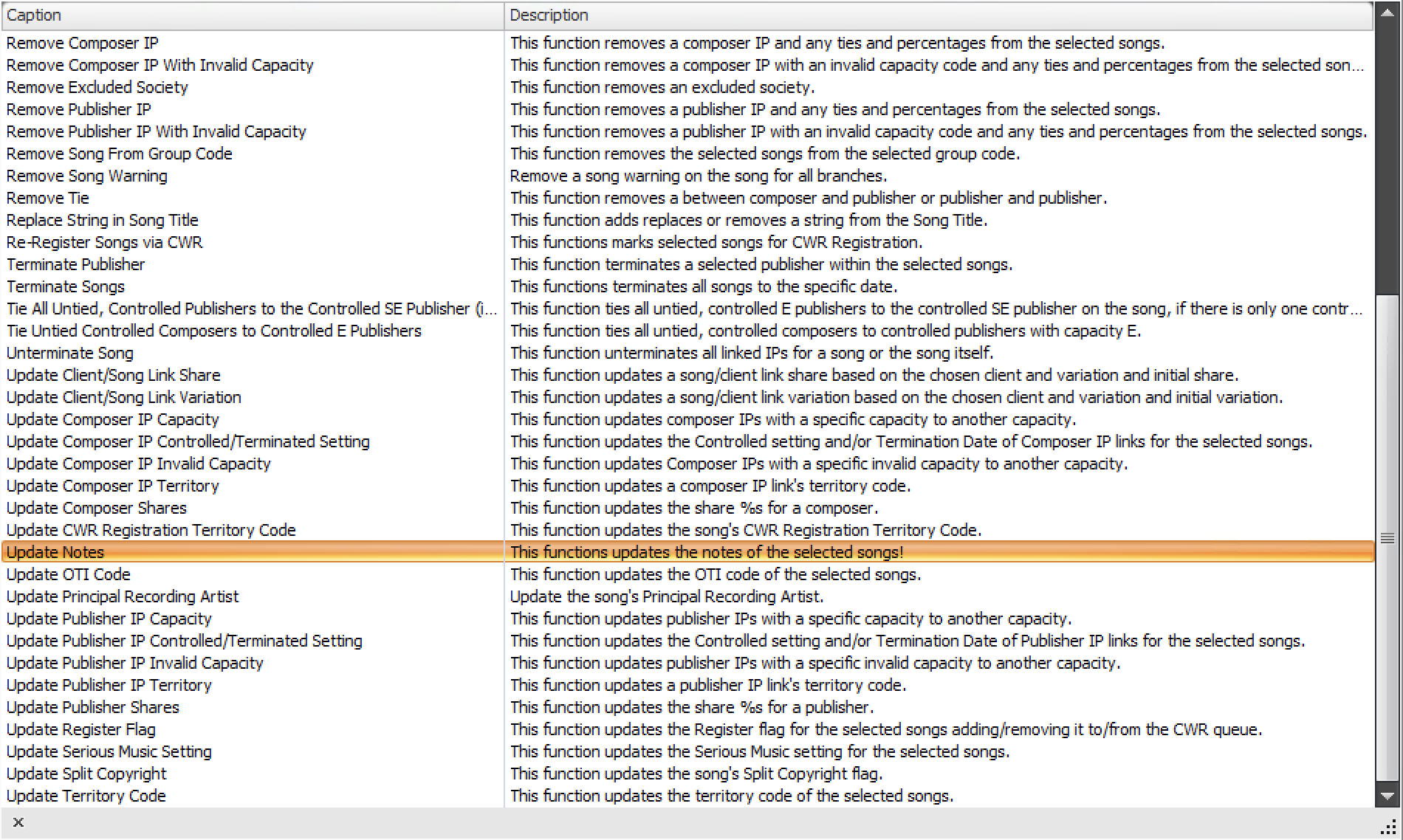
- Select your update and click the Open Mass Update Tool button. A new window will open with your options for the update you are performing. In this case it will have the options for updating notes.
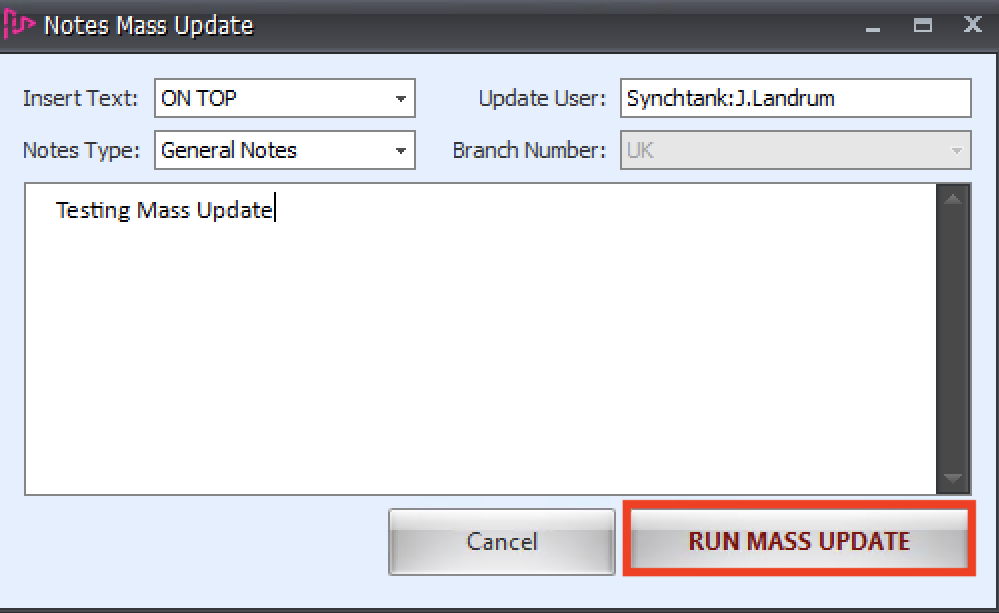
- Explore the selections about where you would like your new note, add the note and click “Run Mass Update”.
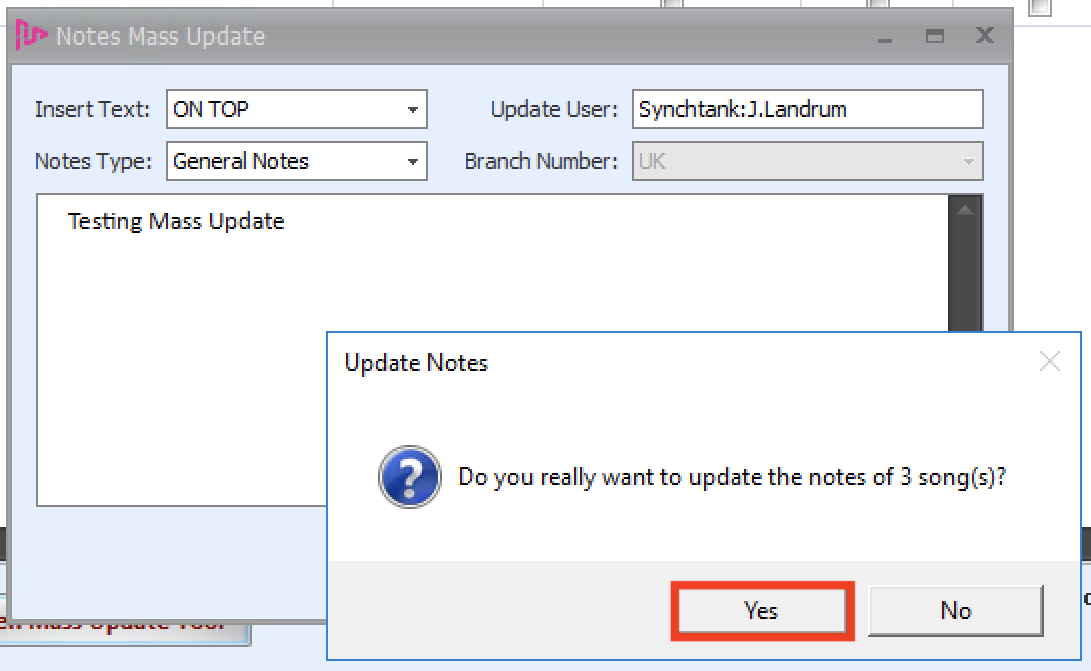
- You’ll get an ‘Are you Sure” pop up, click Yes. Then you’ll get a pop up confirming the update was made, click OK.
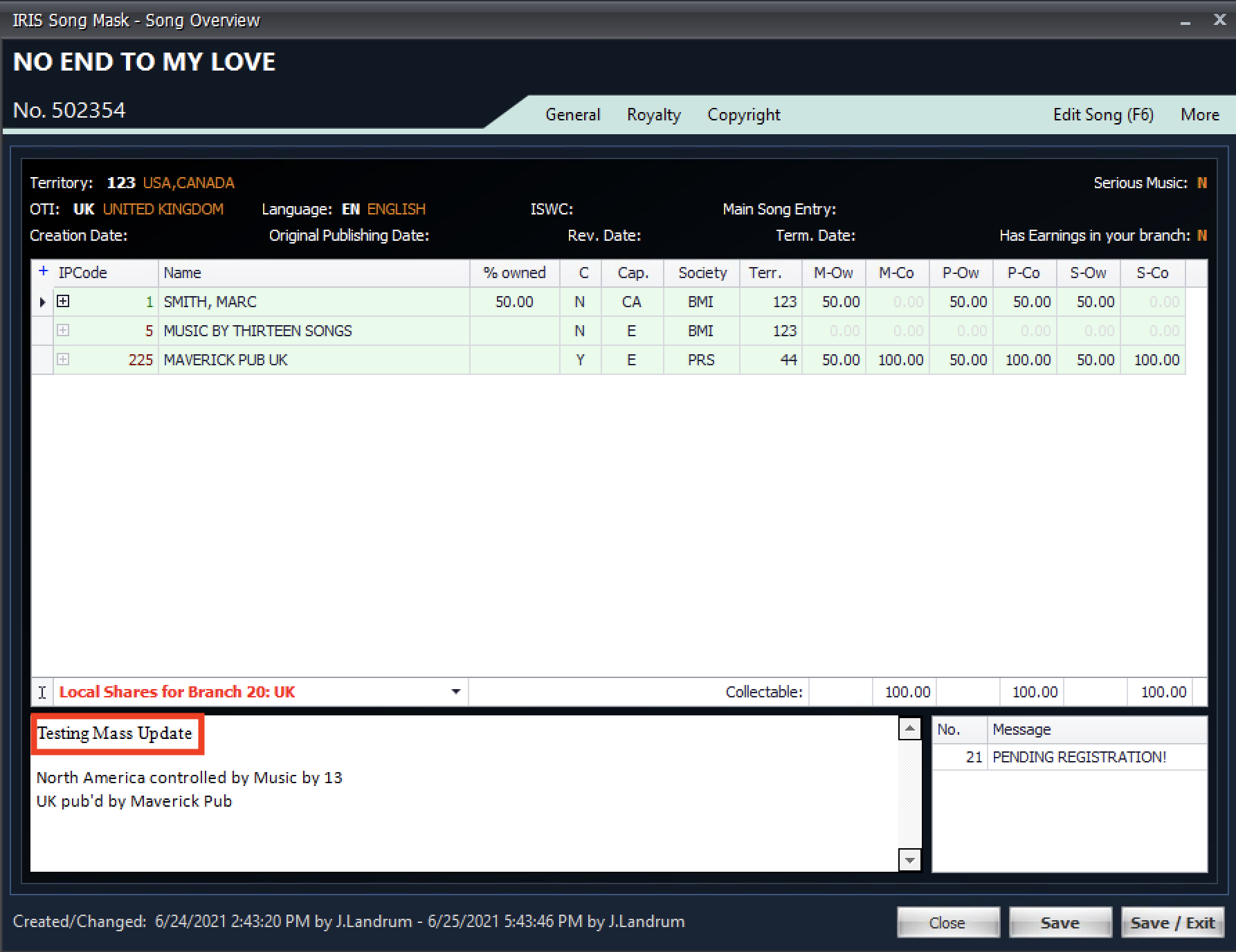
- A quick check on one song shows your new note.
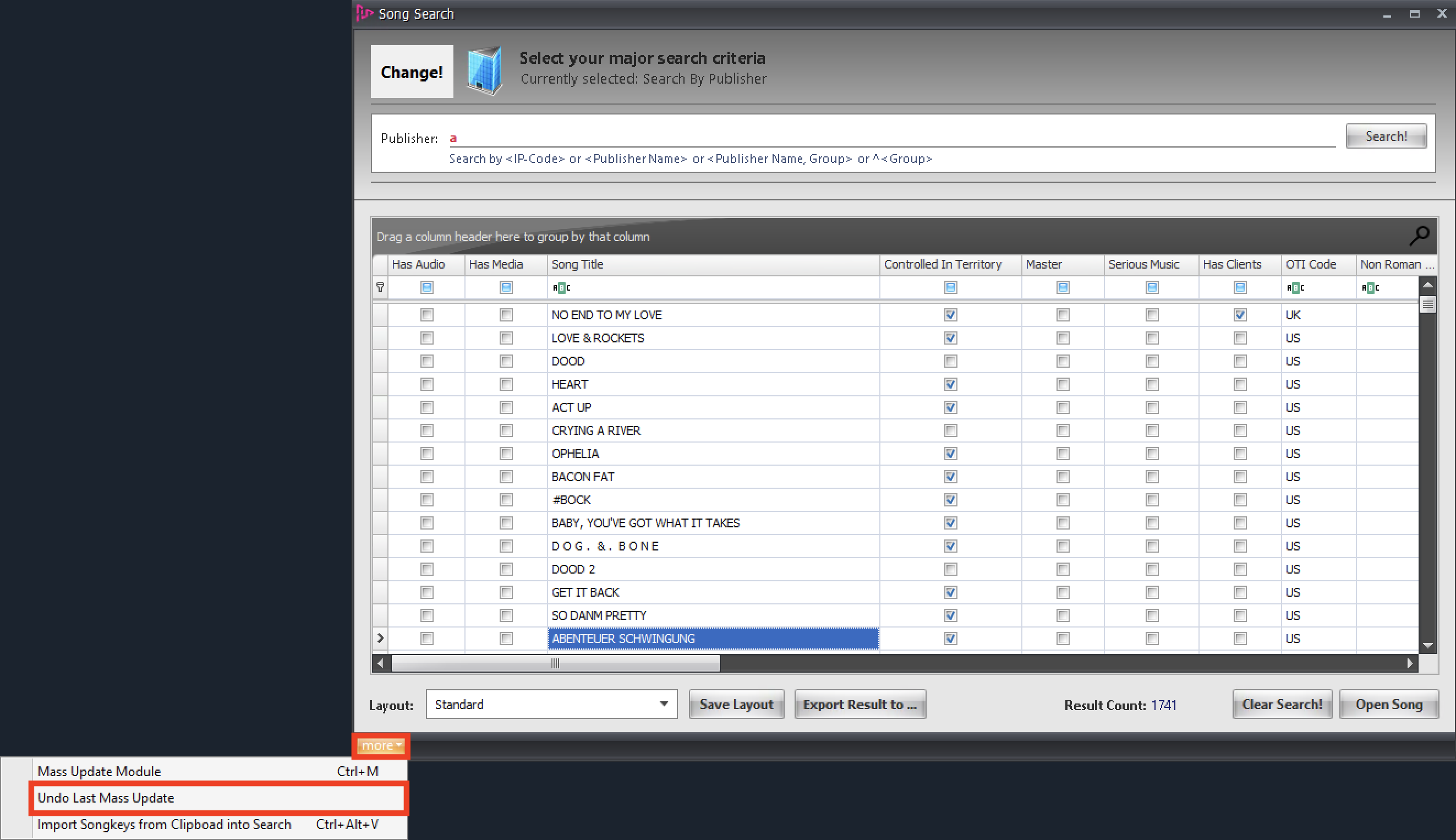
- Should you wish to undo the last (only the most recent!) mass update, you have that option as well. From the song search window click more then Undo Last Mass Update.
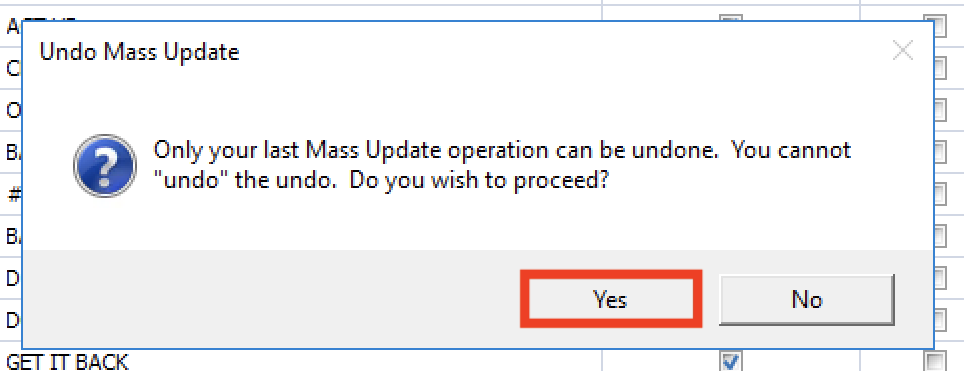
- Click Yes on the pop up and then OK on the confirmation pop up, your previous note has been removed.
The procedure is similar for other Mass Update options.
Happy editing!