
Micro-Licensing allows you to put licenses to your tracks up for purchase on the system without requiring any human interaction. This can be used for licenses to be used for Youtube videos, adverts, etc. This is essentially licensing on a smaller scale and at enterprise level.
Please be aware that the D2C integration is an additional paid feature - if you would like more information on D2C and setting this up, please contact your Account Manager to discuss. However, form licensing is part of our core module; see below for more details.
Form Licensing
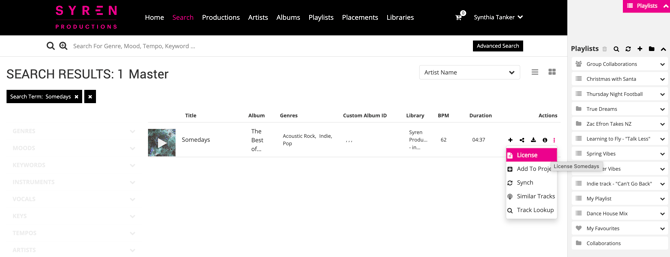
Form licensing is our standard way of licensing and is included within the Core Platform. When on the front end, a user is able to request to license a track via a form submission. They are able to do this by selecting the 3 dots on the track they would like to license and selecting “License”.
A form will then appear that requests the users information, so that you can contact them to find out what type of license they require and discuss the prices. The request form will be send to an email of your choosing.
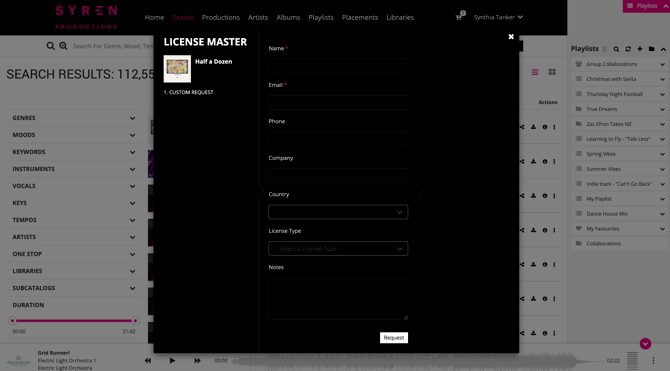
This form cannot be edited in the admin. If you would like to edit this form, please contact your Account Manager.
Micro-Licensing
Micro-Licensing (sometimes called single track licensing) allows end users to purchase licenses for a track directly within your Synchtank system. These licenses are not only customisable when it comes to terms and prices but come with License Agreements that can be tailored to the end user.
By creating licenses you can monetise your catalog and allow your end users to license tracks for a variety of uses with just a few clicks. Licensing ensures that you and your users can take advantage of your catalog with as little overhead as possible.
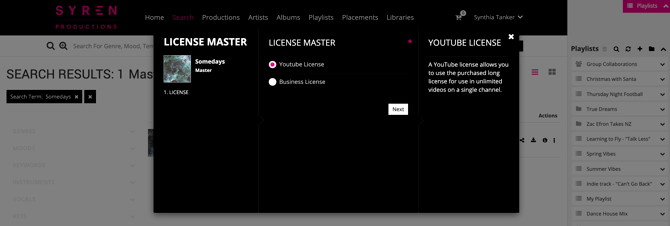
Below is an example of what this looks like:
1. Setting Up a License - Overview
To enable the Micro-Licensing process, first a license must be created. These can be created in the Admin section under Licensing.
On the licensing listing page you will be able to see a list of all current licenses as well as high level information about each of them.
When you click the green create you will then be able to set up a new license.
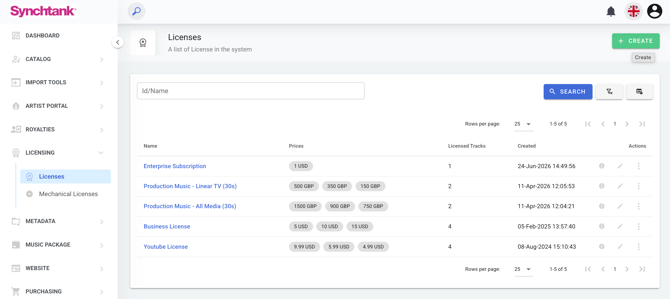
The following details can be added for a license:
- Name - this will be the name of the license displayed for the end users on the frontend
- Description - this will be the description of the license which, depending on your system template, will display beside the license name for the end users.
- License Text - this will be the text that appears in the license agreement that the user must agree to before purchasing a license. This text can be adjusted using the placeholders available on the page. For example, if you would like the purchase date to appear in the license the user agrees to, then you can use the placeholder {replace_with_date} in the license text.
- License Matrixes - this will determine the different pricing and licensing options available to users.
2. Setting Up a License - Matrixes
Each matrix you set up will be a different option for the user to select when purchasing a license. There are 3 core options for each matrix for each of the license types (Term, Territory, Currency), but your system may have more depending on your requirements.
Each pricing matrix should be assigned a price which will be the price displayed to the user once they have chosen all the options within that particular matrix.
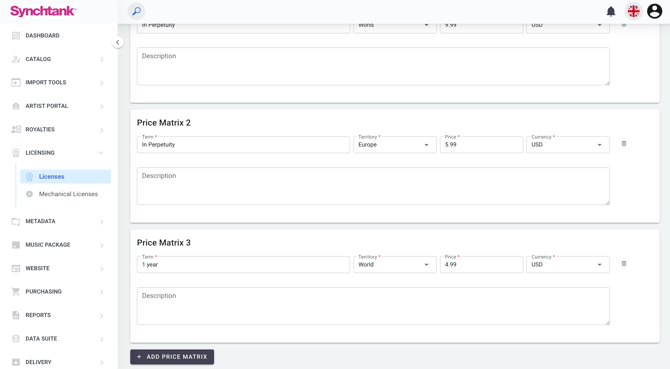
In the example above, if the user has selected this license, they will then have the choice between two different terms. If they select 'In Perpetuity' then they will be charged €15, if they select 'One Year' they will be charged €5. They will not have the option to select a Territory or a Currency as there is only one of each available for all the license's matrixes. If the user also wants the license for different usages, they will need to purchase each individual license relating to the usage.
You have the ability to set up Matrixes for finding which particular license the user will need. For example based on Usage, Company size and Media type. This will then show the correct price for the required license based on which boxes the client has selected.
If the user cannot find a license suitable for them, they have the option to contact you via the Licence custom request form which will pull in the standard Form licensing.
3. Assigning Licenses to Tracks
Not all licenses may be available for all tracks. Some tracks may be available for UGC licenses, some for Business licenses and some may not be available for Micro-Licensing at all. To control this, each license can be assigned to a track.
This can be done either individually for each track/master (as in the below example) or in bulk using the All Track import process covered in previous articles.
To add a license to an individual track, you will first need to ensure that licenses are set up in Admin.
- Select the relevant track/master within Masters under Catalog in the left hand side column
- Click edit in the top right corner
- Scroll down to licenses and select the license that you would like to assign to this Master
This then lets your users license this track with the relevant uses and without having to contact you.
4. Payment Processing
Micro-Licensing allows users to purchase the licenses you have set up and assigned to tracks in the previous steps.
However, in order to allow for payment processing for the end user on the frontend of the system, the system must be integrated with a payment processing system.
The popular options are Braintree or Stripe but other options can be used pending a discussion with the Synchtank team about your requirements.
Subscription Licensing
Subscription licensing is when a user pays you a recurring fee which allows them to access and license as many tracks as their permission allows them to do so.
If you would like further information on the capabilities of this module, please contact your Account Manager to discuss.
Whitelisting
Whitelisting is a mechanism that helps identify content online, DSP’s and Social networks have a content identification system to help ensure only licensed music is used on their platform. We are able to partner with your preferred provider to enable this using the data within your Synchtank system. If you would like further information on the capabilities of this, please contact your Account Manager to discuss.
Purchases
For more on Purchases, see this article.
Reports
Users are also able to run a report of all licenses purchased under the “Reports” section in Admin. This report is called a Sales Report.