
Here we look at the methods for adding and managing data in your Synchtank system.
You must have the proper permissions to proceed; these are established on a user-by-user basis. Please consult your internal system administrator if you have questions about your user permissions.
- Master Creation (Single Track)
- Audio upload (100 tracks or fewer)
- Metadata Upload
- Ingestion Templates
- Additional info
Master Creation (Single Track)
To create a single master record manually, refer to the Masters section in the Catalog article.
Audio Upload (100 tracks or fewer)
Bulk Upload (importing catalog via Audio Files) allows you to create records in the system for masters and compositions using the data embedded in the audio files and add or edit the data during the upload process.
Do not refresh or leave the upload screen while your file(s) are uploading, and ensure uploads do not exceed 2GB. For larger imports, please contact
Overview page
When you navigate to Import Tools → Audio Upload, you will see an overview of all previous bulk upload sessions. From here you can:
- Search and filter previous uploads
- View the status and history of each upload
- Customise the columns displayed using the column selector
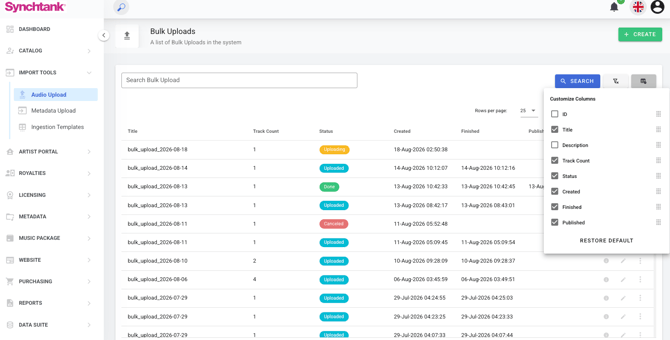
Creating a new upload
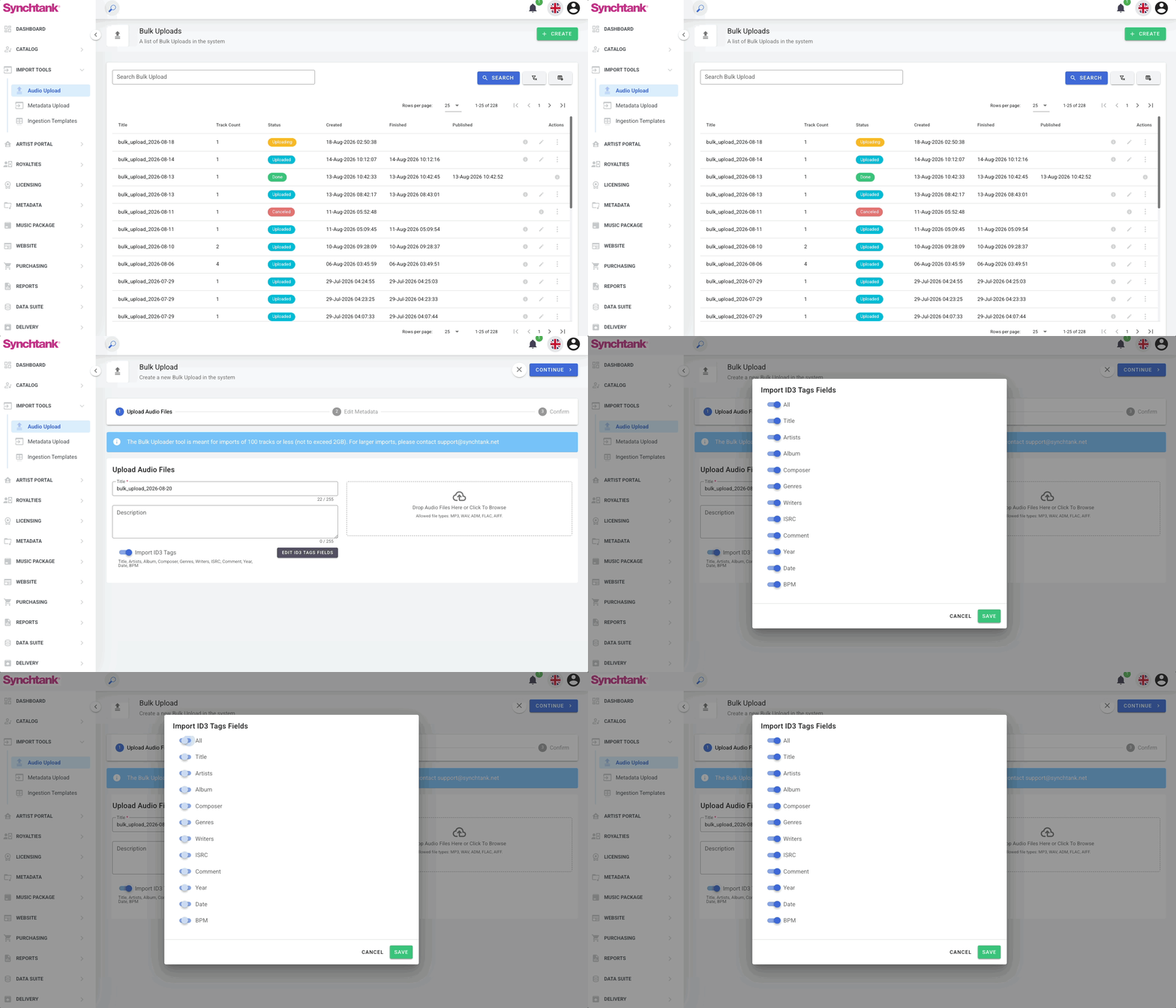
To start a new bulk upload, click the Create button. You will see the following steps:
Step 1 — Upload Audio Files
- Give your upload a title and optionally a description
- Drag and drop your audio files or click to browse. Supported file types: MP3, WAV, ADM, FLAC, AIFF
- Toggle Import ID3 Tags to automatically import embedded metadata from your files, including: Title, Artists, Album, Composer, Genres, Writers, ISRC, Comment, Year, Date, BPM. You can customise which fields to import by clicking Edit ID3 Tags Fields
- Click Continue when ready
Step 2 — Edit Metadata
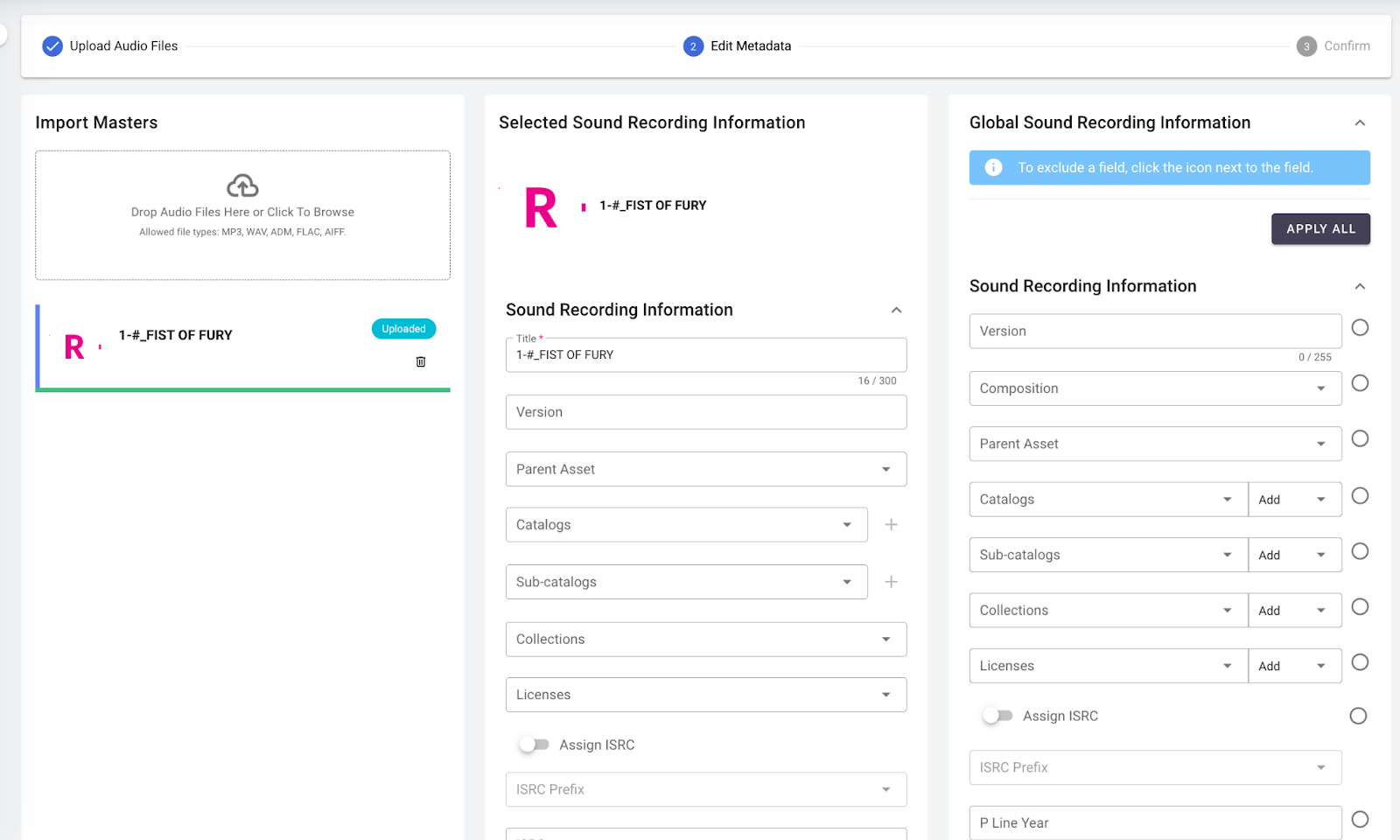
On the second page of the upload process, you can set metadata for the tracks in your upload. The page is divided into three columns as follows:
- Import Masters (left)— list of all the masters included in the upload
- Selected Sound Recording Information (center)— edit metadata for the individual master selected on the left
- Global Sound Recording Information (right)— apply the same metadata to all masters in the upload at once using Apply All. You can choose to apply only to empty fields or overwrite existing data. You can also upload artwork here and apply it to all tracks in the upload.
Metadata Input Tips:
- In the selected Sound Recording Information column, you can select metadata from the metadata dropdowns but you can also create new metadata tags using the + button. For example, to add a new catalog you type in the name of the required catalog and press + and this will add it to the system.
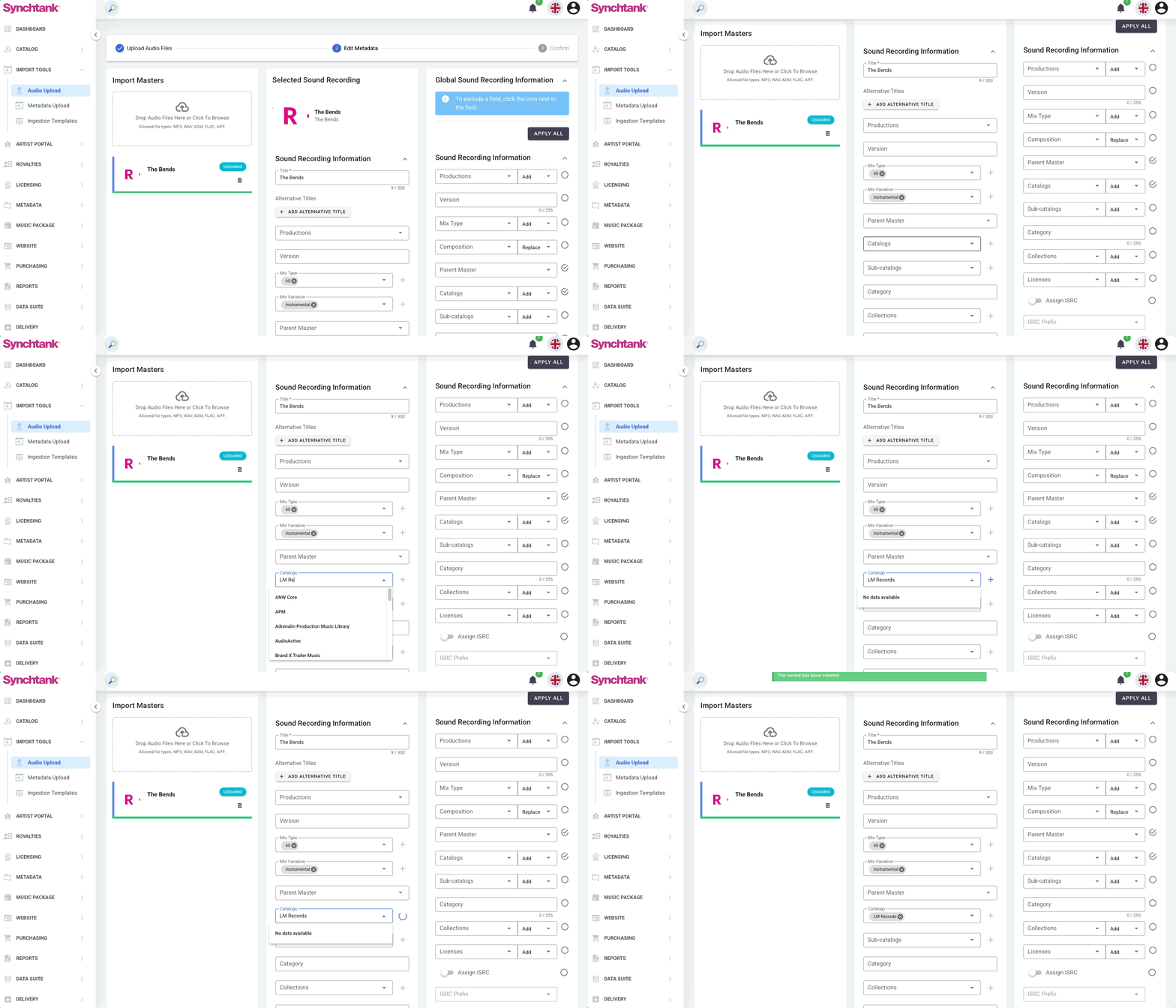
- In the Global Sound Recording Information column you can use the Apply All button to add the metadata to all the sound recordings in the upload. You can choose to add the metadata only to empty fields which will apply this change only when there is no pre-existing metadata, or select Apply to All to overwrite any data that may already be stored for individual sound recordings.
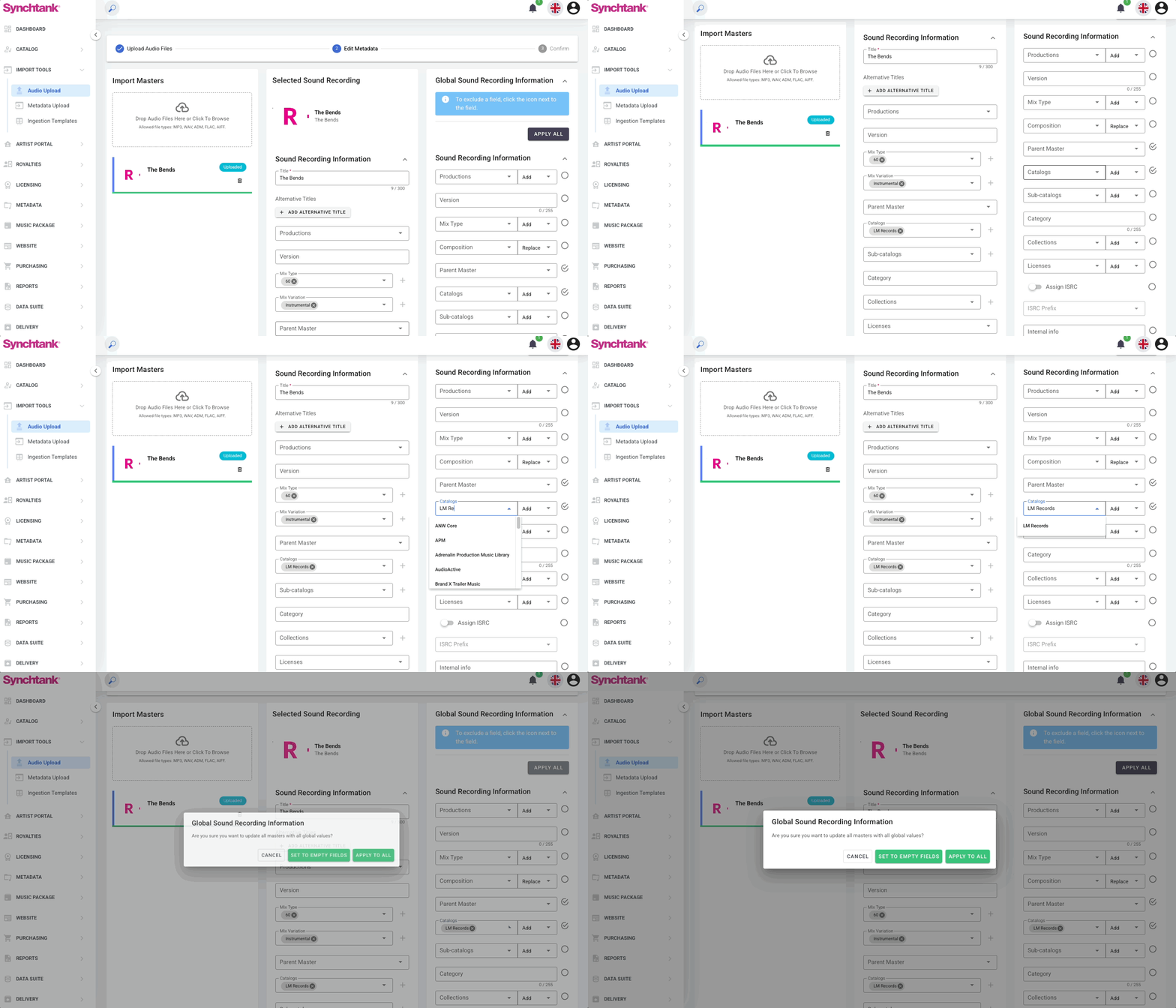
- In the Global Sound Recording Information column, fill in only the fields you want to apply to all tracks. Any fields left blank will be ignored.
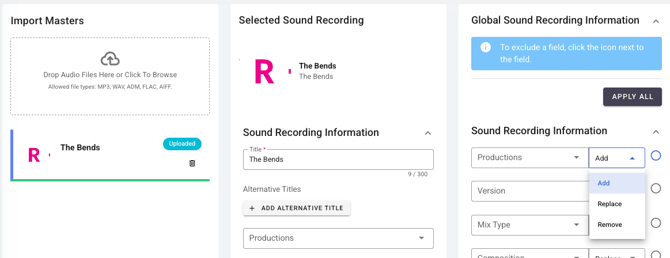
- For some fields in the Global Sound Recording Information column, you can choose which action you would like to perform: Add, Replace, or Remove. For example, if you would like to remove a particular catalog from all the sound recordings you can select that catalog and then set it to Remove.
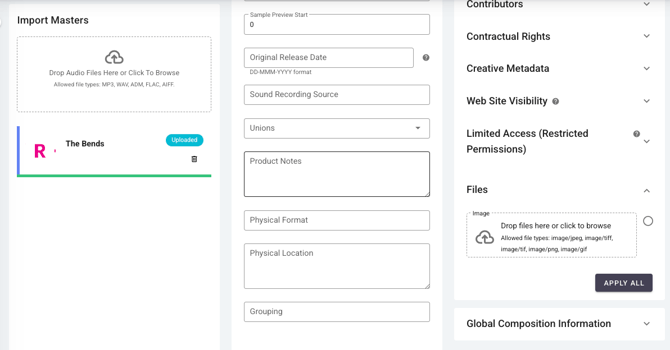
- In the Global Sound Recording Information column, you can upload artwork and apply it to all the sound recordings. For example, if you are using the import tools to upload a single album you can upload the artwork once and apply it to all tracks in that album.
Step 3 — Confirm
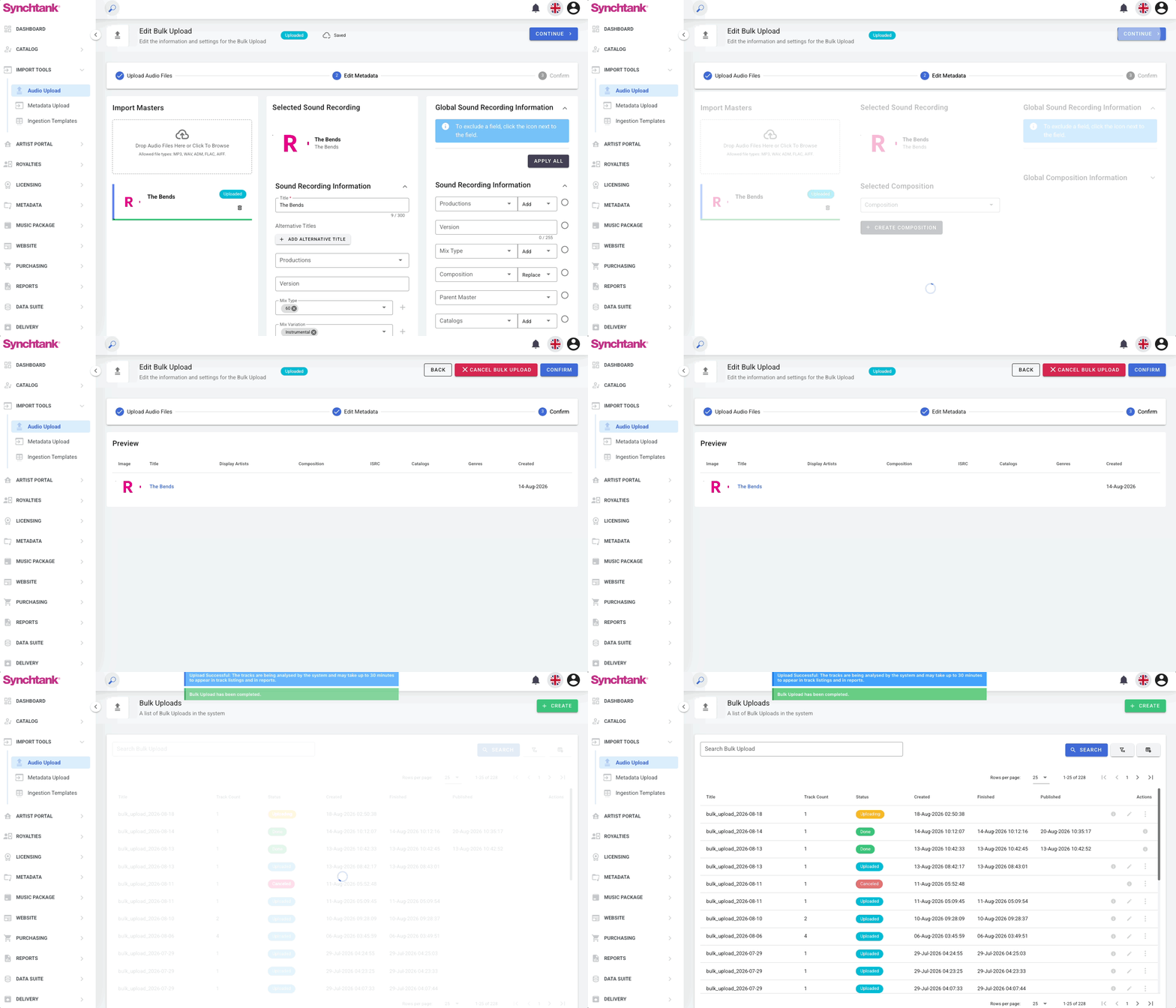
Review your upload and click Confirm. The bulk import will appear immediately in the Audio Upload overview list with a status that updates as the process progresses:
- Uploading — the import is currently in progress
- Done — the import completed successfully
- Uploaded — files were uploaded, but the process was not fully completed
- Cancelled — the bulk import was cancelled
Metadata Upload
The Metadata Upload section allows you to update and manage data across your Synchtank system using file imports. This includes spreadsheet uploads for bulk metadata edits, image imports, and CWR file imports for compositions.
To import metadata, you will need a file in the correct Synchtank format. The easiest way to get this is by generating a report first — this gives you a file with the right structure and column headings that you can edit in Excel and re-upload. Learn how → Reports
Overview page
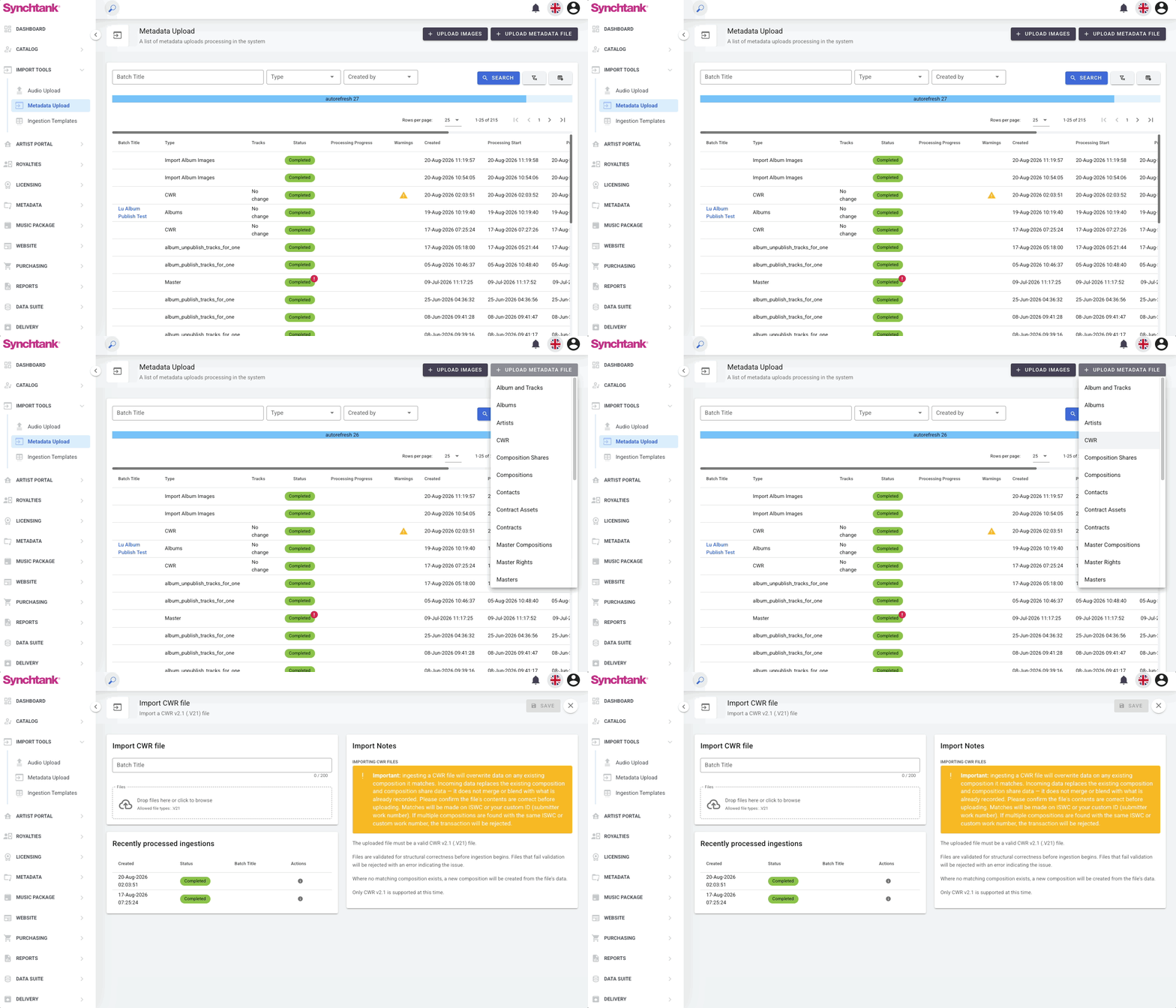
When you navigate to Import Tools → Metadata Upload, you will see an overview of all previous metadata upload sessions. From here you can:
- Search and filter previous uploads
- View the status and history of each upload
- Customise the columns displayed using the column selector
At the top of the page you will find two upload buttons: + UPLOAD IMAGES and + UPLOAD METADATA FILE.
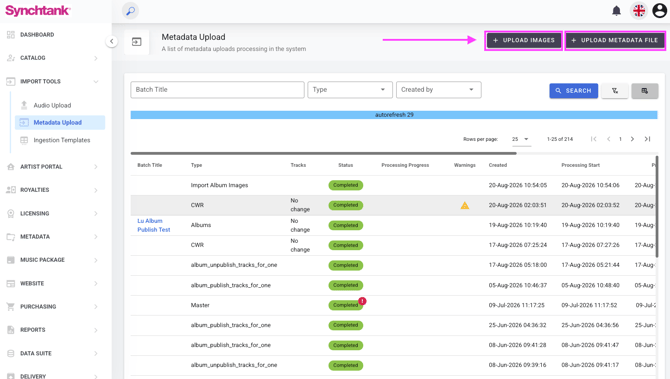
Upload Images
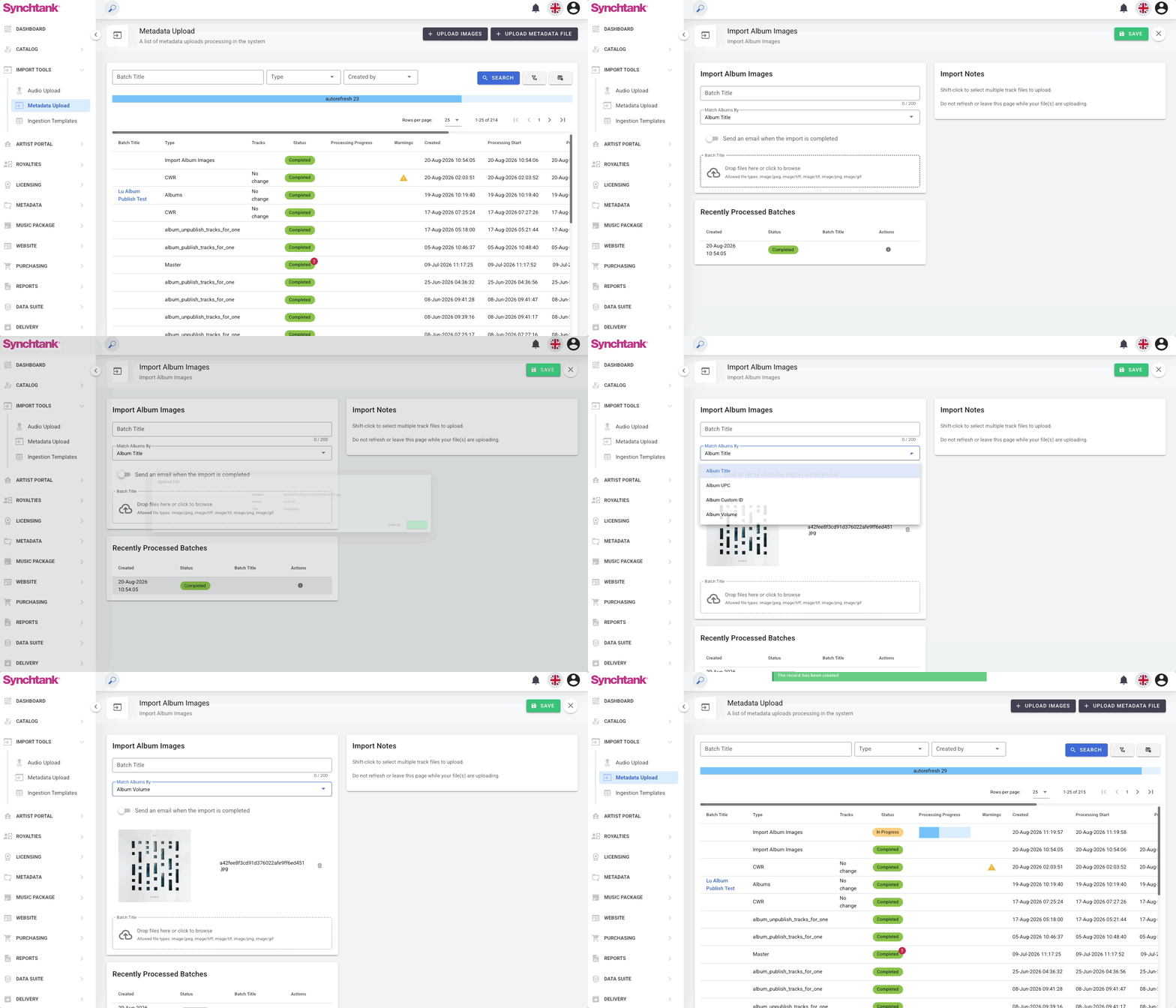
Clicking + Upload Images takes you to the Import Album Images section. Here you can bulk upload artwork for your albums.
How to import album images:
- Enter a Batch Title (optional) to help identify the import later
- Select how to match albums using the Match Albums By dropdown:
- Album Title
- Album UPC
- Album Custom ID
- Album Volume
- Toggle Send an email when the import is completed if you would like to receive a notification
- Drag and drop your image files or click to browse
- Click Save to start the import
Once submitted, the import will appear in the overview list. The status will update from Pending to Completed once the process is finished.
Upload Metadata File
Clicking + Upload Metadata File takes you to the metadata import section. Select the type of data you want to import — the available options and settings will adjust based on your selection.
Supported types include: Albums, Artists, Masters, Compositions, Composition Shares, CWR, Organizations, Contacts, Productions, User Groups, Users, and various SyncUP types (Invoices, Licenses, Opportunities, Quotes).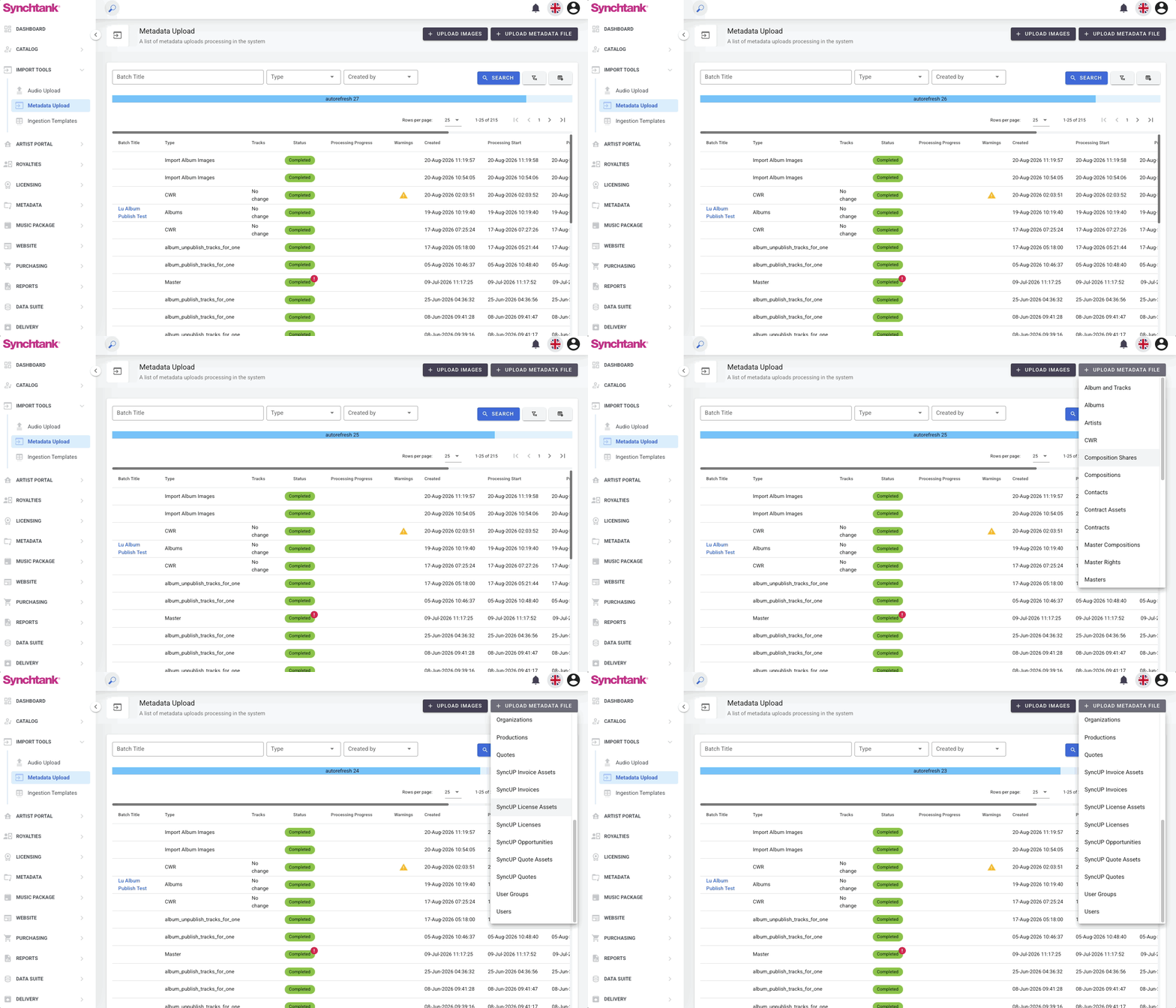
Depending on the type selected, additional options may appear. For example, when importing Masters, you can toggle the following:
- Create new Composition for new Master when Composition ID is blank
- Create new Album when Album ID is blank
- Create new Artist when Artist ID is blank
- Create new Contributor when Contributor ID is blank
These toggles allow the system to automatically create related records if they don't already exist, saving you from having to create them separately beforehand.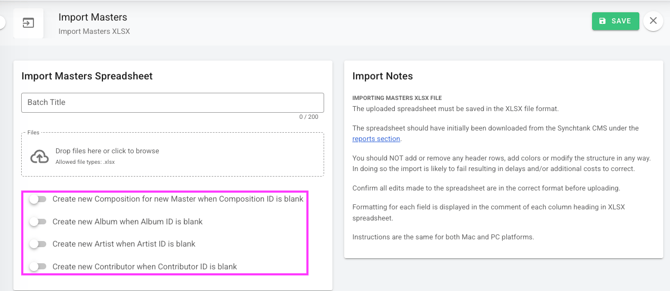
You can remove columns you don't need to keep the file lighter, but always keep the ID column — this is how the system identifies which records to update. Do not add new columns or change the structure of the file as this will cause upload errors.
Once submitted, you can monitor the import from the overview page. If any errors occur, a Batch Report will be generated showing which rows failed and why. You can download a review file to check the errors, fix them, and re-upload.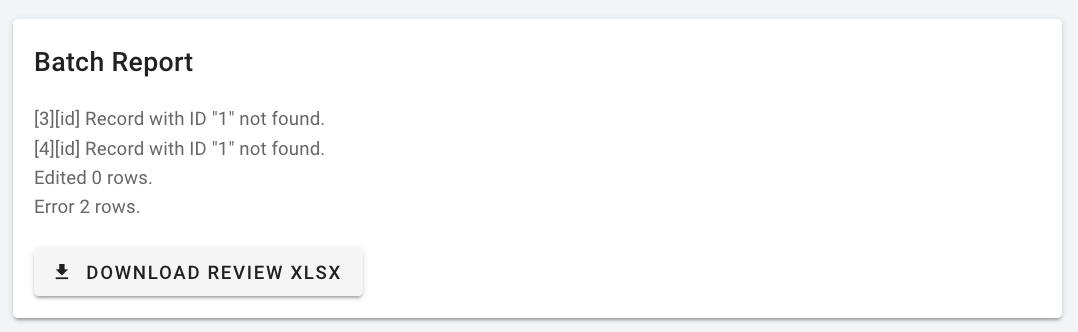
How to import a metadata file:
- Generate a report from the Reports section to get a file in the correct format
- Open the report, make your changes, and save the file (XLSX Format)
- Go to Import Tools → Metadata Upload → + Upload Metadata File
- Select the data type from the dropdown
- Configure any additional options or toggles as needed
- Drag and drop your updated file or click to browse
- Click Save to start the import
Once submitted, the import will appear in the overview list and will be processed by the system. You can monitor the status from the overview page.
Note: Do not add, remove, or change the structure of the columns in the spreadsheet as this will cause upload errors.
CWR Upload
To upload a CWR file, select CWR from the type dropdown. Unlike spreadsheet imports, you do not need to generate a report first — upload your CWR file directly. The system will parse the file and automatically create composition records based on matching codes. No additional toggle options are required for CWR imports.
Ingestion Templates
Ingestion Templates allow you to upload and manage template files used during the data ingestion process. Supported file formats are .xlsm and .xlsx.
Overview page
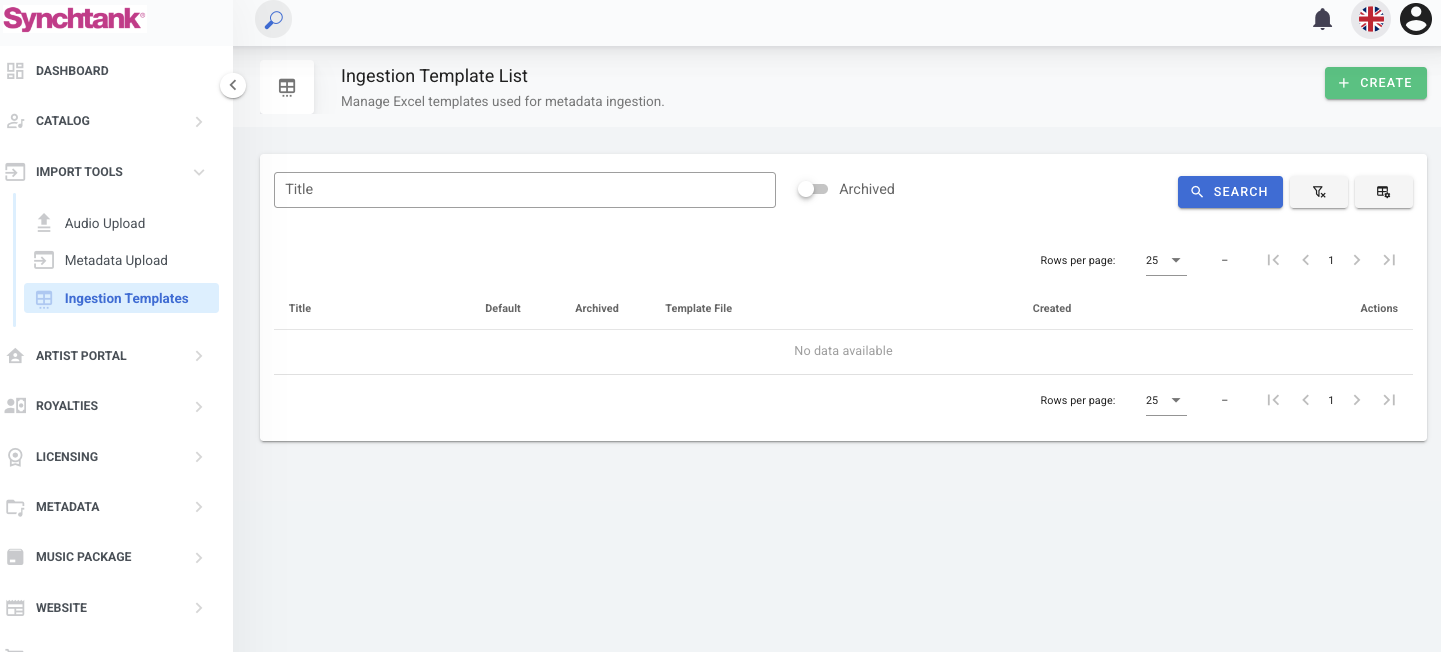
When you navigate to Import Tools → Ingestion Templates, you will see an overview of all existing templates. From here you can search, filter, and customise the columns displayed.
Creating a new Ingestion Template
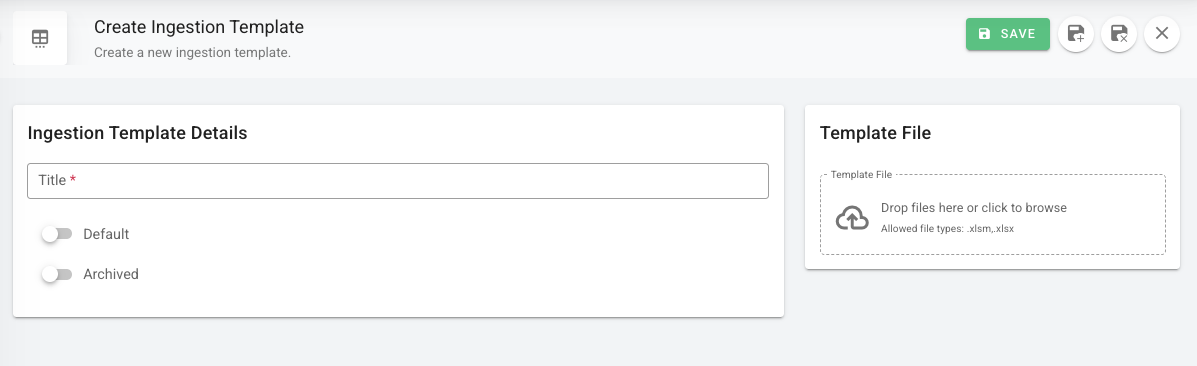
Click the Create button to add a new template. You will see the following fields:
Ingestion Template Details
- Title (required) — give your template a name
- Default — toggle on to set this as the default template
- Archived — toggle on to archive the template when it is no longer in use
- Upload your template file by dragging and dropping or clicking to browse. Accepted formats: .xlsm, .xlsx
Click Save when done.
Additional info
Automated Ingest:
For large scale, regular deliveries or initial backlog onboarding Synchtank can set up automated ingestion from S3. Please contact your account manager for further details.
Managing Duplicates
There are processes in the system that will compare audio file options and disallow duplicate uploads. Please contact your account manager for further details.
File Upload Format
Any track uploaded on the system will automatically be converted to MP3. Other formats are available upon request.
Autotagging
All system uploads will automatically be autotagged if this is enabled. Note the autotagging process can sometimes take several hours to process all the tracks in an upload.