Search
- To use the Record Library module, select the "Record Library" icon under "Libraries".

- The following screen opens. Using any of the search fields in the blue box determine if the record is already in the database.
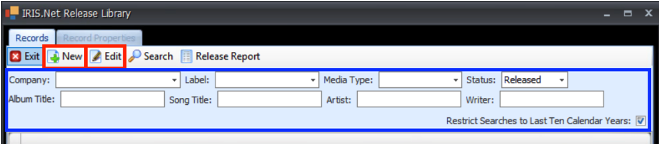
- You can update details on existing entries by selecting "Edit” or add a new entry by selecting "New".
- Once you select "New", the following window will open. Fill in the following fields:
Company - Begin typing the name and existing names will be suggested. Select the correct name, or if it does not exist, type in the full name and it will be added to the database.
Title - Enter the album title (if there's no album title, enter the song title.)
Country - Enter the release country
Catalog #
Label - Begin typing the name and existing names will be suggested. Select the correct name, or if it does not exist, type in the full name and it will be added to the database.
Artist
Release Date
Status - Options are "Upcoming”, “Released" and "Not Released".
Media Type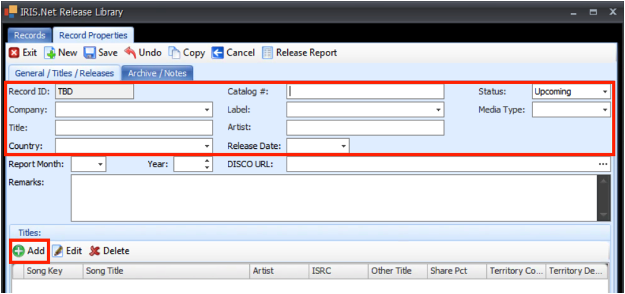
- Once the above fields are completed, add the title(s) by selecting the "Add" icon.
- After selecting "Add", the following window will open. Fill in the following fields ("Record", "Share %", "Territory Code" will auto populate):
Track # - Mandatory - Enter "1" for a single or digital release.
Song - In the second box, type the song title and either hit tab or click the three dotes. The IRIS search will open and you can select the correct song.
Artist
ISRC
Language
Remarks - (optional)
Other Title - (optional)
IR URL - Enter the URL for the video if one exists.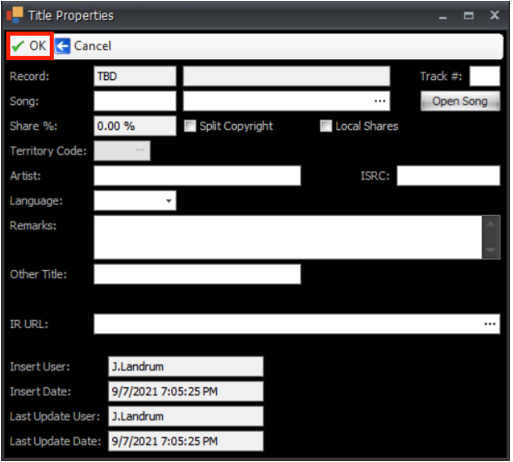
- Once you have populated the fields click OK
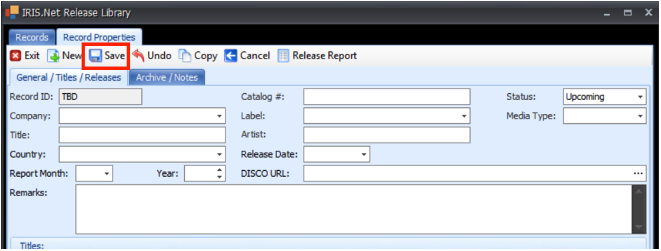
- Repeat for additional songs. Once done, click Save.