Search
- In the IRIS bar got to the second Tab and click on Income Sources.

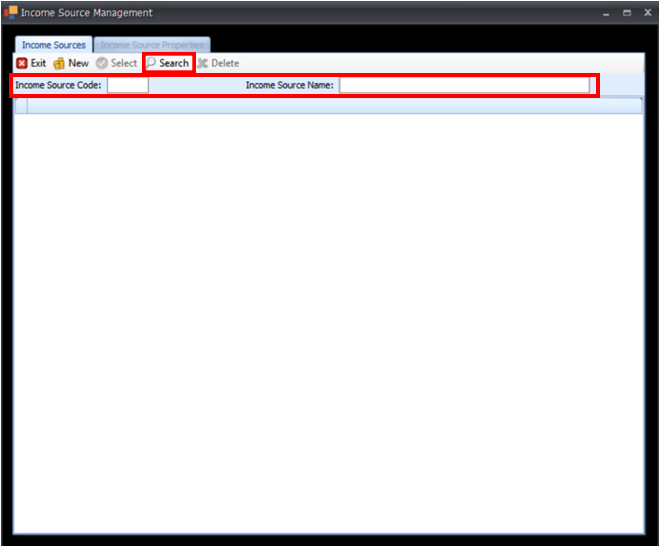
- A new window will open. Here you can search for existing Income Sources by Name or by Code. To do this enter your search term into the Income Source Code field or the Income Source Name field and then click Search. To display all Income Sources click Search without entering anything into the search fields. When searching an income type, prefacing with an asterisk will bring back a keyword search (i.e.*Sony will return all sources with Sony within them). Not using the asterisk will return all sources that start with Sony.
- To edit an Income Source, Select the Income Source Row you wish to edit and then click Select at the top of the window.
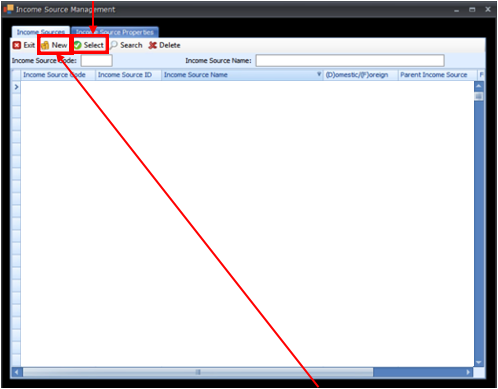
- To create a New Income Source, Click New at the top of the window.
- Before creating a New Income Source, please check that it does not already exist in IRIS and check that the code you are going to assign it is not being used for another Income Source. You can do this by searching for the Income Source Name and the Income Source Code in the search fields (see point 2).
- When creating a New Income Source, you must assign it a unique Income Source Code and Income Source Name, these fields can be found in the red box in the picture below.
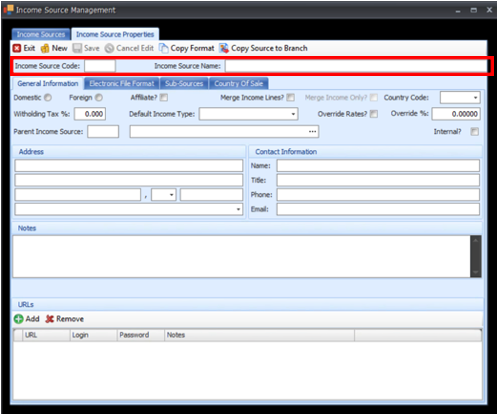
- Once a Code and Name has been assigned you must select if the New Income Source is Domestic or Foreign, see red box below.
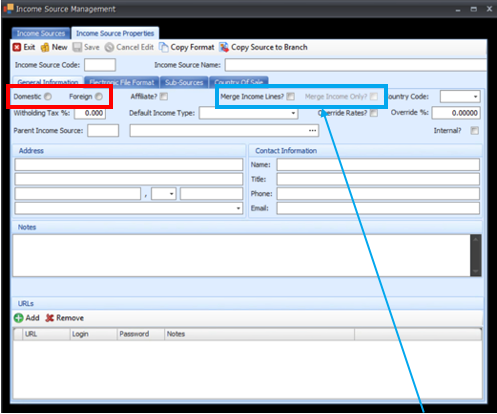
- If you wish to speed up processing, you may select Merge Income Lines? And Merge Income Only?, but this is not mandatory.
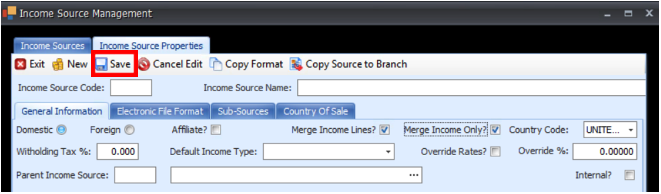
- Enter any other details into the relevant fields and when you are finished click Save.