Search
- In the second tab of the IRIS bar click Royalty Income Mgmt.

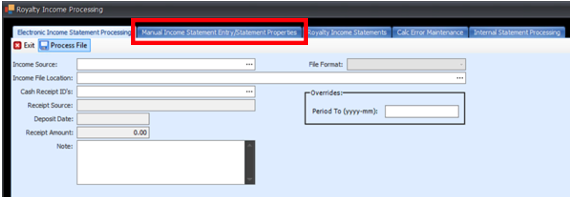
- Click the second tab, Manual Income Statement Entry/Statement Properties.
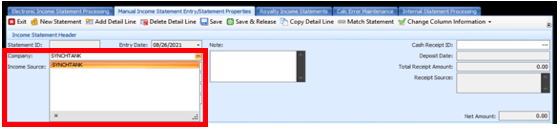
- Enter the Company name into the Company field or click the arrow to open the list of companies, click the correct one from the list to enter it into the field.
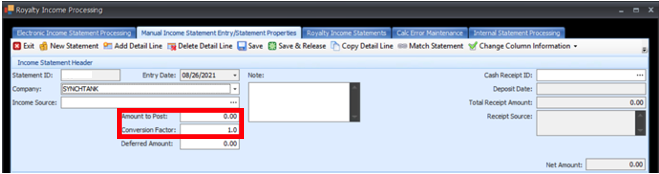
- Enter the Amount to Post in the Amount To Post field. Add the Conversion Factor, if converting from another currency, to the Conversion Factor Field.
- Enter any other information into the relevant fields.
- To add a Detail Line click Add Detail Line.
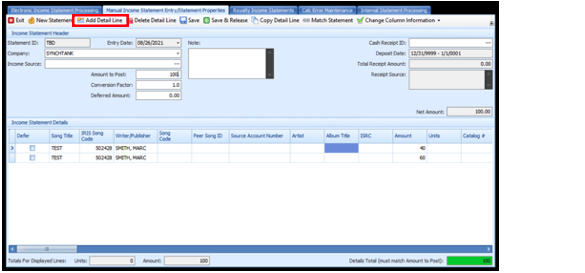
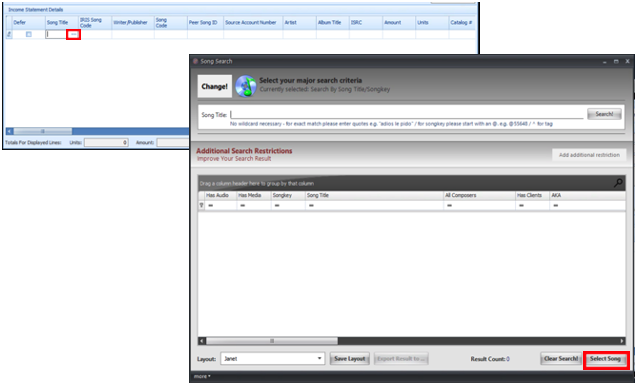
- Then enter the song title into the Song Title column. You can click the … to open the Song Search window to add a song as well, search for and select the song then click Select Song. The Song must exist in the system before being added to the Detail Line.
- Once the song title is added the IRIS Song code column and the Writer/Publisher column will be completed for you.
- You must enter the individual Amount To Post for each song to the Amount column.
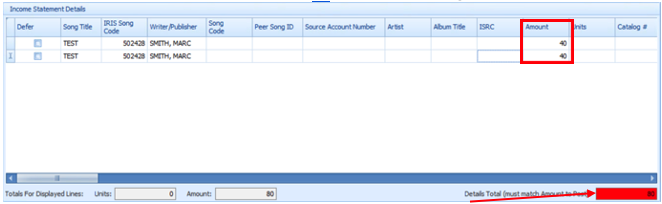
- The total Amount To Post of the Detail Lines is displayed in the bottom right. This box will be red when the Total Amount To Post in the table does not match the Amount To Post that you entered at the beginning. The box will turn green when the Detail Line Amount To Post Total matches the Amount To Post that was entered.
- To delete a Detail Line, select the Detail Line to delete and click Delete Detail Line.
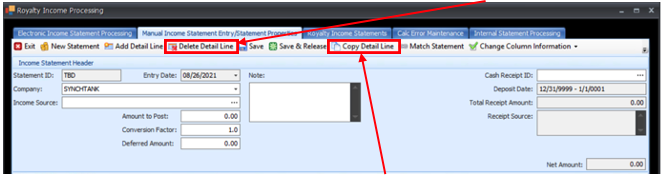
- To Copy a Detail Line, select the line to copy and click Copy Detail Line.
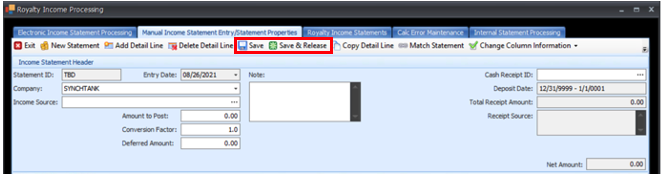
- When you have finished entering the information, click Save to save the statement or click Save & Release to save the statement and release it to Royalty Runs.