Search
- Once you have performed a search the results will be displayed in this area of the search window.
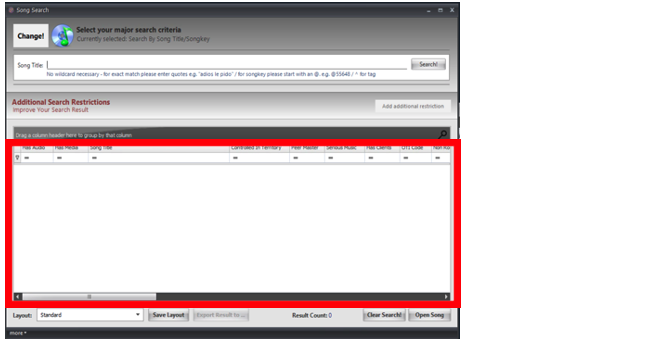
- The columns can be reordered by clicking and dragging the headers sideways and dropping them where you want that column, or they can be removed by clicking and dragging the column header out of the search window.
- Once you have search results you can sort them by clicking on the first row of the column you want to sort and selecting the sort option you want.
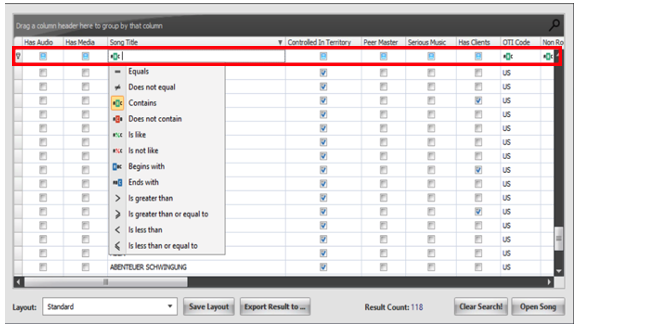 e.g.: If I want to sort by songs titles that contain my search term, I click on the first row of the Song Title column and select Contains.
 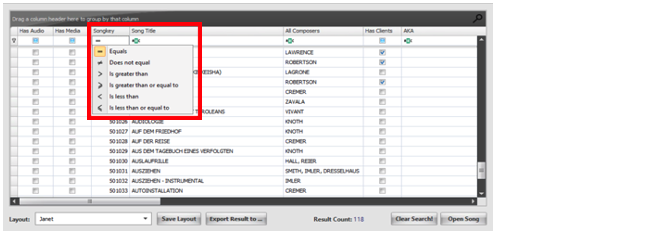 This can be done in all columns displayed. However, different columns have different sort option e.g.: the Has Audio column is only a check box that you select if you want the result to contain audio, but, the Songkey column can be sorted by exact matches (equals), Songkeys other than the searched for term (does not equal) Songkeys greater than the searched for term, …
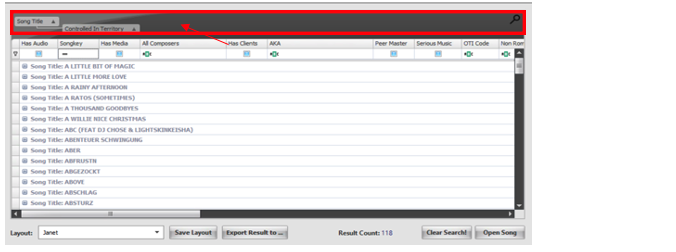
 - The column headers can be dragged to the grey box above the results area in order the group the results by the selected column, sub-groupings can be added by dragging another column header next the first in the grey box.
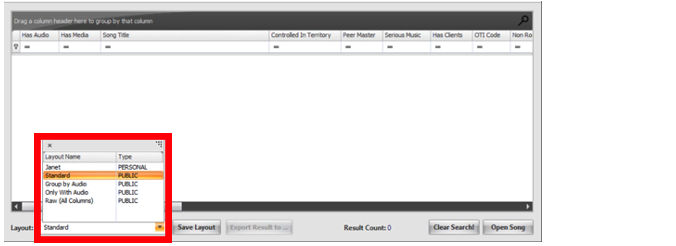
- Pre-made layouts can be selected at the bottom of the page my clicking the Layout field and selecting the layout you want.
- Your own personalised layout can be saved by clicking the Save Layout button at the bottom of the page.
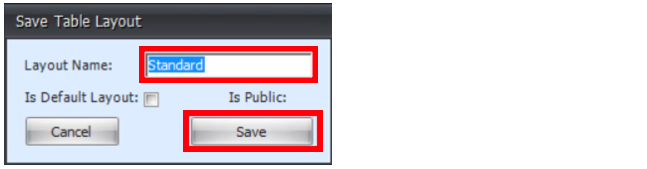
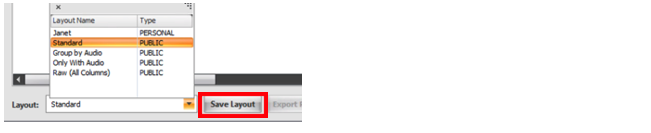 When this button is clicked a window will pop up where you can name your layout and save it for future use. Enter the name in the Layout Name field then click Save. Now you will be able to select your layout from the Layout menu (see point 5).