Search
- To create a new International Report, go to the Libraries Tab and click on International Report.

- In the window that opens you can add Chart data, Tour Data, and create international reports.
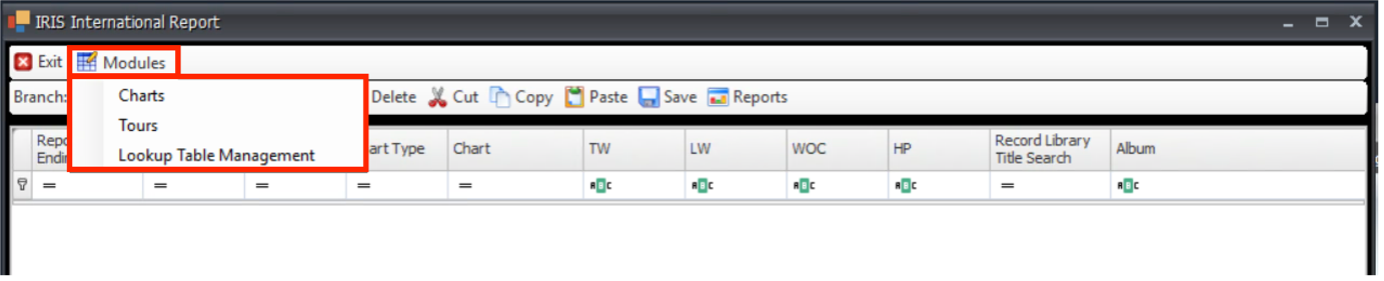
- To start to add new Chart data click on Modules and then select Chart in the dropdown.
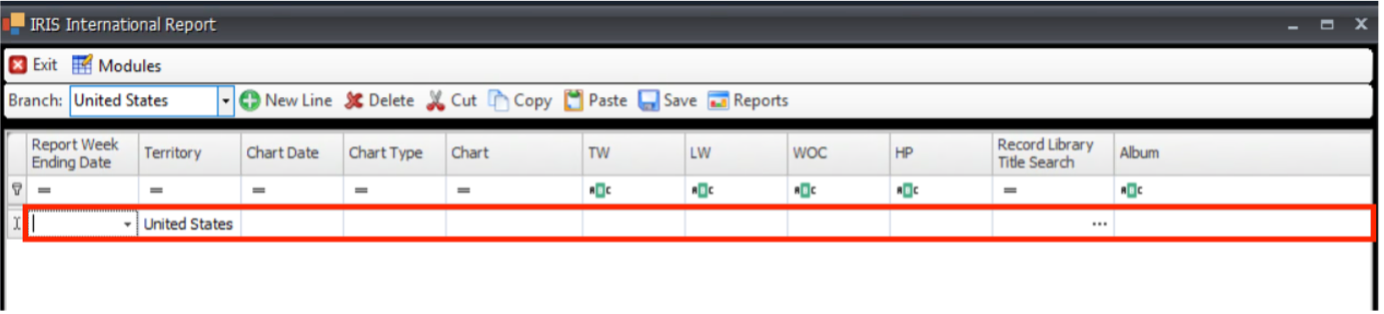
- To enter chart information, select your "Branch". Once selected, the existing chart data will load.

- Click New to create a new chart entry (first time song appears in the charts). A blank line will become available at the bottom of the grid.
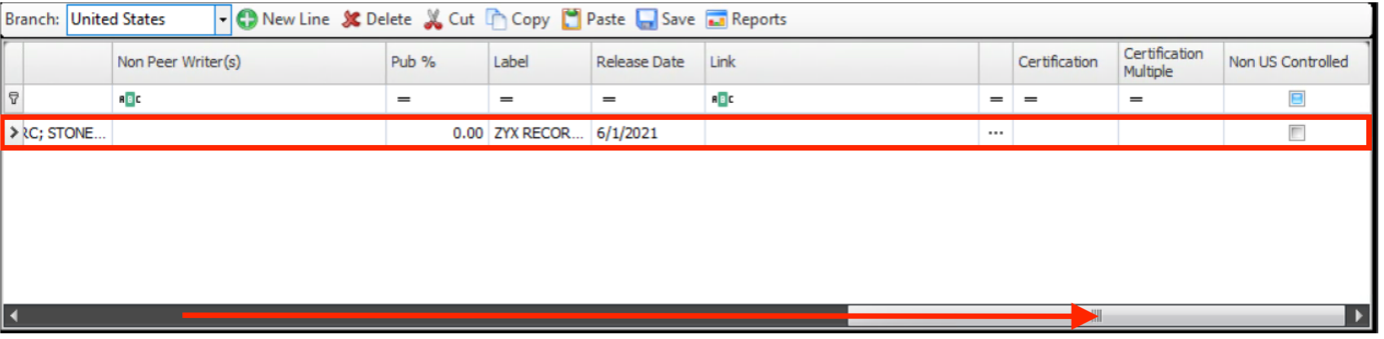
- You will need to scroll along using the scroll bar at the bottom of the window to find all to fields to fill in.
- Some of the fields have arrows or … you need to click to open a dropdown, calendar of a new search window. In the new search window, click Search to start the search and the select the song you wish to add to the chart data then click Select.
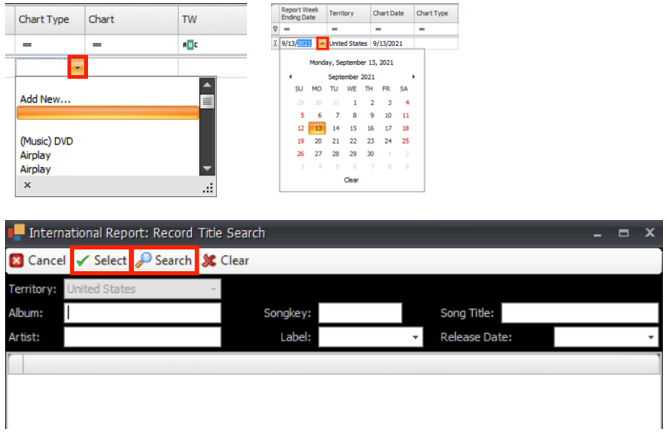
- Enter Data into the following columns:
Report Week Ending Date (Required)
Chart Date (Required)
Chart Type (Select from the list)
Chart (Select from the list)
TW (This Week): Enter chart position. (Required)
LW (Last Week): enter "NE" for a new entry. (Required)
WOC (Weeks on the Chart): Enter "1" for a new entry. (Required)
HP (High Point on the Chart): Enter the "TW" chart position. (Required)
Record Library Title Search: Click on the three dots to open the search. Search by Album, Artist or Song Title. Select the record for the correct song and the following fields will populate: Album, Song, Song Code, Artist, peer Controlled Writer(s), Non peer writers, Pub%, Label, Release Date and Link. (In the event the record is not in the Record Library, you can enter these fields manually. When entering the song title, the IRIS song search will open if an exact match is not found, allowing you to choose the correct song. Once the record(s) are saved, an entry will be added to the Record library.)
Certification (Select from the list if applicable)
Certification Multiple: Enter if applicable
Non-US Controlled: This is a US specific field. No other branches should check or uncheck. - To Update an existing chart entry (Release already appears in the charts in the IR database) Follow the same steps above, but instead of selecting "New Line", use the filters to find previous entries. (First line of the grid).

- Click on the row you want to edit, or if you wish to edit many click on the first row to copy, then holding down the "Shift" key, click the last row. All rows will be highlighted.
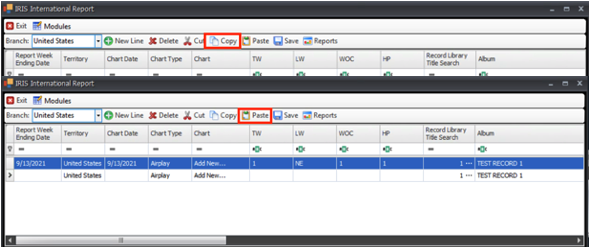
- Click "Copy" then click "Paste". The copied rows will appear un-highlighted. Now you can update the new rows Chart date, TW, LW, WOC and HP fields with the current weeks info.
- When complete, click "Save"
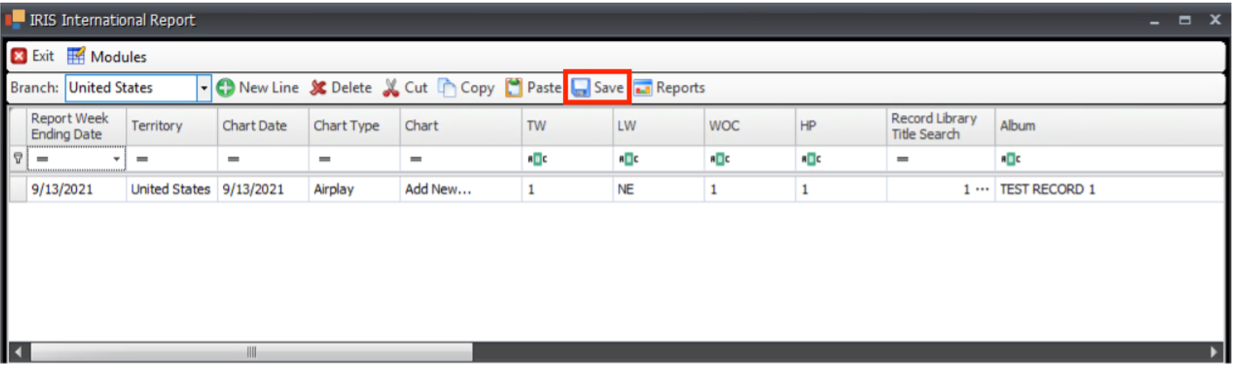
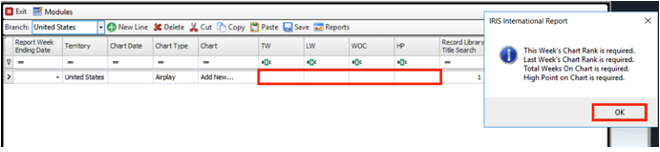
- You will get an error message when saving if any of the required fields are blank ("TW","LW", "WOC" or "HP"). These must be filled in to save the entries.