Search
When ingesting royalty statements, file formats from the sources change often. If you have a statement that is not loading with the existing formats, you can create your own.
- Open Income Sources in the Royalty Tab.

- Search for the Income Source for which you would like to create a file format.
- Open the source.
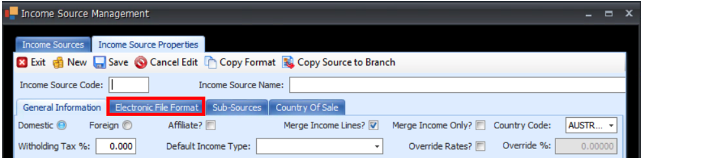
- Click the Electronic File Format tab.
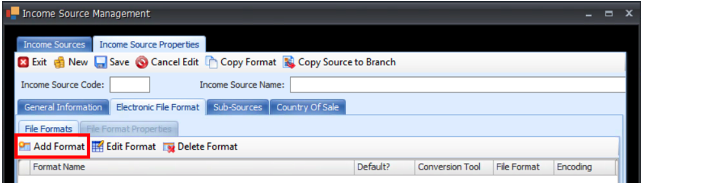
- Click Add Format.
- At this point you need to know what kind of file you have to load (i.e., Excel, csv, tab, etc). I also like to check the file to make sure that it’s a proper royalty statement and is in clean columns and that there are no characters or text outside of those columns.
- Name your new layout (I.e., CSV_2021_format), Choose the file type (Text Fixed, Text Delimited, Excel).
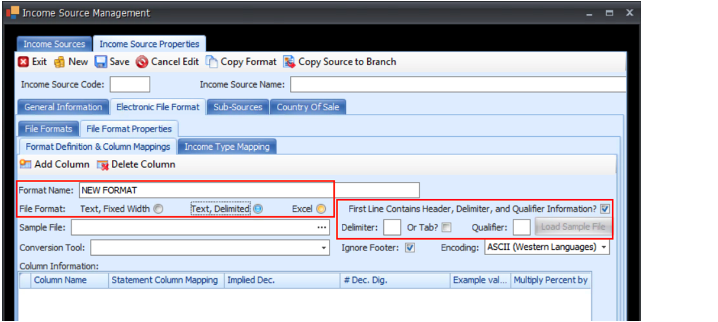
- If it’s TAB or CSV, choose Text Delimited. CSV delimiter is a comma (,) and Qualifier is quotation marks (“); check the TAB box if it’s text delimited (TXT).
- Click the three dots in the Sample File box and select your file on your computer and click Open.
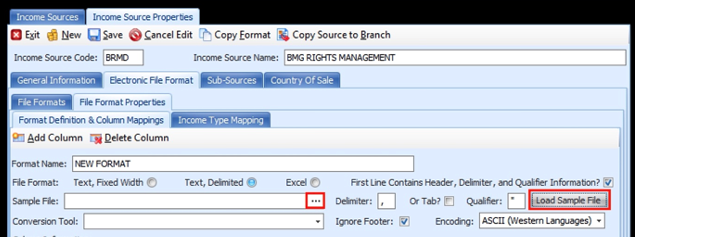
- Click Load Sample File.
- On the left are the columns from your royalty statement (Column Name). The second column (Statement Column Mapping) is what you want to tell IRIS to do with those columns. Map all your columns for all the data you want to keep. Song and Amount are most critical, but after that you can map anything.
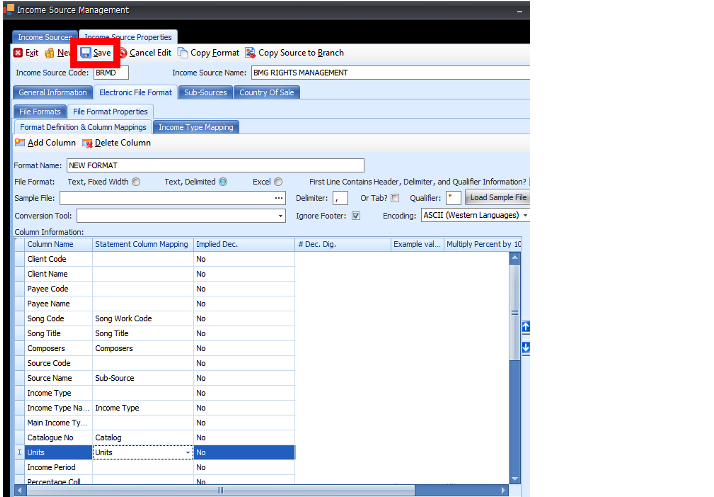
- Once you're done, click SAVE at the top and you’re ready to load your statement in the Royalty Income Management area.
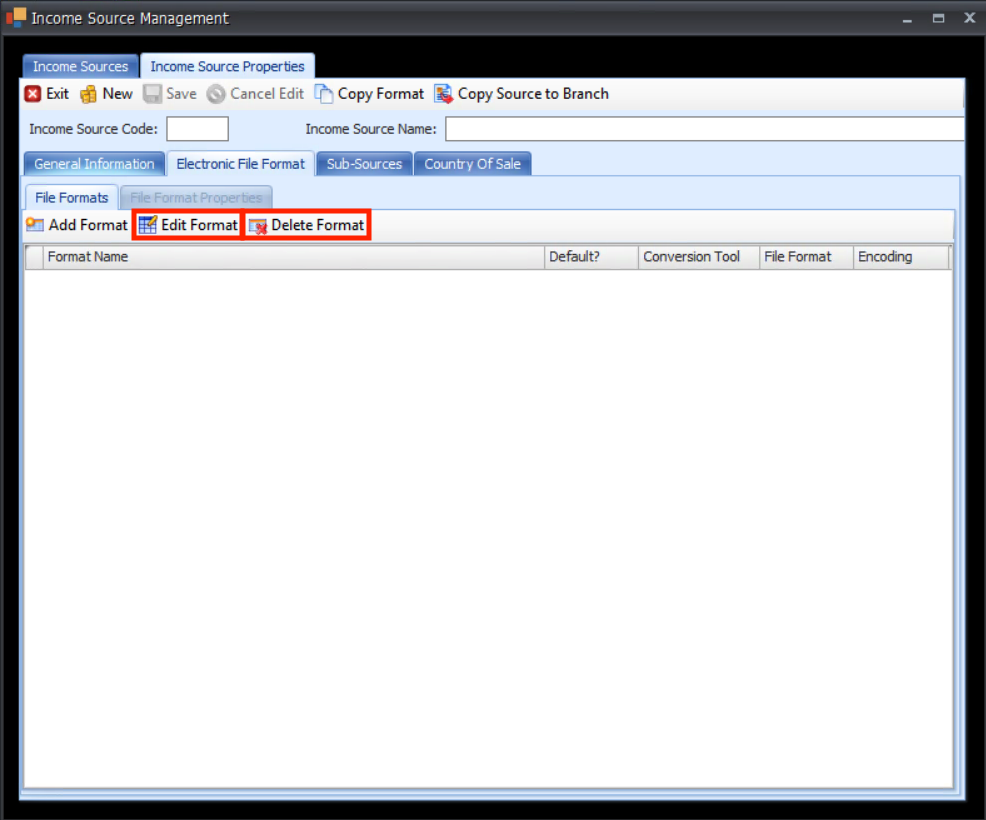
- You can also edit or delete previous file formats by clicking Edit Format or Delete Format in the Electronic File Format tab