Search
- In the first tab of the IRIS bar, click on Create New Song.

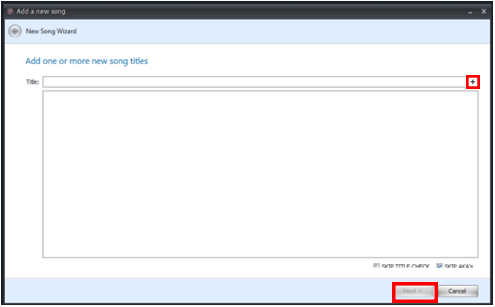
- Enter the Song Name in the Title field and then click the +. You can add multiple song titles here. Click Next.
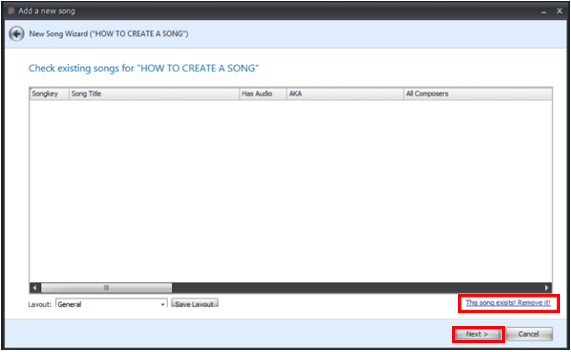
- This window will check the catalogue and return any Songs with the same or similar titles. This is to ensure that duplicate songs are not added. If the song you are trying to add already exists, click This song exists! Remove it! If the song does not exist click Next.
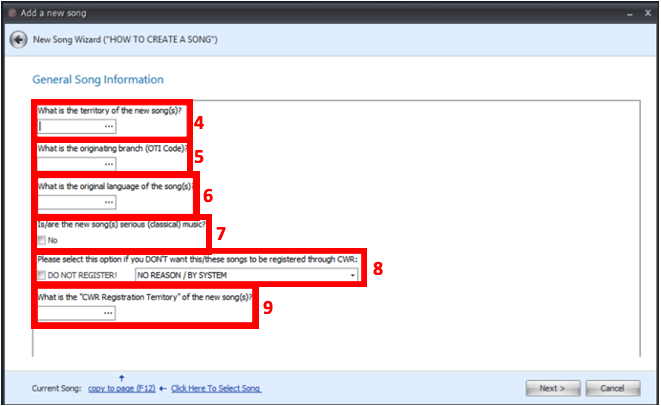
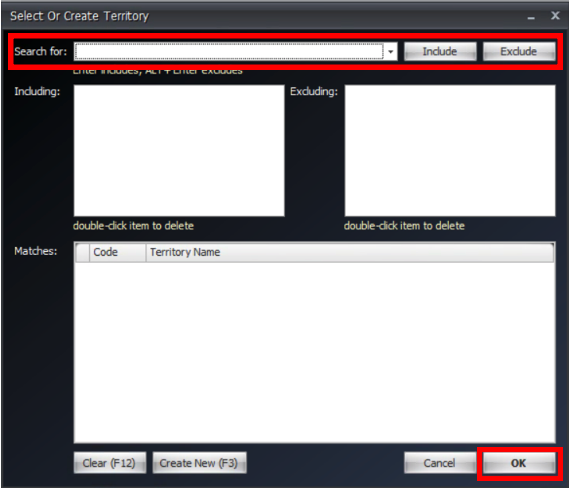
- Select the Territory of the new song by clicking … and searching for the territory by clicking on the search field selecting a region and then clicking include, select the correct territory from the list and click OK.
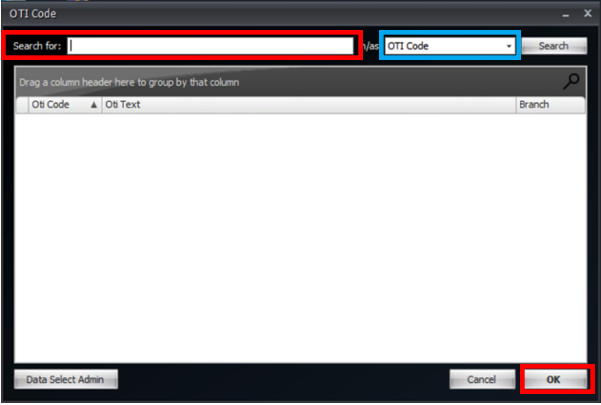
- Select the OTI Code by clicking the … and then searching for the correct OTI, you can search by Branch Number, Keyword, and OTI Code by clicking the field in the blue box below. Select the correct row and then click OK.
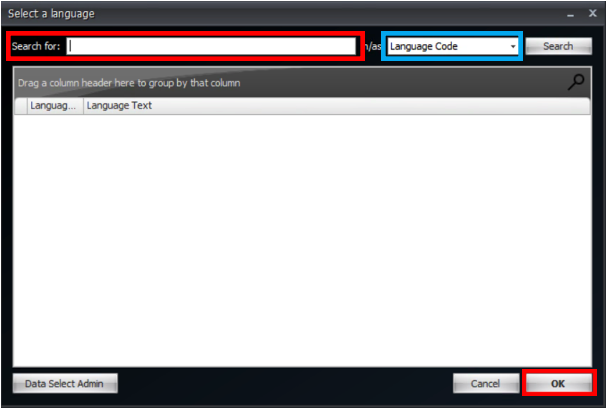
- Select the Language by clicking the … and then searching for the language, you can search for Language Code or Keyword by clicking the field in the blue box below. Select the correct row and then click OK.
- If the song you are adding is classical music, then check the box below Is/are the song(s) serious (classical) music?
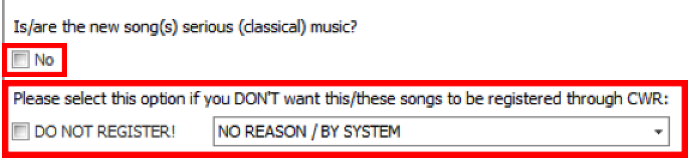
- If you want the song to be registered through CWR skip this question. If you do NOT want the song to be registered select the box next to DO NOT REGISTER! And select a reason from the dropdown field next to the box.
- The CWR Registration Territory will have been filled in automatically as the same as the Territory you entered. However, you can change it by clicking the … and searching for a new territory (see point 4).
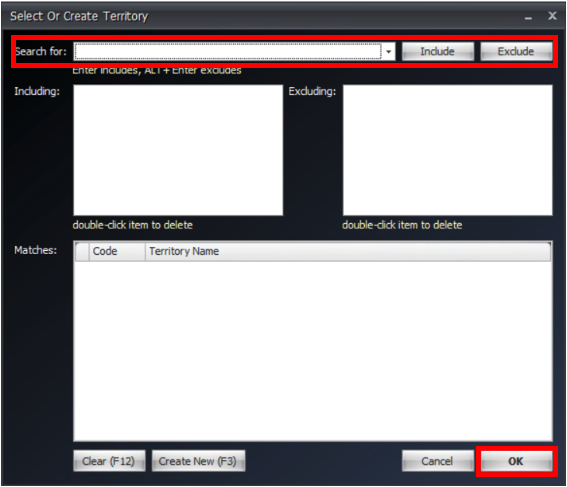
- Click Next.
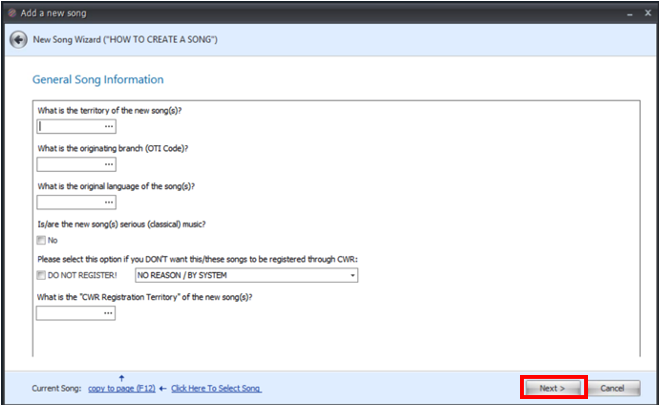
- To add a pre-made Tag click on select and select the tag you wish to add to this song. To add another Tag, click on the Tag header to add a row. When you have finished adding Tags click Next.
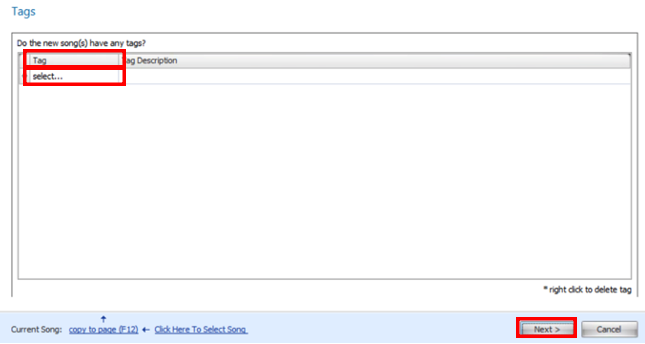
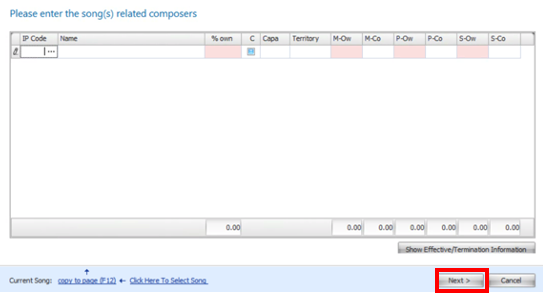
- To add a Composer, click on… in the IP Code column and search for the composer, select the correct composer and click OK. To add another composer, click on the IP Code header.
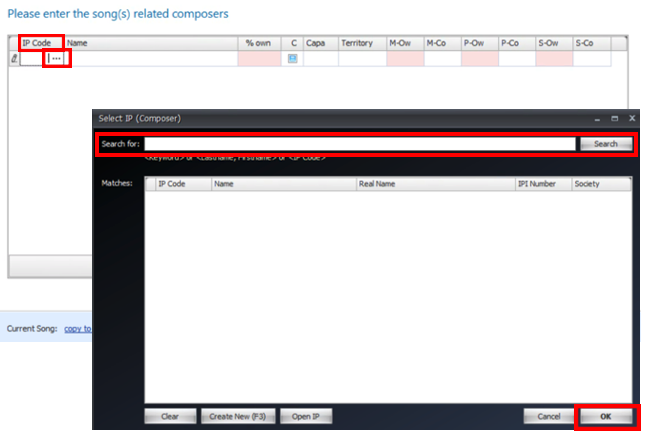
- You MUST fill in the columns that are coloured red. These will turn green when the total for this column is 100%.

- You Must fill in the Capa column with the Composer Capacity Code. Click on the … then search for the code, select the correct row and click OK.
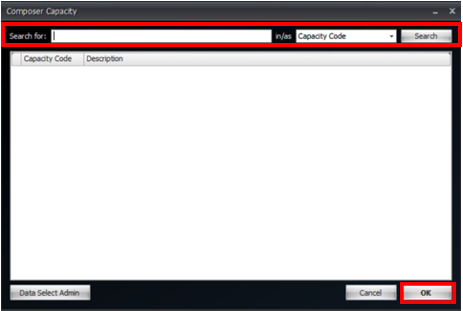
- Click Next.
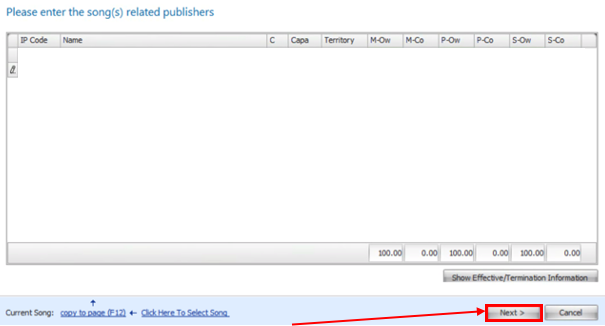
- Repeat points 12-14 on this publishers page.
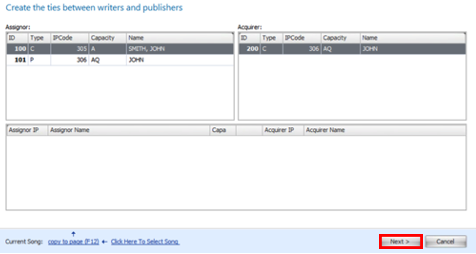
- Select the Composers and Publishers you wish to create ties between. Then click Next.
- This page allows you to link the Composers and Publishers you have added to this song. Click Next.
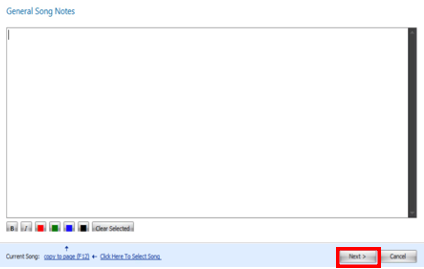
- Add General Notes on the Song here. Then click Next.
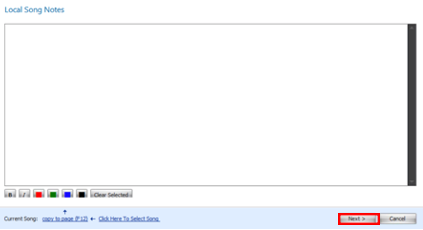
- Add Local Notes on the song here. Then click Next.
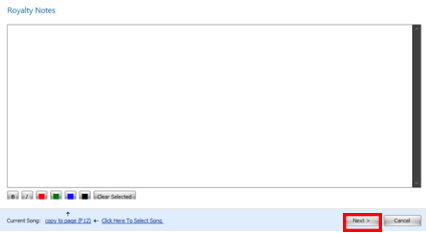
- Add Royalty Notes on the song here. Then click Next.
- To add a client click on the …, in the window that opens search the client for the song, select the correct client and click OK, select the variation and share percentage (blue box) and click Add To Grid. You can then add another client if you need to by repeating this process.
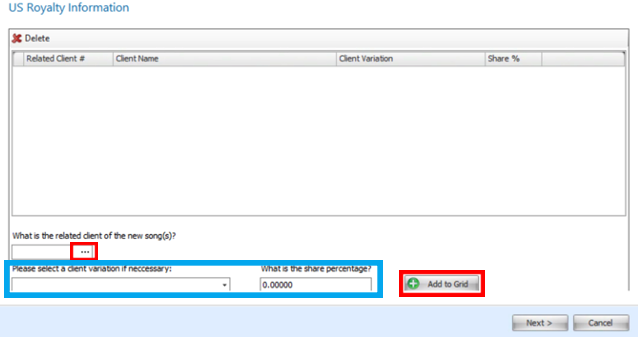
- You can remove a client by selecting the client and clicking Delete.
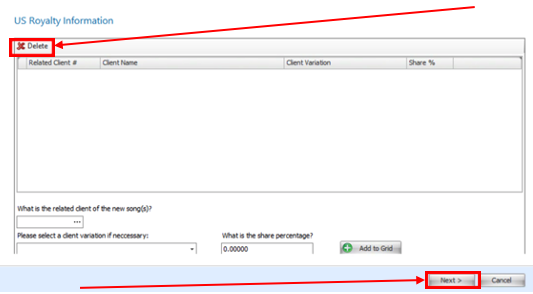
- Click Next.
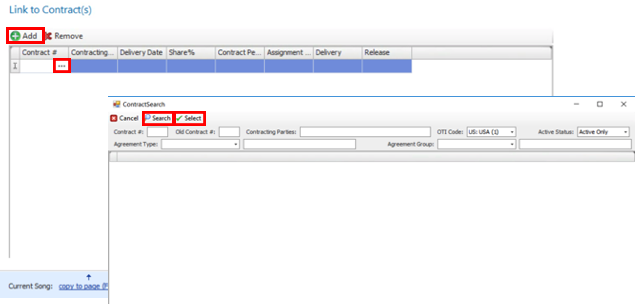
- Link a Contract to the Song by clicking Add, then click … and search for the correct contract in the window that opens. Select the correct contract and click Select.
- You can remove a linked contract by selecting the contract and clicking Remove.
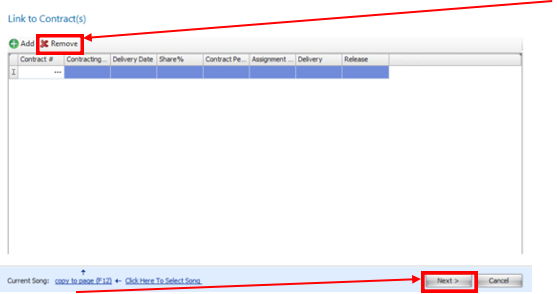
- Click Next.
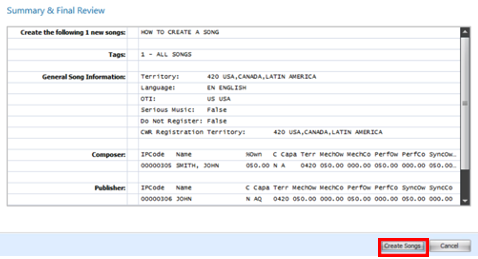
- This page shows a summary of all the information you have entered. Check the information is correct then click Create Songs.