
Accessing the Customer Portal
Open the Customer Portal using the following link:
https://pages.synchtank.com/tickets-portal/
First-time users
If this is your first time accessing the portal:
1. Go to the Customer Portal2. Click on Register here
3. Enter your email address
4. Set your password
5. Confirm your account
Once completed, you’ll be able to log in and access your tickets.
Note: Use the same email address you use when contacting Synchtank Support.
Returning users
If you already have an account:
1. Go to the Customer Portal2. Click Forgot password
3. Enter your email address
4. Follow the instructions sent to your inbox to reset your password
Important note about One-Time Password (OTP)
Previously, it was possible to log in using a One-Time Password (OTP)/Magic Link.
This option is no longer available.
If you previously used this option, you will need to:
- Reset your password using the Forgot password option
- Create a new password to access your account
Navigating the Customer Portal
After signing in, you'll see all of your support tickets.
Ticket List
By default, tickets are displayed in Table View with the following information:
| Column | Description |
|---|---|
| Ticket ID | Unique ticket reference number. |
| Status | Current ticket status. |
| Subject | Ticket title. |
| Created | Date the ticket was created. |
| Ticket Owner | Support agent assigned to the ticket. |
| Last Activity | Most recent update on the ticket. |
| Requested By | Name of the person who submitted the request. |

Search Tickets
Use the search box at the top of the page to quickly find tickets by:
- Ticket ID
- Subject
- Keywords
- Other ticket properties

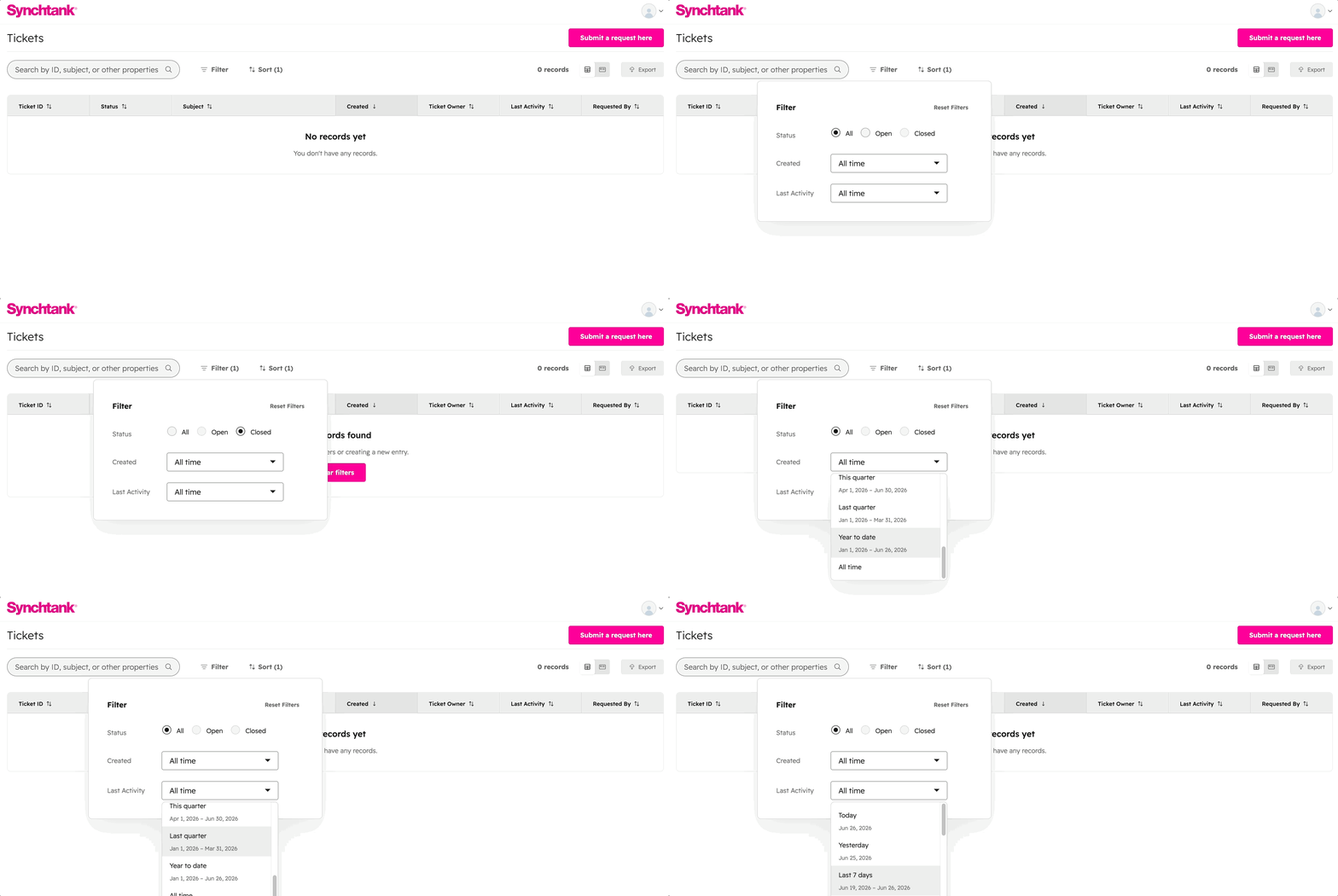
Filter Tickets
Use the available filters to narrow down your ticket list.
- Status
- All
- Open
- Closed
- Created: Filter tickets based on when they were created using the available date options.
- Last Activity: Filter tickets by their most recent activity using the available date options.
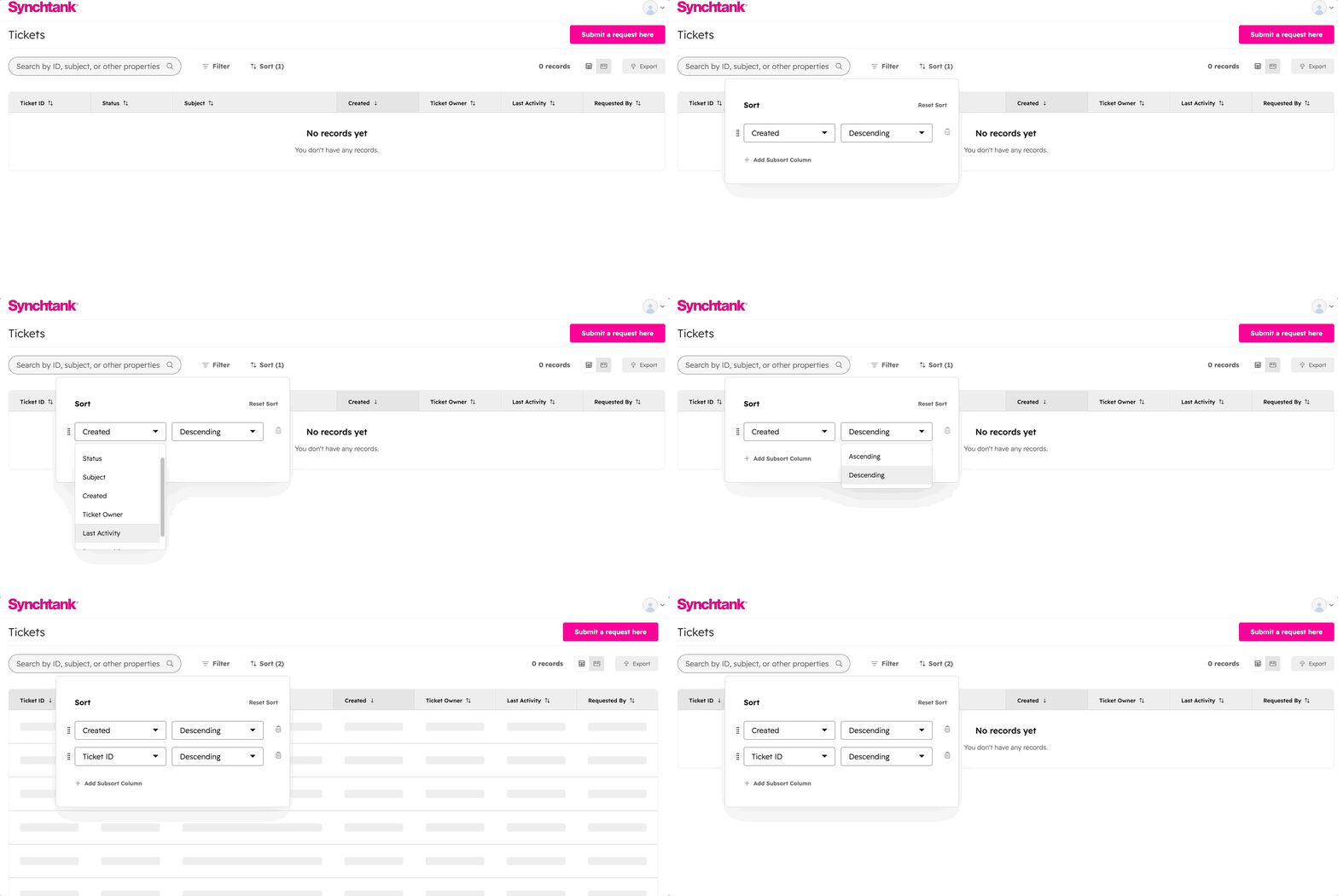
Sort Tickets
Tickets can be sorted by any column.
Available sort fields include:
- Ticket ID
- Status
- Subject
- Created
- Ticket Owner
- Last Activity
- Requested By
Each field can be sorted in either Ascending or Descending order.
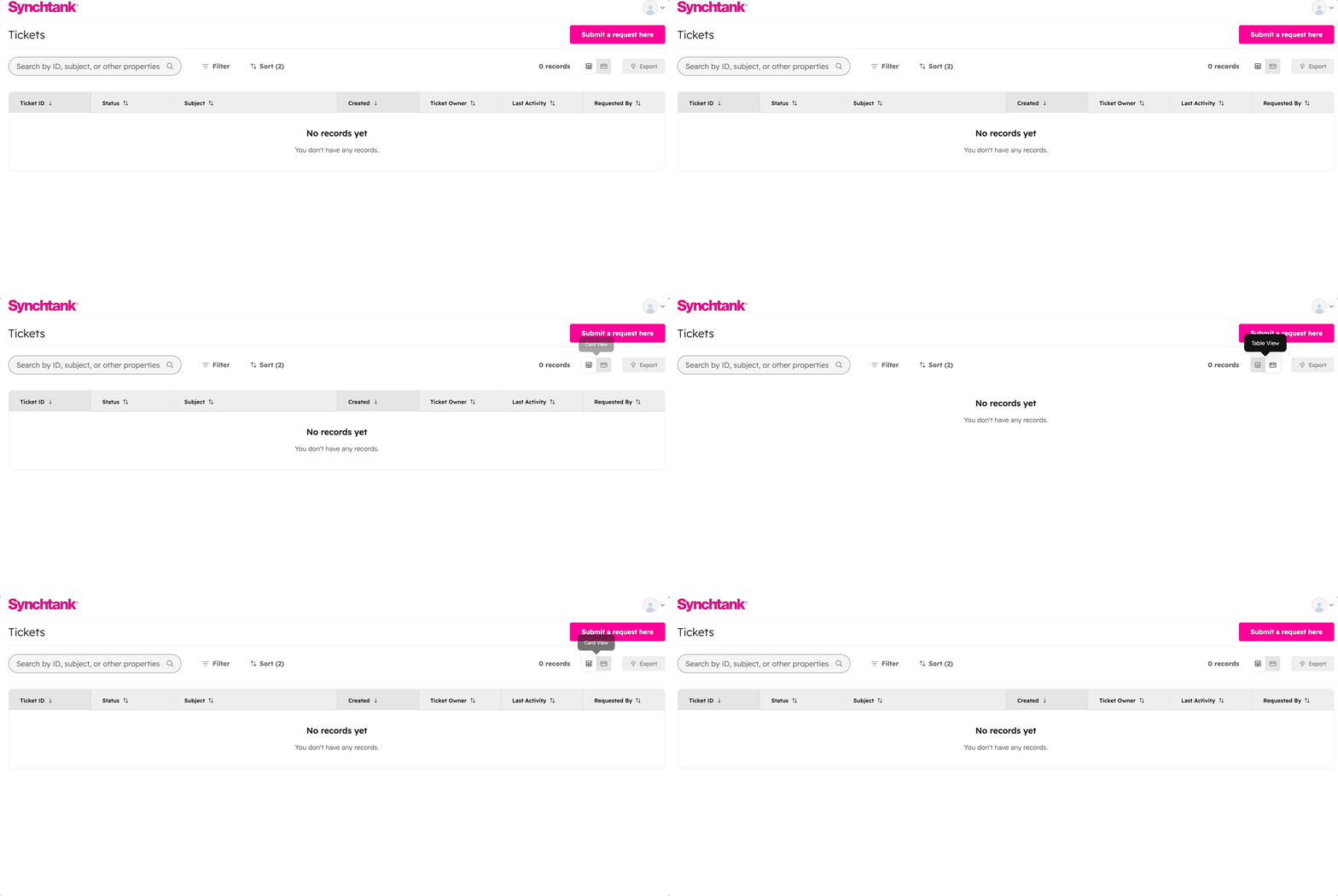
Change the View
Choose how you'd like your tickets displayed.
-
Table View (Default): Displays tickets in a traditional table with columns.
-
Card View: Displays each ticket as an individual card.
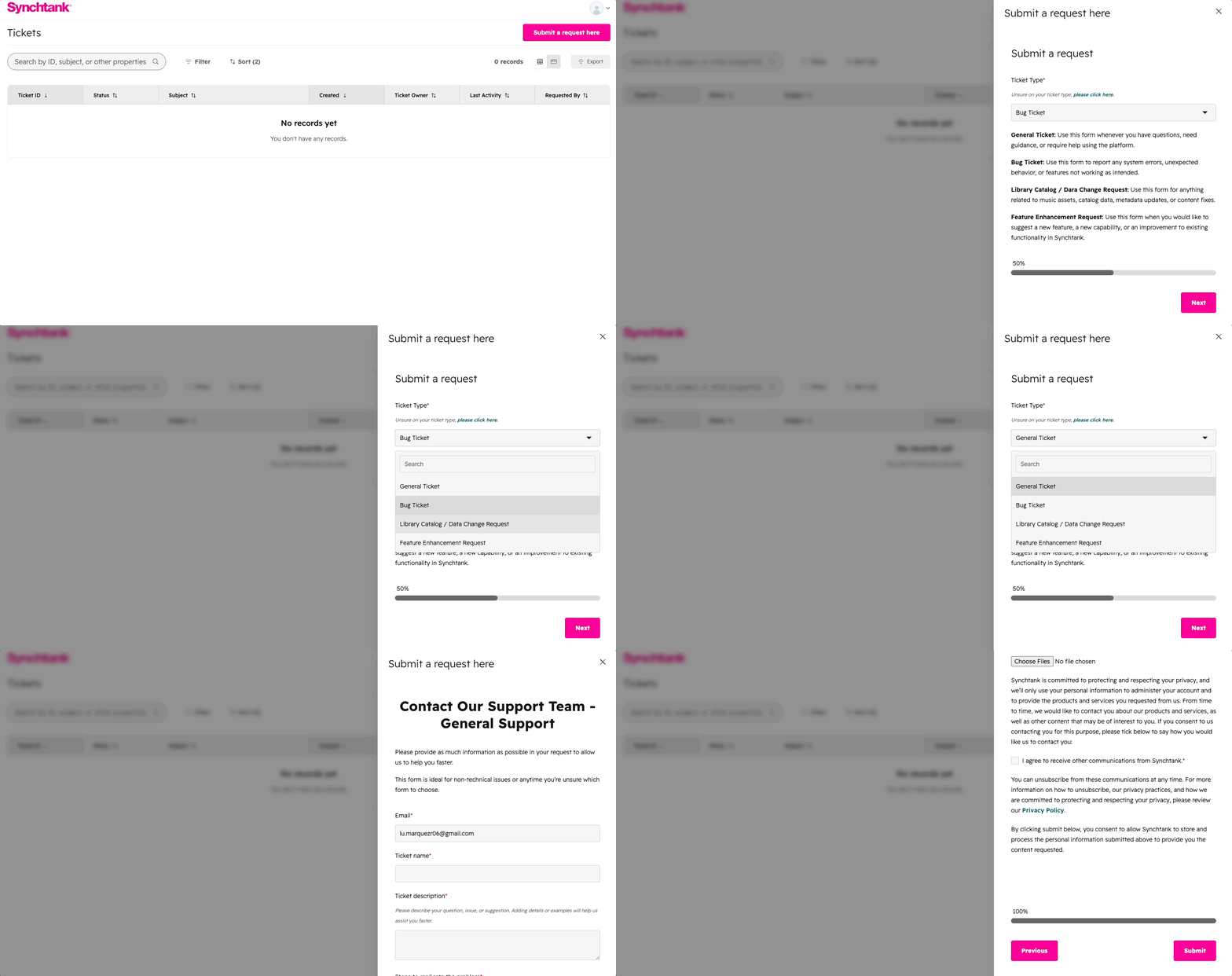
Submit a New Request
To create a new support ticket:
- Click Submit a Request here button.
- Complete the request form.
- Click Submit.
Your request will immediately appear in the portal once it has been created.
Need Help?
If you're unable to access the Customer Portal or experience any issues, please contact the Synchtank Support team.