
Search
Through our partnership with AudioShake we are able to offer you the ability to create the highest quality stems seamlessly within your Synchtank platform, so let’s get into how you can generate a stem within the system.
Please be aware that the AudioShake integration is an additional paid feature - if you would like more information on AudioShake and setting this up, please contact your Account Manager to discuss.
How to generate a stem in the Admin
Firstly, navigate to the Synchtank Admin and find the Master / Track you would like to generate a stem from and head to the stems section.
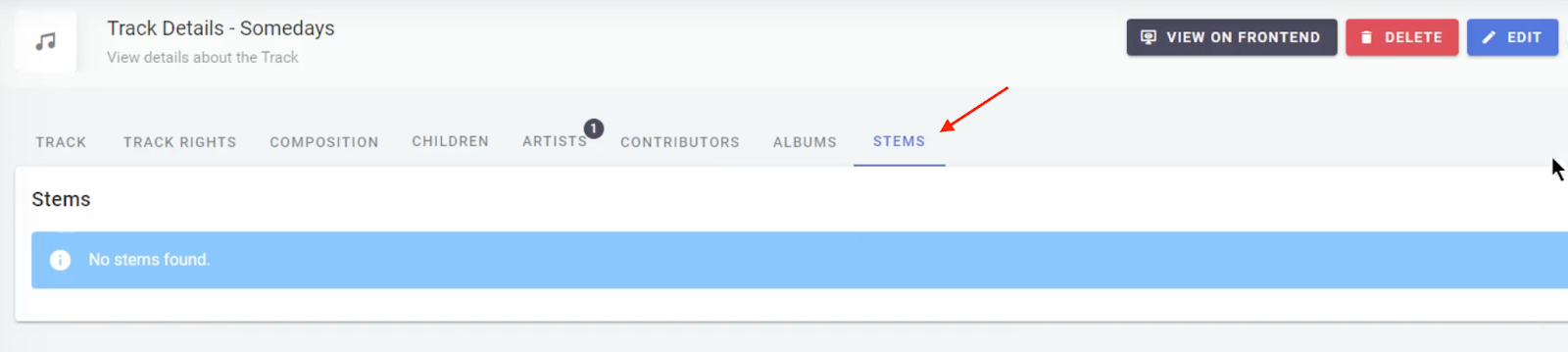
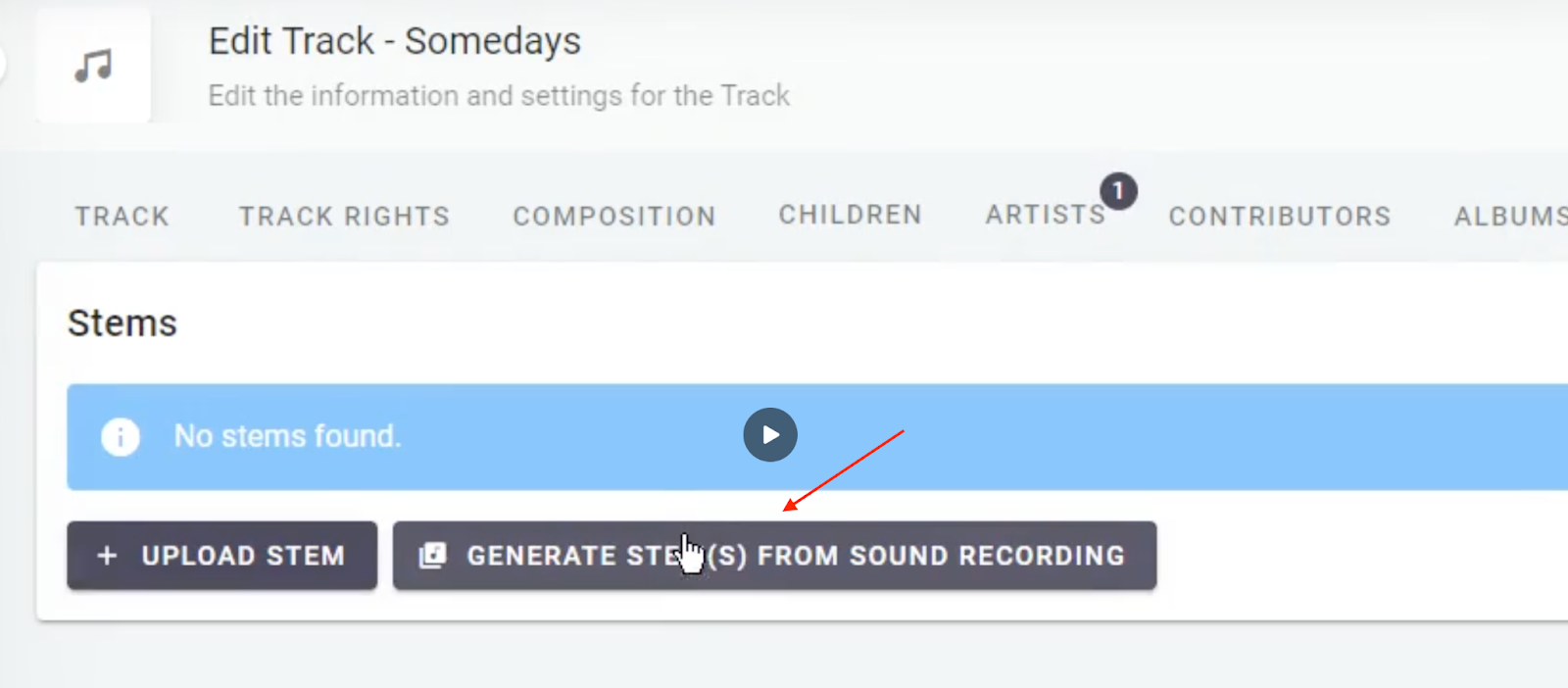
Next select the blue edit button and you will see two options, the upload stem which is part of our core system or generate a stem which is powered by AudioShake.
You will then see a pop up with a selection of options to choose from, simply select the types of stems you wish to create and then hit the green generate stems button.
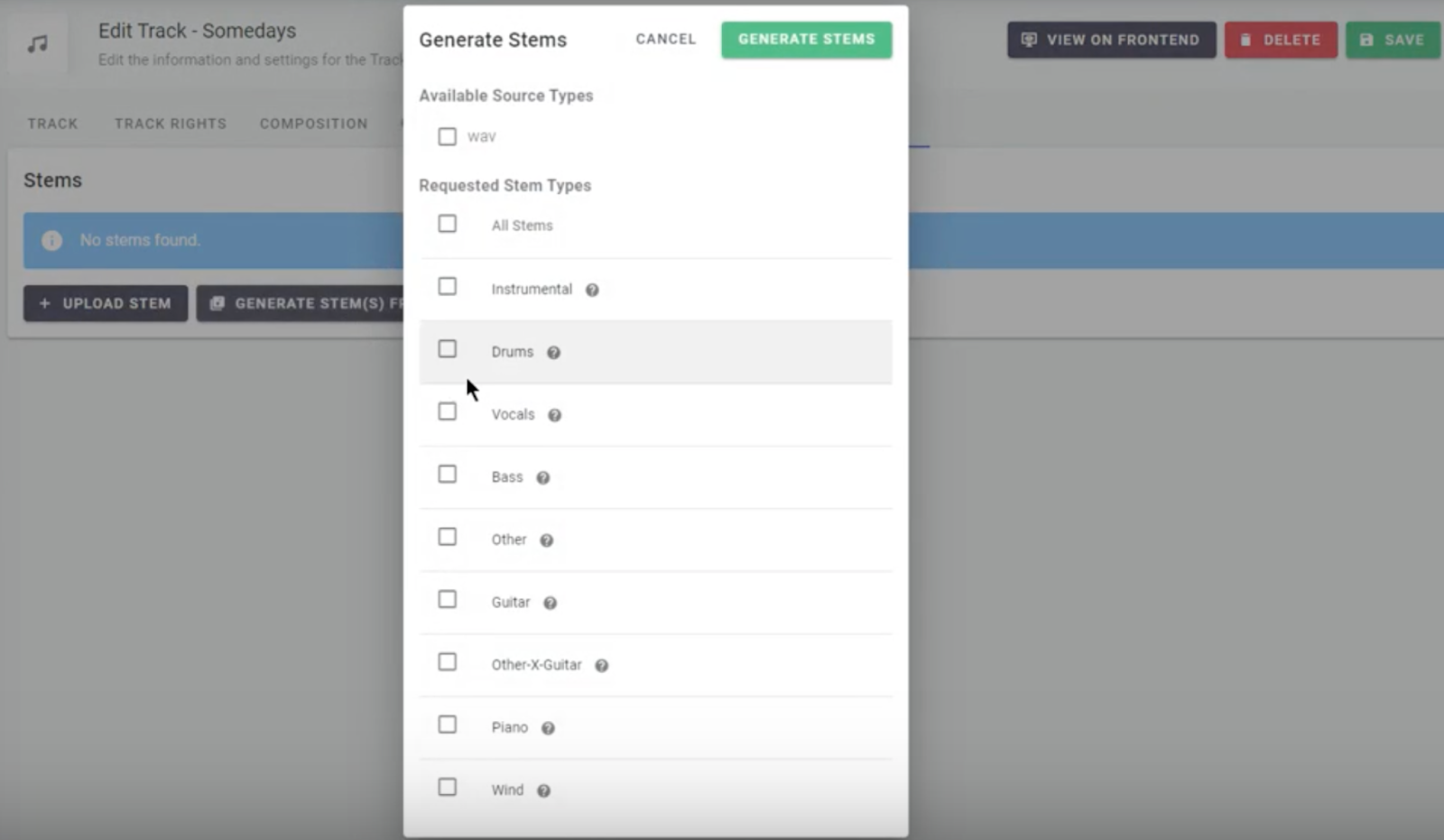
Depending on the number of stems you wish to create and track length it could take a good few minutes to generate but just note your stems will be generated in the background so you can continue doing other work and come back to it when it's ready.
View, download and edit your new stem
Once your stem has been created you can view the details of it by selecting the information icon next to the stem.
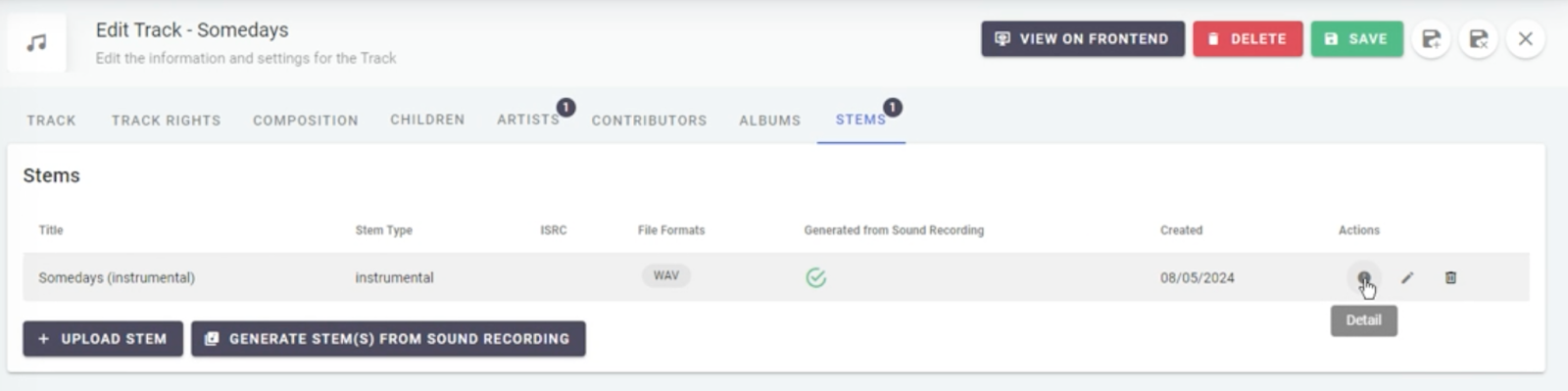
After selecting this icon you will see a pop up with the information associated with your stem. Within this section you can also download your stem by selecting the arrow pointing down icon in the bottom right of the pop-up.
To edit your stem, select the pencil icon which is next to the information icon, and an editing pop-up will appear, here you can amend the name, stem type and ISRC - again you can download here.
Within the edit mode you can also delete your stem or in the view above select the trash can icon to delete.