---
title: Artist Portal - For the Artist
description: The Artist Portal allows you to offer a place for your artists to manage their own catalog.
---
[Skip to content](https://pages.synchtank.com/support-site/artist-portal-for-the-artist#main-content)
English - United States
Show submenu for translations
[](https://pages.synchtank.com/support-site?hsLang=en-us)
Open main navigation
Close main navigation
- English - United States
Show submenu for translations
- [Submit a Ticket](https://pages.synchtank.com/support-site/create-a-ticket)
[Submit a Ticket](https://pages.synchtank.com/support-site/create-a-ticket?hsLang=en-us)
How can we help you?
- There are no suggestions because the search field is empty.
1. [Support Site](https://pages.synchtank.com/support-site?hsLang=en-us)
2. [Asset Platform](https://pages.synchtank.com/support-site/asset-platform?hsLang=en-us)
3. [Synchtank Admin/ Back-End](https://pages.synchtank.com/support-site/asset-platform?hsLang=en-us#synchtank-admin-back-end)
May 22, 2026
# Artist Portal - For the Artist
The Artist Portal allows you to offer a place for your artists to manage their own catalog.
Allowing them to upload their catalog, manage their metadata, create albums and manage their artist profiles on the system.
**Please note:** those with access to the Artist Portal aren’t always artists, they could also be managers, A&R teams, sub-labels etc. during this article we will refer to artists but know it refers to all who have access to the Artist Portal.
### Artist Portal - For The Artists - How To Video:
### How to access the Artist Portal as an artist?
When on the front-end of the system, navigate to the top right hand corner, open up the dropdown section to select “Artist Portal”.
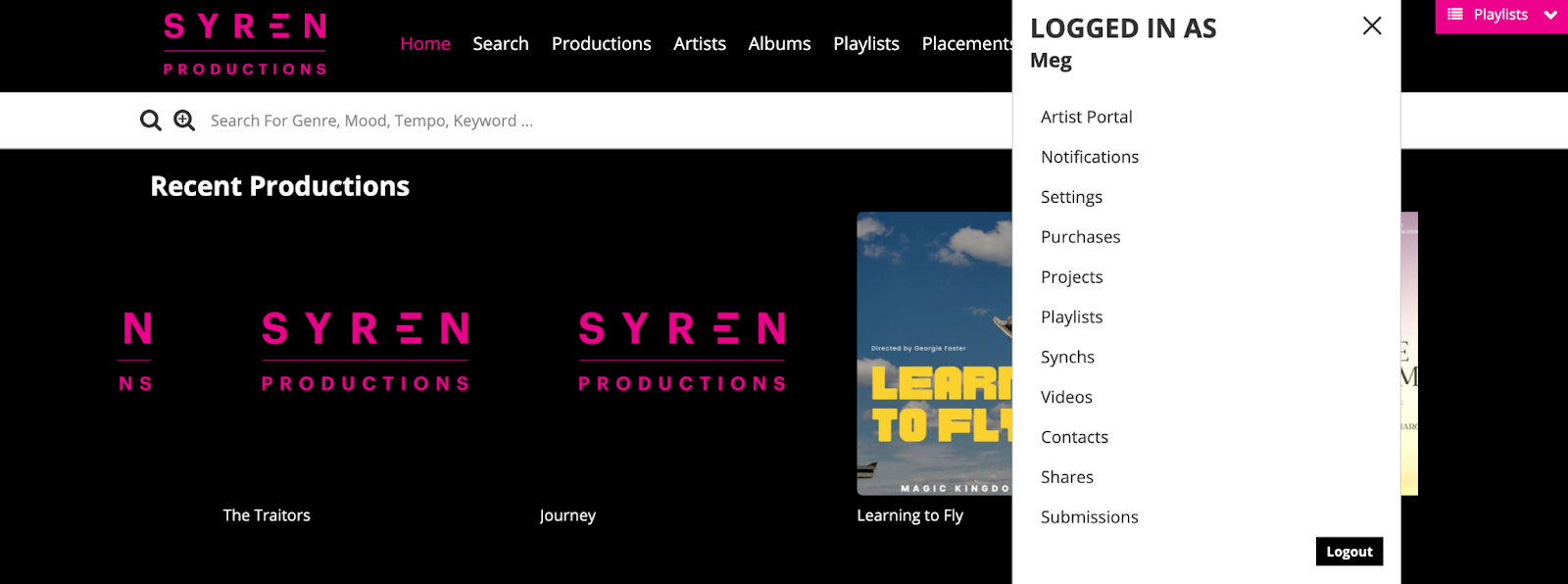
Within the Artist Portal admin you can have access to:
- [Dashboard](https://pages.synchtank.com/support-site/artist-portal-for-the-artist?hsLang=en-us#h_01J7ZQJ7P7TAXMN2CGTANAWMB6)
- [Tracks](https://pages.synchtank.com/support-site/artist-portal-for-the-artist?hsLang=en-us#h_01J7ZQJ7P76K6WHQW79XAN75YC)
- [Albums](https://pages.synchtank.com/support-site/artist-portal-for-the-artist?hsLang=en-us#h_01J7ZQJ7P7KDMT42NRHRAED16H)
- [Artists](https://pages.synchtank.com/support-site/artist-portal-for-the-artist?hsLang=en-us#h_01J7ZQJ7P7MANJ13V50AF6ZV34)
- [Bulk Upload](https://pages.synchtank.com/support-site/artist-portal-for-the-artist?hsLang=en-us#h_01J7ZQJ7P7W3N628XP0D3A2VA9)
### Dashboard
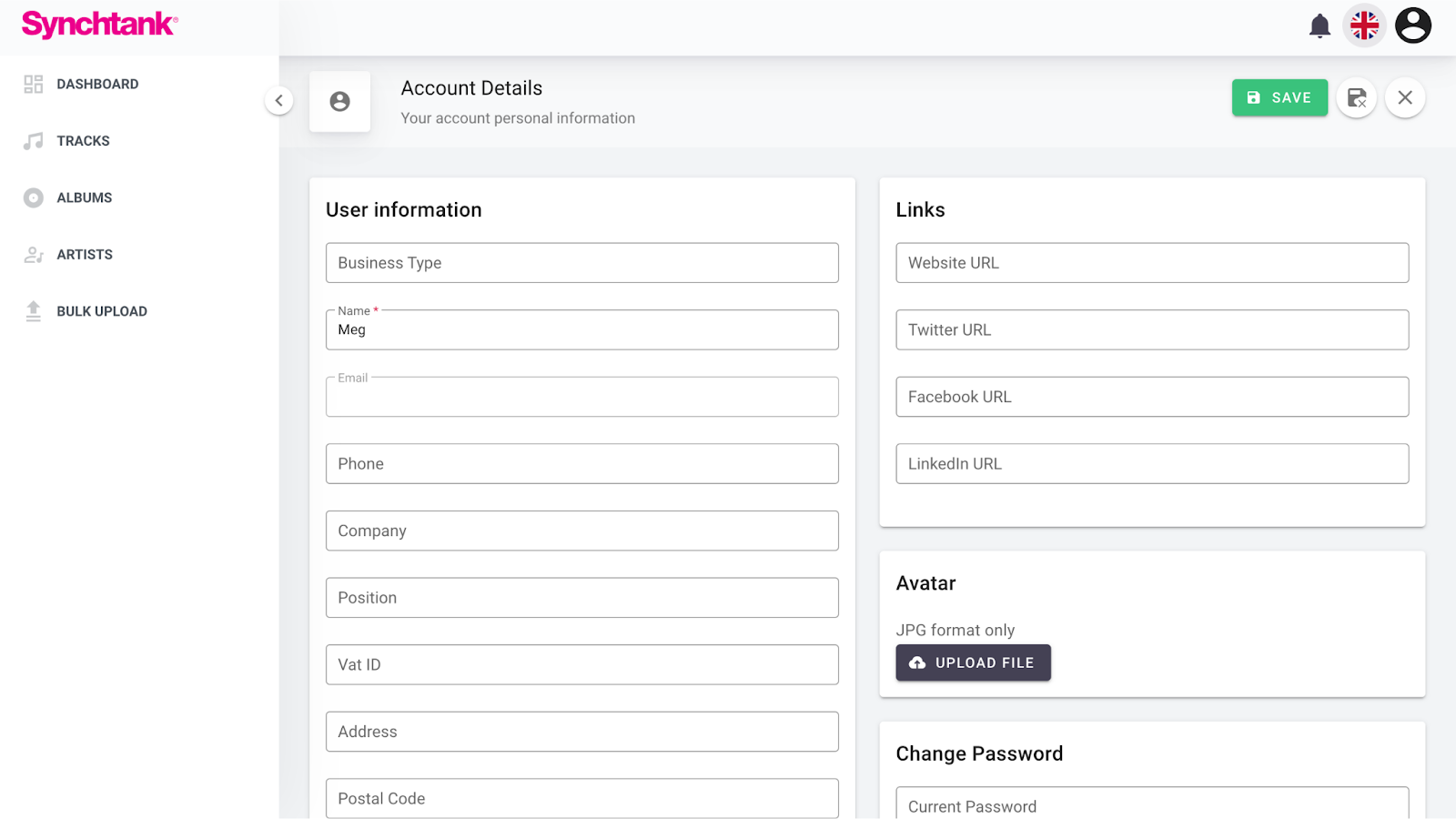
The Dashboard is the first thing you will see and here is where you can edit your account details, such as; name, address, avatar image, password update and social media links.
### Tracks
When selecting the track page, you are able to see a list of tracks that you have on the system. As an artist you only have access to the tracks you upload or have been granted access to.
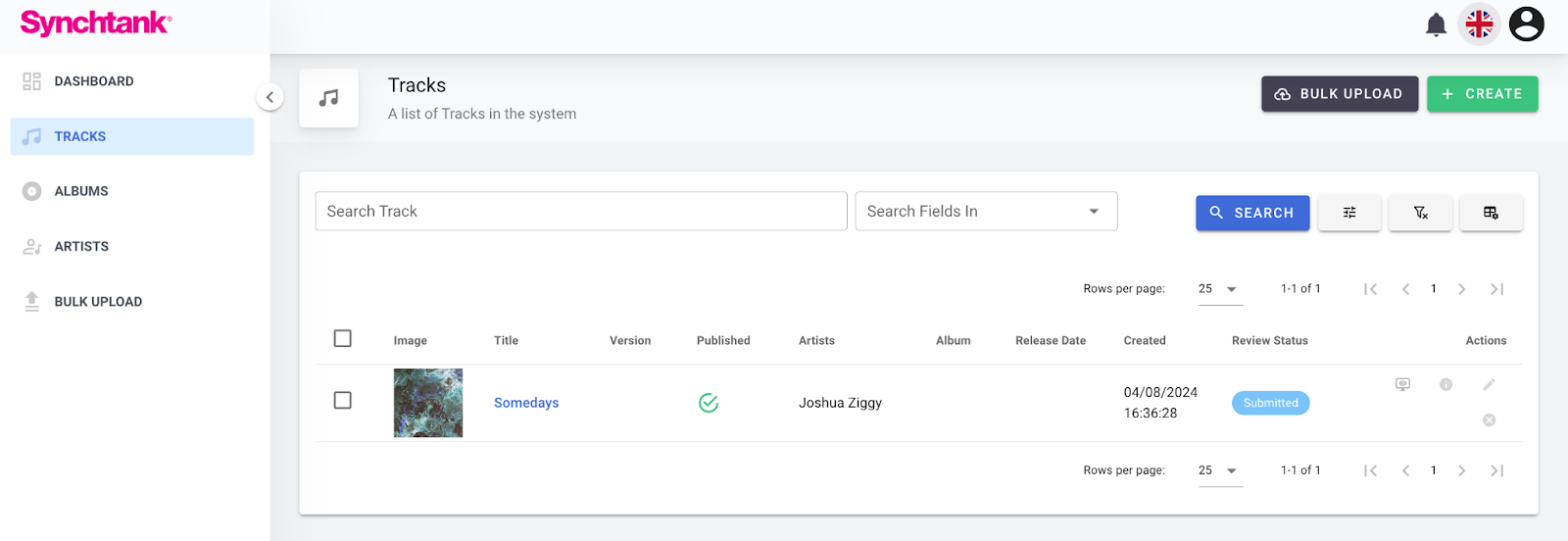
With the list of tracks you will see a status column, which allows you to see the stage your track is in for review to be added to the system. There is different statuses that show which stage the track is at:
- **None:** The track has not been submitted for review
- **Submitted for review:** The track has been sent to the admin for review
- **Approved:** The track is on the system
- **Denied:** The track has been denied (this could mean a few reason, the most common is if the artist hasn’t provided all of the track information)
**Please note:** Only tracks with “Approved” or “Denied” can be edited. Once you edit any of the tracks, approved or otherwise, it will take it back to review stage.
When editing your tracks, you are able to edit the title, add versions, assign to an album, add your ISRC code, release date, and of course the metadata.
Within the Artist Portal you are also able to select multiple tracks and create an album.
### Albums
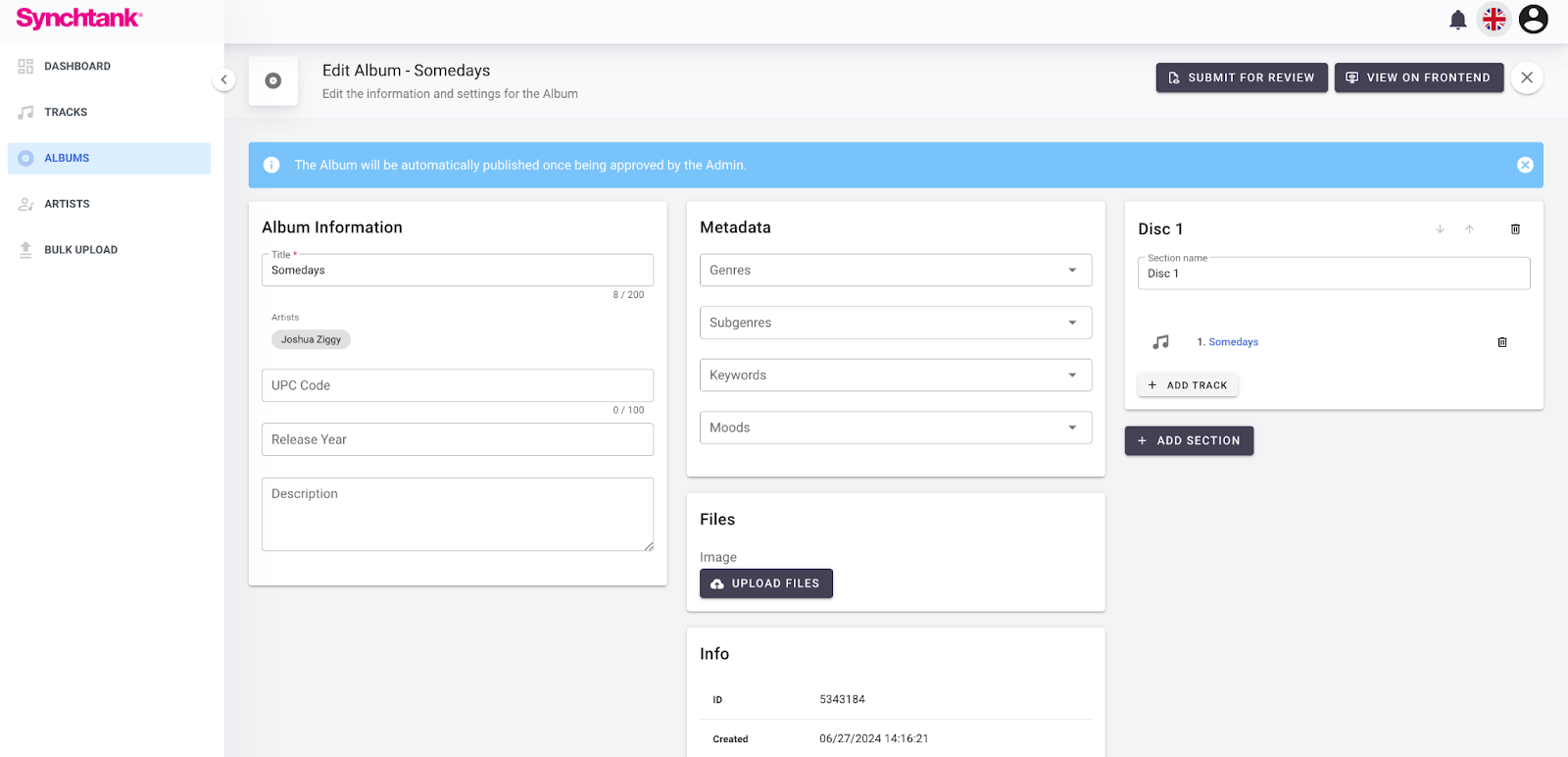
Similar to the tracks section within the albums section you are able to see a list of your albums with their review status (and the review process works in the same way as tracks), and also edit your albums.
### Artists
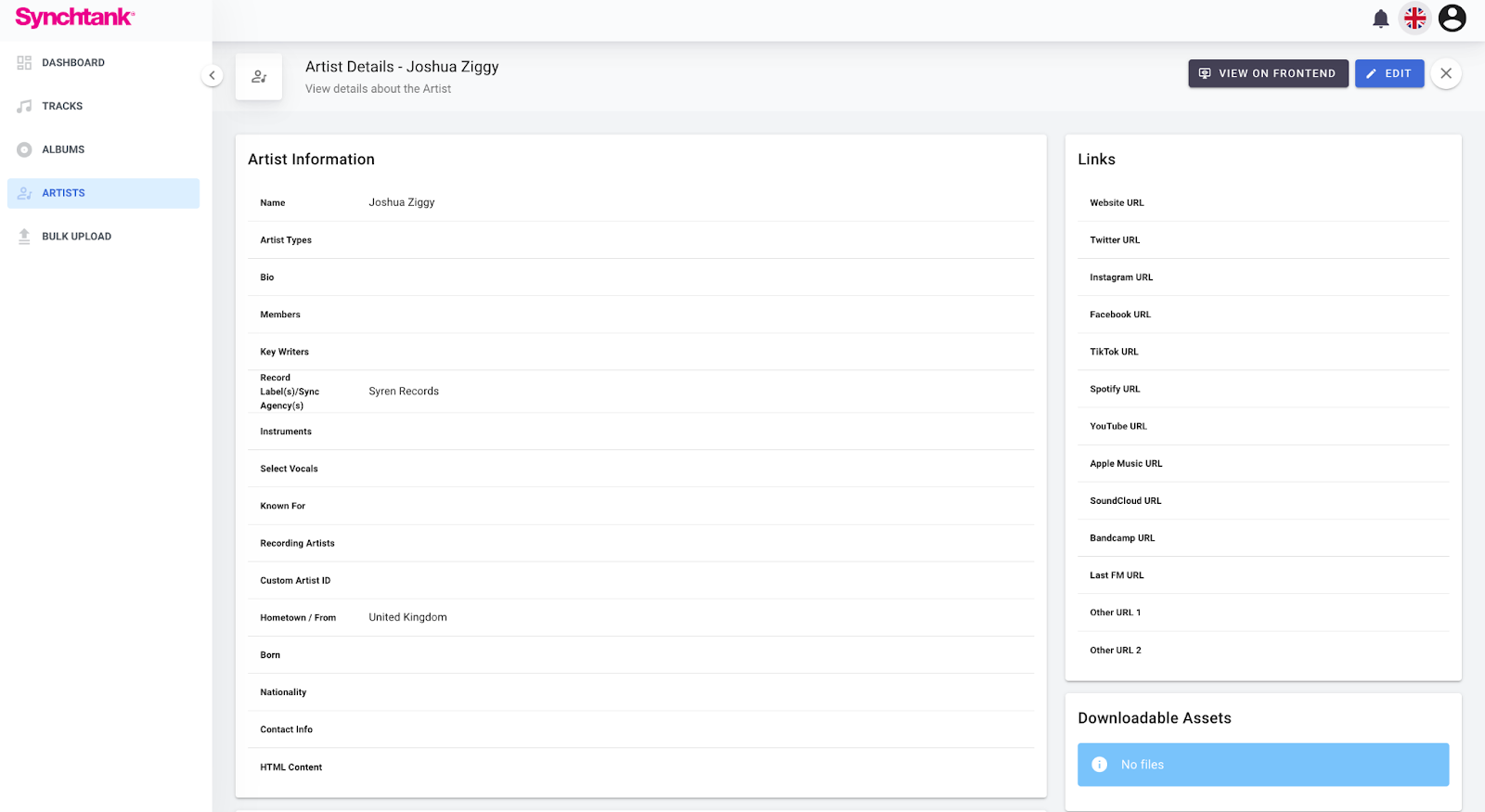
Within the artists section this is where you can see a list of all artists linked to your account and edit the information about them. This includes, bio, hometown, social media and DSP links, photos, videos - everything that will help build out a strong artist profile that can feature on the front-end of the system.
### Bulk Upload
Here is where you can upload a track or multiple tracks to the system, drag/upload them and then edit the information (please note, some systems may require specific information to be included upon upload, so everything with a red star is required when uploading).
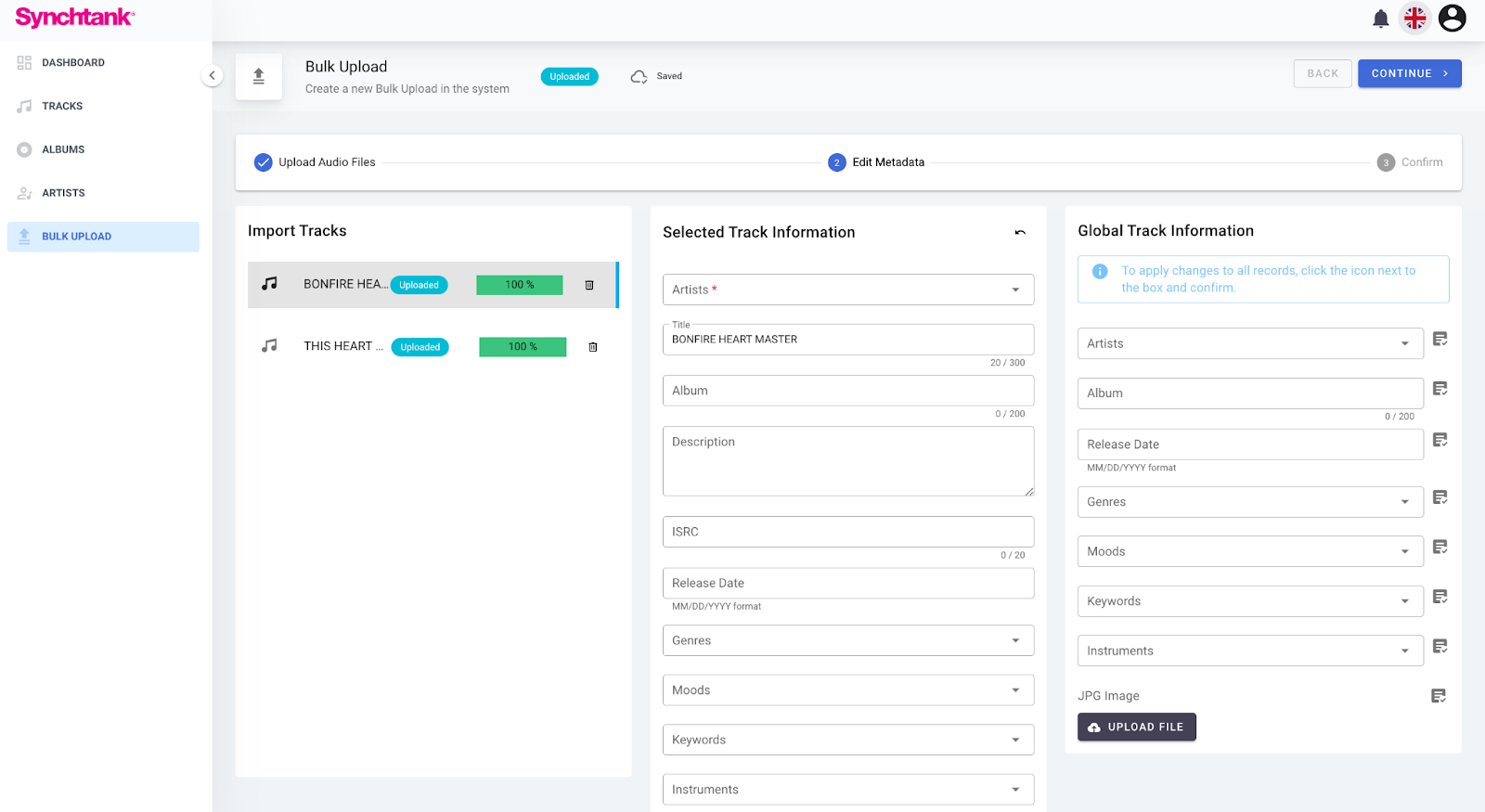
Your upload screen will look something like the above, you will see your tracks on the left hand side then two other columns.
The middle column will allow you to edit the information on the individual track selected from the left hand column.
The right hand column will allow you to edit the information for all tracks within your upload.
- [Ticket Help](https://pages.synchtank.com/support-site/ticket-help?hsLang=en-us#main-content)
- [Ticket Help](https://pages.synchtank.com/support-site/ticket-help?hsLang=en-us#ticket-help)
- [Submit a Ticket](https://pages.synchtank.com/support-site/submit-a-ticket?hsLang=en-us)
- [Customer Portal](https://pages.synchtank.com/support-site/customer-portal?hsLang=en-us)
- [Asset Platform](https://pages.synchtank.com/support-site/asset-platform?hsLang=en-us#main-content)
- [Synchtank Admin/ Back-End](https://pages.synchtank.com/support-site/asset-platform?hsLang=en-us#synchtank-admin-back-end)
- [Front-End](https://pages.synchtank.com/support-site/asset-platform?hsLang=en-us#front-end)
- [Premium Partner Services](https://pages.synchtank.com/support-site/asset-platform?hsLang=en-us#premium-partner-services)
- [FAQs](https://pages.synchtank.com/support-site/faqs?hsLang=en-us#main-content)
- [Front-End FAQs](https://pages.synchtank.com/support-site/faqs?hsLang=en-us#front-end-faqs)
- [Dashboard FAQs](https://pages.synchtank.com/support-site/faqs?hsLang=en-us#dashboard-faqs)
- [Artist FAQs](https://pages.synchtank.com/support-site/faqs?hsLang=en-us#artist-faqs)
- [Masters FAQs](https://pages.synchtank.com/support-site/faqs?hsLang=en-us#masters-faqs)
- [Compositions FAQs](https://pages.synchtank.com/support-site/faqs?hsLang=en-us#compositions-faqs)
- [Albums FAQs](https://pages.synchtank.com/support-site/faqs?hsLang=en-us#albums-faqs)
- [Cue Sheets FAQs](https://pages.synchtank.com/support-site/faqs?hsLang=en-us#cue-sheets-faqs)
- [Productions FAQs](https://pages.synchtank.com/support-site/faqs?hsLang=en-us#productions-faqs)
- [Placements FAQs](https://pages.synchtank.com/support-site/faqs?hsLang=en-us#placements-faqs)
- [Playlists FAQs](https://pages.synchtank.com/support-site/faqs?hsLang=en-us#playlists-faqs)
- [Import Tools FAQs](https://pages.synchtank.com/support-site/faqs?hsLang=en-us#import-tools-faqs)
- [Artist Portal FAQs](https://pages.synchtank.com/support-site/faqs?hsLang=en-us#artist-portal-faqs)
- [Micro-Licensing FAQs](https://pages.synchtank.com/support-site/faqs?hsLang=en-us#micro-licensing-faqs)
- [Metadata FAQs](https://pages.synchtank.com/support-site/faqs?hsLang=en-us#metadata-faqs)
- [Website FAQs](https://pages.synchtank.com/support-site/faqs?hsLang=en-us#website-faqs)
- [Purchasing FAQs](https://pages.synchtank.com/support-site/faqs?hsLang=en-us#purchasing-faqs)
- [Reports FAQs](https://pages.synchtank.com/support-site/faqs?hsLang=en-us#reports-faqs)
- [Delivery FAQs](https://pages.synchtank.com/support-site/faqs?hsLang=en-us#delivery-faqs)
- [Contacts FAQs](https://pages.synchtank.com/support-site/faqs?hsLang=en-us#contacts-faqs)
- [SyncUp FAQs](https://pages.synchtank.com/support-site/faqs?hsLang=en-us#syncup-faqs)
- [Users FAQs](https://pages.synchtank.com/support-site/faqs?hsLang=en-us#users-faqs)
- [Website Settings FAQs](https://pages.synchtank.com/support-site/faqs?hsLang=en-us#website-settings-faqs)
- [Admin Settings FAQS](https://pages.synchtank.com/support-site/faqs?hsLang=en-us#admin-settings-faqs)
- [Royalty Platform (IRIS)](https://pages.synchtank.com/support-site/royalty-platform-iris?hsLang=en-us#main-content)
- [Setup](https://pages.synchtank.com/support-site/royalty-platform-iris?hsLang=en-us#setup)
- [Royalties](https://pages.synchtank.com/support-site/royalty-platform-iris?hsLang=en-us#royalties)
- [Copyright](https://pages.synchtank.com/support-site/royalty-platform-iris?hsLang=en-us#copyright)
- [A&R/Creative Functions](https://pages.synchtank.com/support-site/royalty-platform-iris?hsLang=en-us#ar-creative-functions)
- [Product Updates](https://pages.synchtank.com/support-site/product-updates?hsLang=en-us#main-content)
- [Release Notes](https://pages.synchtank.com/support-site/product-updates?hsLang=en-us#release-notes)
- [What's New in Synchtank](https://pages.synchtank.com/support-site/product-updates?hsLang=en-us#whats-new-in-synchtank)
[](https://www.synchtank.com/)
[mailto:enquiries@synchtank.net](mailto:enquiries@synchtank.net)
Copyright © 2026, Synchtank Ltd.
```json
{
"@context" : "https://schema.org",
"@type" : "VideoObject",
"contentUrl" : "https://26916488.fs1.hubspotusercontent-eu1.net/hubfs/26916488/video_assets/409067294968/inherited/web_optimized.mp4",
"dateModified" : "2026-05-22T08:24:48.816Z",
"duration" : "PT6M36S",
"height" : 1080,
"name" : "For the Artist - Synchtank’s Artist Portal - How To Video",
"thumbnailUrl" : "https://26916488.fs1.hubspotusercontent-eu1.net/hubfs/26916488/For%20the%20Artist%20-%20Synchtank%E2%80%99s%20Artist%20Portal%20%20-%20How%20To%20Video.mp4/medium.jpg",
"uploadDate" : "2026-05-22T08:14:09.585Z",
"width" : 1920
}
```